Editing fixed text lines
In the settings mode you can edit the 2 text lines of the display. Text changes have to be performed
separately for each line respectively. Text line 1 contains 6 digits, line 2 contains 10. Each digit can
display both letters and numbers.
How to change texts:
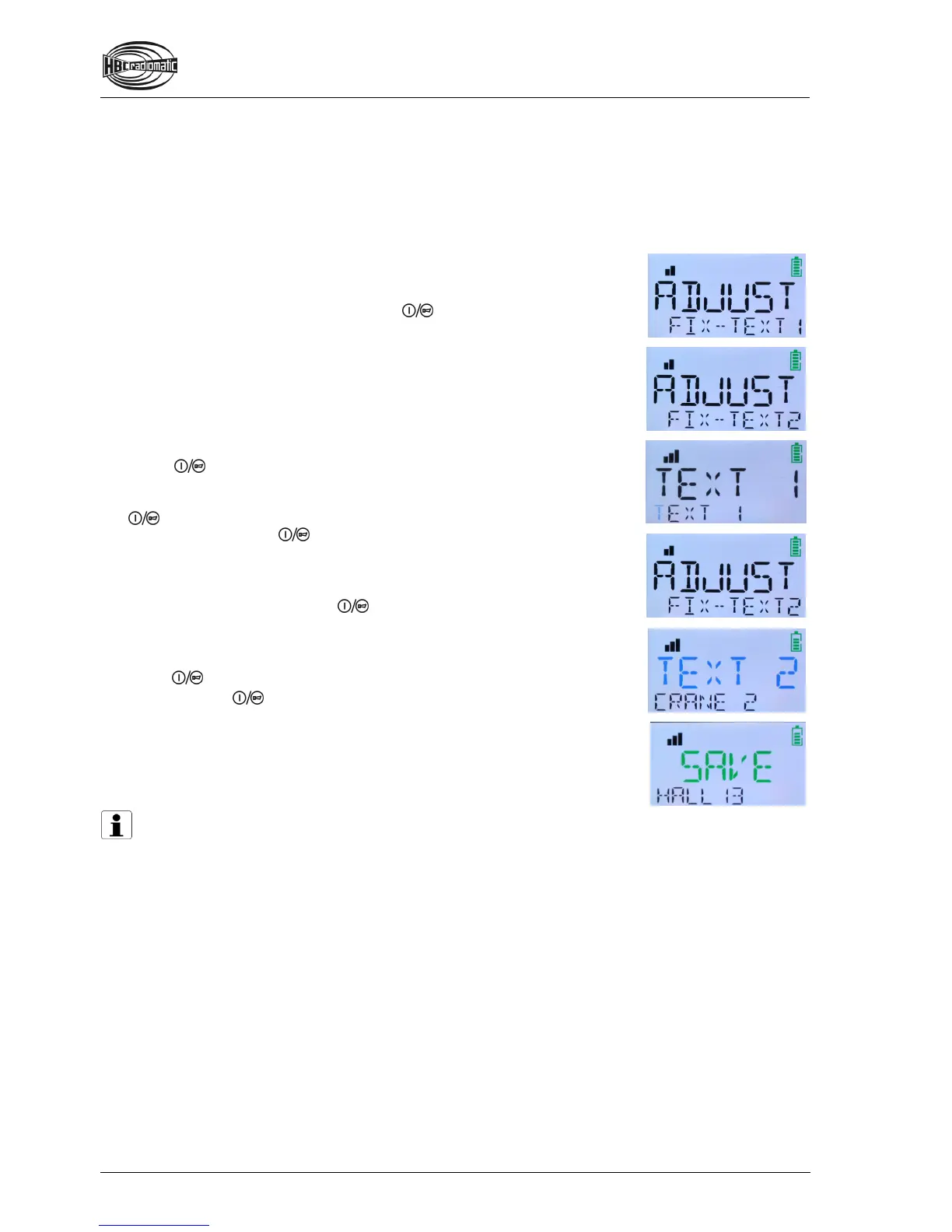
From the selection menu, change to the ADJUSTMENT menu (cf. chapter “Perform settings”).
Browse through the sub-menus BRIGHTNESS, FIX-TEXT 1 and FIX-TEXT
2. In case you wish to edit text line 1 in the display, select the sub-menu
FIX-TEXT 1. If you wish to edit text line 2, select FIX-TEXT 2.
Open the desired sub-menu by pressing
in the second step.
The display now shows the selected text line TEXT 1 or TEXT 2,
depending on which was selected. In the lower line you can see fields with
text, numbers or placeholders . This is the content that
has been displayed in the respective text line until now.
You can now edit each field individually (also fields with spaces) or enter
text or numbers in each empty field. To achieve this, navigate the cursor
with the first button step to the field you wish to change. The cursor’s
position is indicated by a blue flash of the respective field.
Press
in the second step. The selected field flashes green and is
ready for editing.
The selection of the desired letter / number is done by the first step of the
button. Press the first button step until the desired digit appears. To
enter the digit, press
in the second step. The digit selection for this
field is now completed. The next field flashes blue and again indicates the
cursor’s position.
Repeat these steps with all fields you wish to edit.
If you wish to abort, press
in the second step for longer than
2 seconds. The display returns to the selection menu.
When you wish to save your entries, navigate the cursor with the first
button step to the TEXT 1 (or TEXT 2) indication.
Press
in the second step. SAVE is now shown in the display.
To save, press
again in the second step. Your settings are now stored
in the radio system. The display returns to the menu ADJUST
BRIGHTNESS.
If you wish to work with the radio control after successfully saving,
deactivate the transmitter via the STOP switch and reactivate the radio
system with the respective start-up procedure.
Note:
When saving, a bar graph indicates the advance of the saving process. Do not turn off the
transmitter if the saving process is not completed.


 To Next Page