PCAP Multi Touch Screen Display with Dual OS User’s Manual
Page 2
Quick Start Guide (switching between Windows & Android)
When you turn your screen on for the first time you will see an option screen allowing you to
choose which operating system you would like to run; Android or Windows. This page will appear
each time the screen is restarted.
Windows to Android:
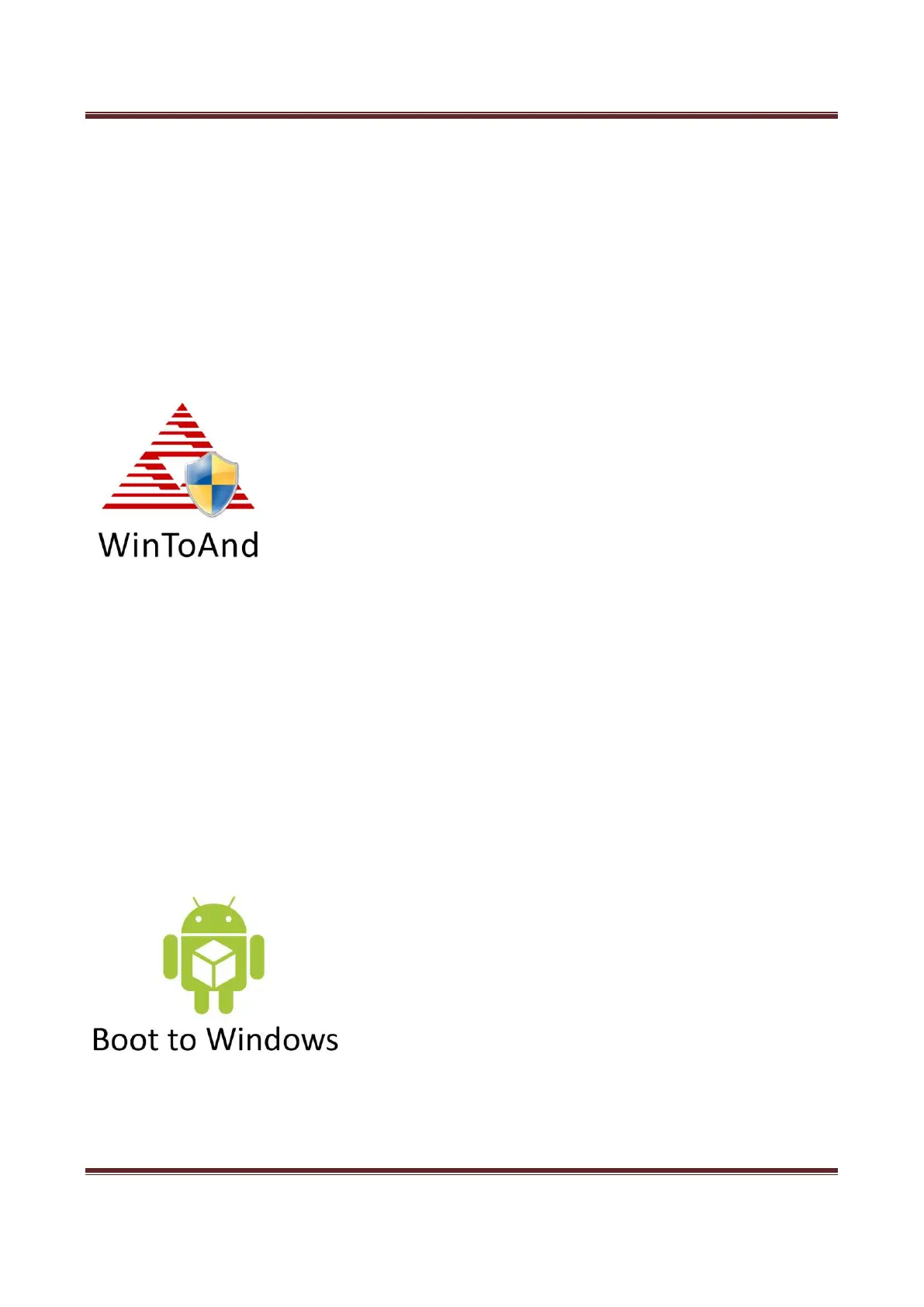
Once you have launched the Windows operating system you will see an icon on the desktop called
“WinToAnd” that looks like this:
Launch this program and when the “User Account Control” box appears select “Yes”. Next click the
“Switch to Android” button, you will then be asked to confirm your selection, click “Yes”. Finally,
you will be greeted by a “Set Variable Success” box, click “OK”.
The screen will now shut down Windows and launch the Android operating system. Please allow a
few minutes for this to occur.
Android to Windows:
Once you have launched the Android operating system you will see an icon on the apps list called
“Boot to Windows” that looks like this:
Launch this app and the screen will shut down Android system and launch the Windows operating
system. Please allow a few minutes for this to occur.


 To Next Page