PCAP Multi Touch Screen Display with Dual OS User’s Manual
Page 18
3.3 Connecting to an external PC/Media Player
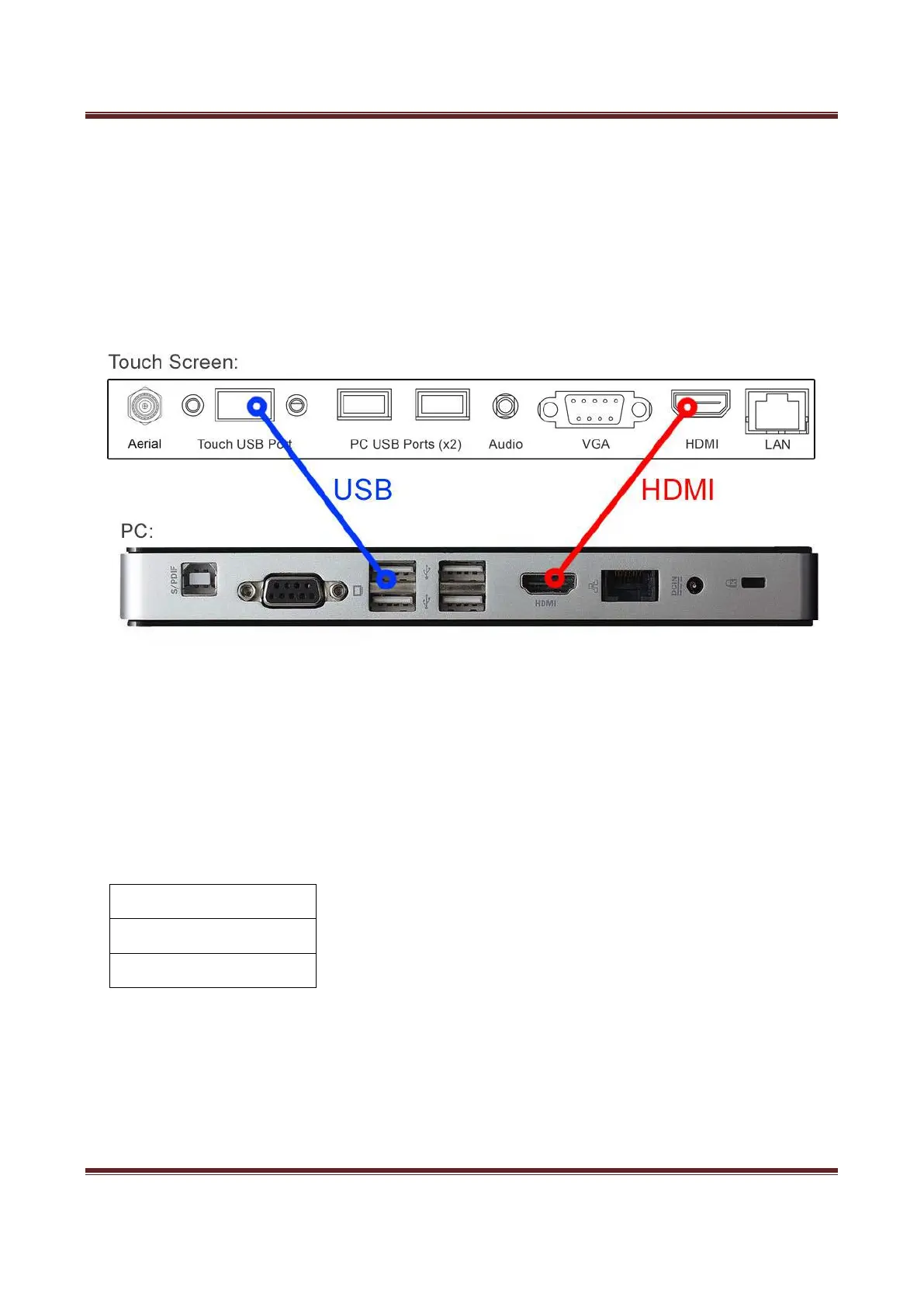
Although the screen has a built in PC you can also connect it to an external source. The touch
screen must be connected to the PC in two ways: visually and interactively. The recommended
visual connection is via the HDMI Cable meaning that the display acts like a monitor for the PC. The
touch function is achieved by linking the touch sensors in the screen to the PC via the USB Cable
(included).
Figure 5 Screen to PC Connections
Connect the screen to the PC via HDMI cable and USB cables (as shown above). Once these
connections have been made and the PC powered ON take the power lead and insert it into the
screen and connect to mains outlet. The unit will power ON automatically. Before taking any more
steps ensure that the screen is sourcing its display from the PC. This is done by first pressing
“SOURCE” on your remote and then scrolling down to the desired input source (HDMI) and select
by pressing “PLAY”.
IMPORTANT: If the Touch Screen is the only monitor connected to your PC NO NOT take the
following step. Only proceed with the following if you are using a laptop or another monitor is
connected to your PC.
Access the display options from your Control Panel or right-click on your Desktop and choose


 To Next Page