RocketRAID 174x Driver and Software Installation
To rescan the devices:
1) Select menu “Manage | Device”.
2) Click “Rescan Devices” button.
Note: When you are hot-plugging an entire array, run rescan only after all array
members (hard disks) have been physically plugged or unplugged from the system.
You can rescan all the devices at once using the Rescan function on the Array
Management page.
5 Configuring Spare Disks
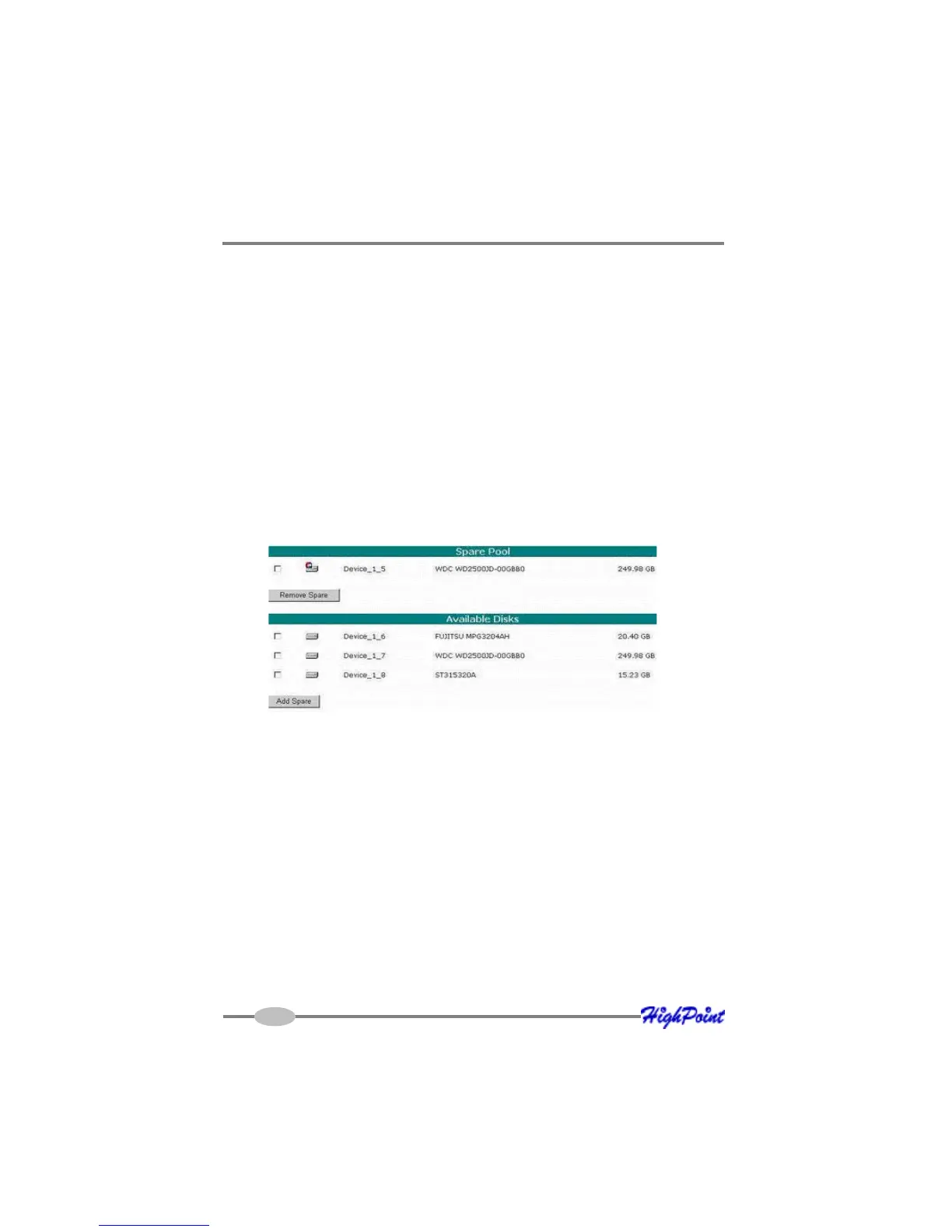
To configure spare disks attached to the RocketRAID card, select the”Manage |
Spare” function. The Spare Pool Management page will be displayed.
Adding a Spare Disk
To add a spare disk, select a disk from the Available Disks list and click Add Spare
button. This will add the disk to the Spare Pool list.
Removing a Spare Disk
To remove a spare disk, select it from the Spare Pool list and click the Remove Spare
button. This will remove the disk from the Spare Pool list.
4-12


 To Next Page