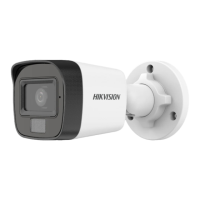
ECI-T24Fx Quick Start Guide
QSG ECI-T24Fx 041018NA 14
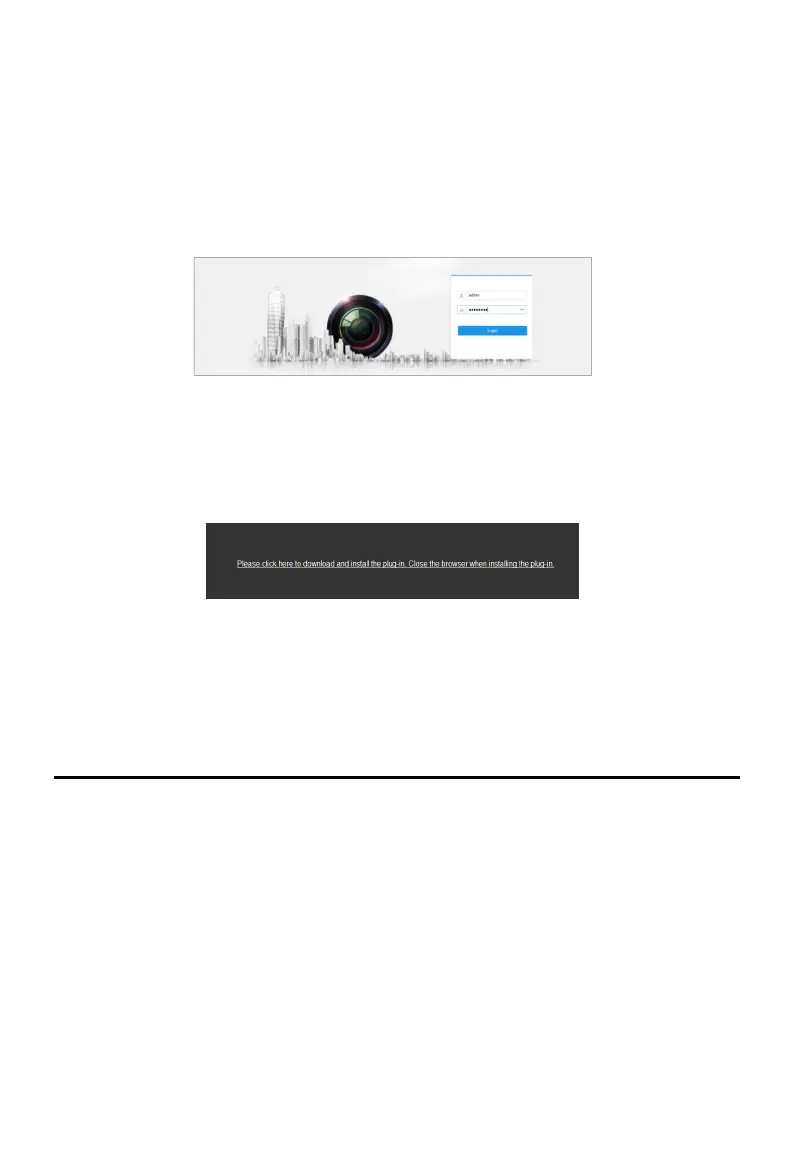
3. Input the user name and password.
The admin user should configure the device accounts and user/operator permissions
properly. Delete the unnecessary accounts and user/operator permissions.
Note:
The device IP address gets locked if the admin user performs 7 failed password attempts (5
attempts for the user/operator).
4. Click Login.
Login Interface
Figure 4-1
5. Install the plug-in before viewing the live video and managing the camera. Follow the
installation prompts to install the plug-in.
Note:
You may have to close the web browser to complete plug-in installation.
Download Plug-in
Figure 4-2
6. Reopen the Web browser after plug-in installation and repeat steps 2 to 4 in order to
login.
Note:
For further configuration instructions, please refer to the network camera user manual.
5 Hik-Connect
Purpose:
Hik-Connect is a mobile application to view live camera images, receive alarm notifications,
etc.
Enable Hik-Connect for Use with Cameras
5.1
Purpose:
Enable Hik-Connect should on your camera before using the service.
You can enable the service either via SADP software or a Web browser.
Enable Hik-Connect Service via SADP Software
5.2
Steps:
1. Check the Enable Hik-Connect checkbox:



 To Next Page
 Loading...