EasyManua.ls Logo

HIS HIS-ML23 Series - User Manual

HIS HIS-ML23 Series
32 pages
Print Icon
To Next Page IconTo Next Page
Loading...
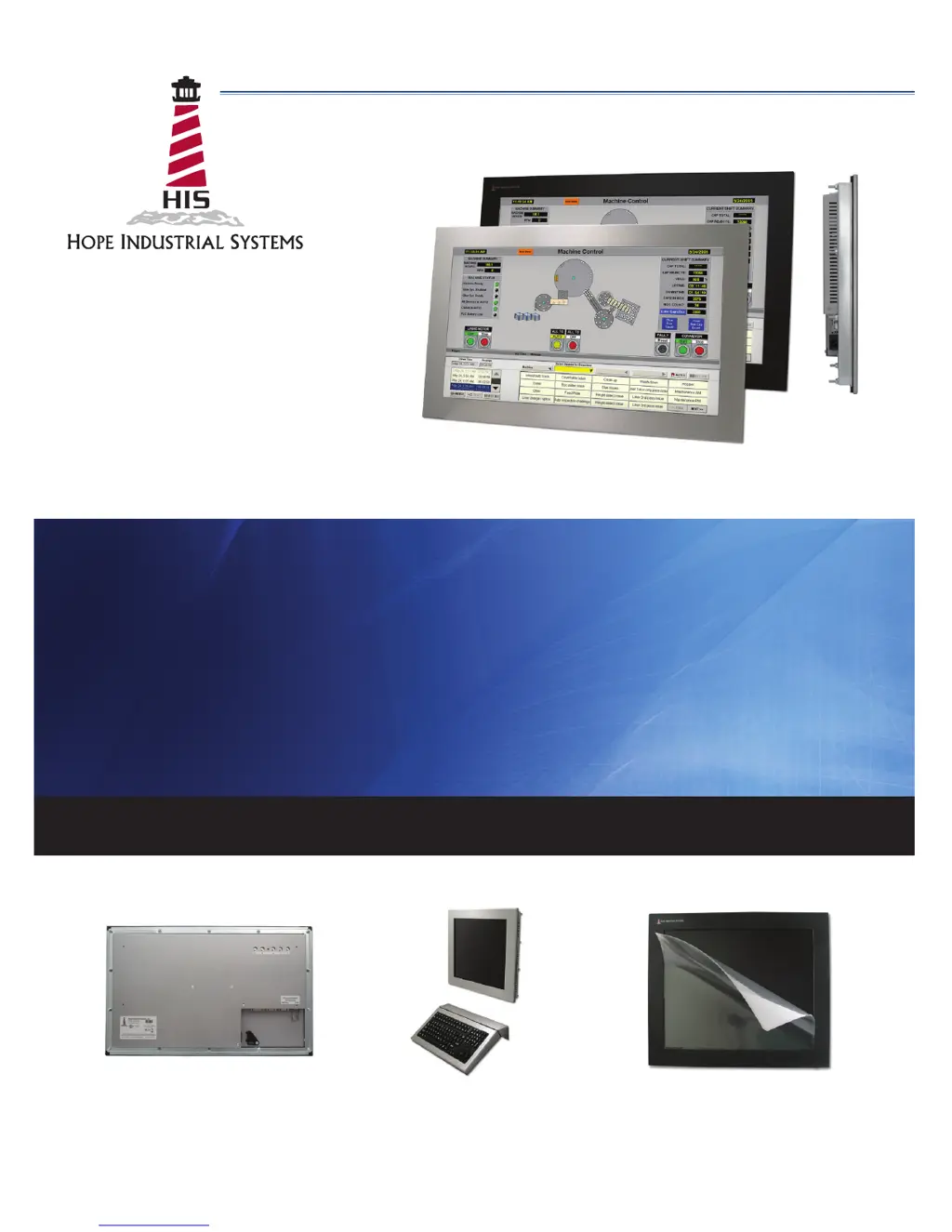
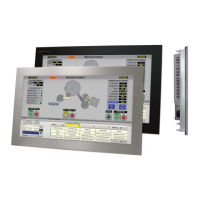
23" PANEL MOUNT INDUSTRIAL MONITOR
USER MANUAL
Model No. HIS-ML23- _ _ _ B
REVISION B

Questions and Answers

  • R
    Robert GardnerAug 17, 2025
    What to do if there is no image on the HIS Industrial Monitor and the control's Power Indicator light is lit orange?
    • G
      Glenn MezaAug 17, 2025
      If there's no image on the screen and the power indicator light is orange, it could be due to several reasons: * The video cable might not be properly connected. Ensure the video cable is securely connected to the monitor, PC, and/or KVM extender. * The PC might be in Power Saving mode. Try moving the mouse to exit this mode. * The PC might not be powered on. Make sure the PC is turned on. * The PC might not be sending a signal. Connect the PC to another working monitor to check the PC source signal.
  • J
    John HillAug 20, 2025
    What to do if there is no image on the HIS Industrial Monitor screen and the control's Power Indicator light is not lit?
    • T
      Tracey RossAug 20, 2025
      If there's no image and the power indicator light isn't lit, the issue may be: * The monitor isn't powered on. Press the power button and ensure the power indicator light turns blue. Also, check the power connections at both the monitor and the power source. For DC models, verify the connector polarity and ensure the input voltage is within 9.6 to 36.6 VDC. * The "Auto Power Off" function is enabled. Disable this setting by unchecking the box for the "Auto Power Off" function in the OSD's "Setup" menu.
  • G
    georgemedinaAug 22, 2025
    What to do if the HIS Industrial Monitor displays a "No Signal" message box and there is no image on the screen?
    • J
      John MorganAug 22, 2025
      If you see a "No Signal" message, consider the following: * The video cable might be improperly connected. Check the video cable connection at the monitor, PC, and/or KVM extender. * The PC could be in Power Saving mode. Try moving the mouse to exit Power Saving mode. * The PC might not be powered on. Ensure the PC is turned on. * The PC might not be sending a signal. Connect the PC to another working monitor to check the PC source signal.
  • D
    Deborah RussellAug 26, 2025
    Why is the screen image dim on my HIS Industrial Monitor?
    • A
      Aaron GonzalezAug 26, 2025
      A dim screen image is often due to brightness and/or contrast settings that are not properly configured. Adjust the monitor's brightness and contrast settings in the OSD's "Contrast / Brightness" menu.
  • P
    Phyllis HarmonAug 28, 2025
    How to fix the "Out of Range" message on my HIS Industrial Monitor?
    • S
      Samantha SmithAug 28, 2025
      The "Out of Range" message indicates that the source signal exceeds what the monitor can handle. Adjust the computer settings to the monitor's native resolution: 1920 x 1080 @ 60 Hz.
  • C
    Christopher FaulknerAug 30, 2025
    How do I fix incorrectly displayed or partial image on the screen of my HIS Industrial Monitor?
    • S
      Shannon ThomasAug 31, 2025
      An incorrectly displayed or partial image suggests the monitor hasn't been correctly adjusted for the source signal. You can: * Activate the "Auto Image Adjust" function in the OSD menu. * Fine tune the picture by manually adjusting the image in the "Manual Image Adjust" menu of the OSD.
  • D
    Diane JonesSep 2, 2025
    How to resolve wrong or abnormal colors on my HIS Industrial Monitor?
    • H
      hstephensonSep 2, 2025
      If you're seeing wrong or abnormal colors (where white isn't white), it could be due to: * Incorrectly adjusted monitor color settings. Try resetting the monitor to the factory default settings by activating the "Memory Recall" function in the OSD. * A video cable that is not securely connected. If any colors (red, green, or blue) are missing, check the video cable to ensure it is securely connected. * A bad video cable. Check for loose or broken pins in the cable connector, as shorts in the cable could cause an improper image to display.
  • B
    bpaulSep 5, 2025
    What to do if the message "OSD Locked" appears on my HIS Industrial Monitor?
    • T
      Tracy AllenSep 5, 2025
      If the message "OSD Locked" appears, it means the OSD has been locked to prevent unauthorized changes. Press and hold [1] and the up [?] button for 10 seconds to unlock it.
  • D
    Dana WhitakerSep 8, 2025
    What to do if the message "Power Button Locked" appears on my HIS Industrial Monitor?
    • J
      Joshua ParsonsSep 8, 2025
      If the message "Power Button Locked" appears, it means the power button has been locked to prevent unauthorized shut down of the monitor. Press and hold [1] and the down [?] button for 10 seconds.
  • R
    Robert CarterSep 12, 2025
    What to do if the cursor moves but does not follow my finger when touching the touch screen of my HIS Industrial Monitor?
    • J
      Joshua MathisSep 12, 2025
      If the cursor doesn't follow your finger on the touch screen: * The touch screen driver may not be installed. Download and install the latest driver from the Hope Industrial website. * The touch screen may not be calibrated. Activate the calibration utility. In Windows systems, these settings may be found at the following location: Control Panel > Elo Touchscreen > "General" Tab. Press the Align button. Touch all targets as they appear to calibrate the touch screen. Press the Green Check button when verified.

Summary

Safety and Regulatory Information

FCC Notice

Details compliance with FCC rules for digital devices and potential interference.

Hazardous Locations

Specifies suitability for use in hazardous locations and associated warnings.

Waste Electrical and Electronic Equipment Directive (WEEE)

Provides information for EU member states regarding WEEE disposal.

Mechanical Drawings

Front and Side Views

Illustrates the front and side dimensions and features of the monitor.

Bottom View

Shows the bottom view dimensions and connection ports of the monitor.

Installation Instructions

Prepare for Installation

Outlines essential steps before installing the monitor into a panel.

Bench-test Configuration

Emphasizes testing before final installation and connecting cables.

Video Connection

Explains connecting digital (DVI) and analog (VGA) video sources.

Power Connection

Details AC and DC power input requirements and connections.

Install Touch Screen Driver

Provides instructions for installing touch screen drivers for Windows systems.

USB Connection

Guides on installing the touch screen driver via USB.

Serial (RS-232) Connection

Guides on installing the touch screen driver via Serial connection.

Calibrate the Touch Screen

Explains the process of calibrating the touch screen after driver installation.

Install into Panel

Panel Cutout Dimensions

Provides the specific dimensions required for the panel cutout.

Mounting Procedure

Details the steps for mounting the monitor into the panel and securing it.

Video Settings

Setting the Timing Mode

Explains how to set the resolution and refresh rate for optimal image quality.

Control Panel Buttons

Describes the function of each button on the monitor's control panel.

OSD and Power Lock Settings

Details how to lock/unlock OSD and power buttons for enhanced control.

On-Screen Display (OSD) Menus

Auto Image Adjust Menu

Automatically sizes, centers, and fine tunes video signal to eliminate waviness and distortion.

Contrast; Brightness Menu

Includes functions for adjusting contrast and brightness of the display.

Input Select Menu

Allows toggling between different video input sources (D-Sub, DVI).

Color Adjust Menu

Provides preset color modes and user-adjustable color settings (R, G, B).

Information Menu

Displays the current timing mode, resolution, and refresh rate of the video signal.

Manual Image Adjust Menu

Allows manual adjustment of H/V Position, Size, Fine Tune, Sharpness, etc.

Setup Menu

Contains settings for language, OSD position, time out, background, and power options.

Memory Recall Menu

Returns all display adjustments to their factory default settings.

Cleaning Instructions

Cleaning Precautions

Advises against abrasive materials and recommends soft cloths for cleaning.

Troubleshooting

Video Troubleshooting

Provides solutions for common video-related issues like no image or dim screen.

Image Display Issues

Addresses problems like 'Out of Range', 'No Signal', incorrect display, and color issues.

Touch Screen Troubleshooting

Touch Screen Response Issues

Covers troubleshooting for non-responsive touch screens and driver installation.

Specifications

Display Specifications

Details the physical and visual characteristics of the monitor display.

Environmental Specifications

Outlines operating and storage conditions like temperature, humidity, and shock.

Video Specifications

Lists input connectors, signal formats, scan rates, and supported video standards.

Electrical Specifications

Covers power input voltage, current, and consumption details.

Functional Specifications

Describes control panel buttons, OSD menus, and touch screen options.

Physical Specifications

Details enclosure type, panel rating, dimensions, and weight.

Compliances and Certifications

Electrical Compliance

Lists electrical safety certifications like UL, FCC, CE.

Environmental Compliance

Mentions IEC reliability standards and WEEE directive compliance.

Enclosure Compliance

Refers to enclosure standards like UL 50E.

Hazardous Location Compliance

Details UL ratings for hazardous locations for specific model numbers.

Warranty Statement

Warranty Coverage

Defines who is covered and what the warranty period is for the product.

Obtaining Warranty Service

Explains the process for getting repairs or replacements under warranty.

Warranty Exclusions

Lists conditions and damages not covered by the product warranty.

HIS HIS-ML23 Series Specifications

General IconGeneral
Panel TypeIPS
Brightness250 cd/m²
Contrast Ratio1000:1
Response Time5ms
Power Consumption25W (typical)
VESA Mount100 x 100 mm
Display Size23 inches
Resolution1920 x 1080
Viewing Angle178° (H) / 178° (V)
Input ConnectorsVGA, HDMI
Operating Temperature0°C ~ 50°C
Storage Temperature-20°C to 60°C

Related product manuals