5
Adjusting the Screen Image
Use the buttons on the rear control panel to display and adjust the On-Screen Display (OSD) con-
trols which display on the screen. Do the following to adjust the screen image:
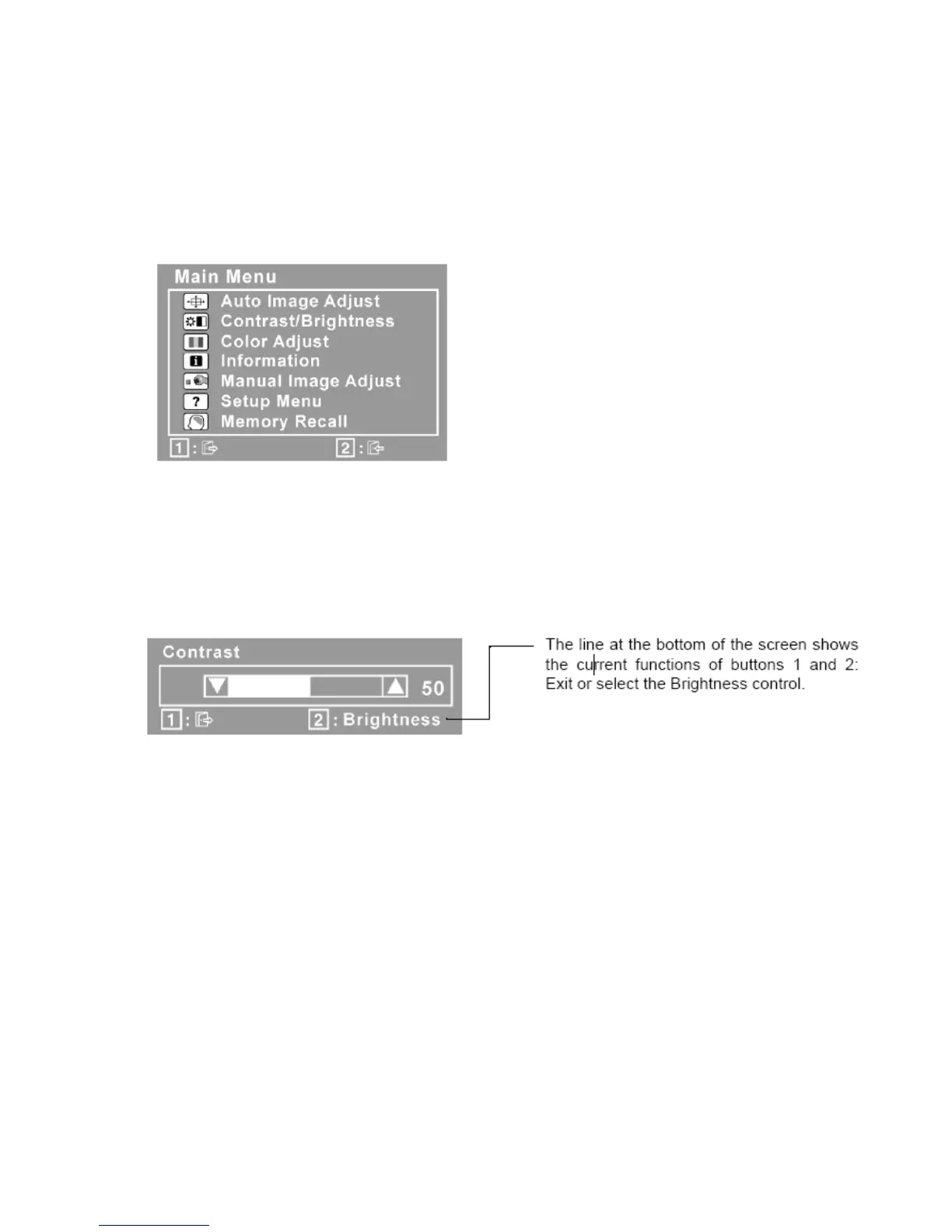
1. To display the Main Menu, press button [1].
NOTE: All OSD menus and adjustment screens disappear automatically after about 15
seconds. This is adjustable through the OSD timeout setting in the Setup Menu
2. To select a control you want to adjust, press ▲ or ▼ to scroll up or down the Main Menu.
3. After the control is selected, press button [2]. A control screen like the one shown below
appears.
4. To adjust the control, press the up ▲ or ▼ buttons.
5. To save the adjustments and exit the menu, press button [1] twice
The following tips may help you optimize your display:
o Adjust your computer's graphic card so that it outputs a video signal 1280 x 1024 @ 60 Hz
to the LCD display. (Look for instructions on "changing the refresh rate" in your graphic
card's user guide.)
o If necessary, make small adjustments using H POSITION and V POSITION until the screen
image is completely visible. (The black border around the edge of the screen should barely
touch the illuminated "active area" of the LCD display.)


 To Next Page