11
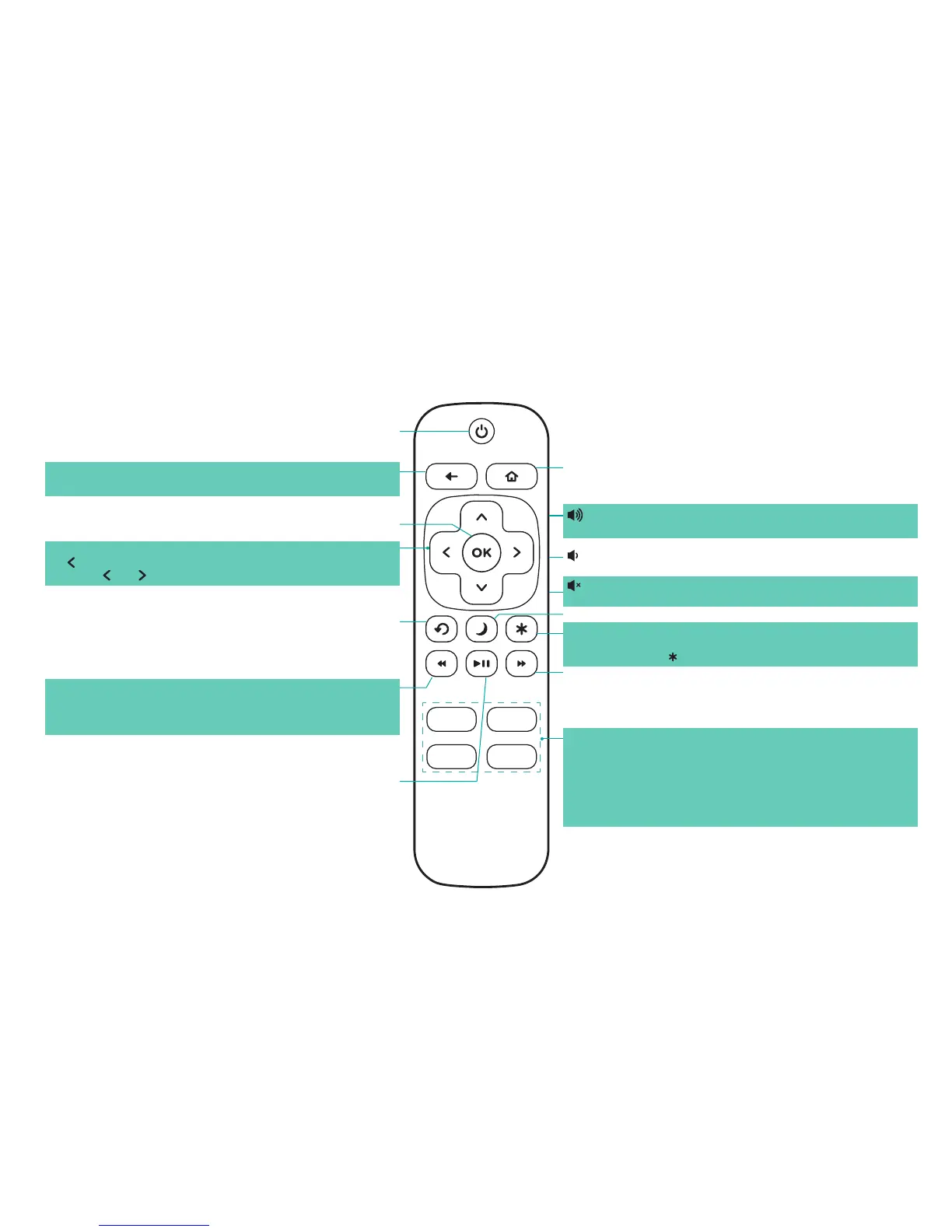
Buttons on your TV remote
The TV remote should feel right at home in your hand. We designed it to be incredibly intuitive for watching TV and navigating on-
screen menus.
Disclaimer: Remotes may vary.
POWER
Turns your TV on or off
BACK
Returns to the previous screen
HOME
Displays your TV's Home screen / Stops playback if you are
watching TV or streaming content
VIEW MORE OPTIONS
Gives you easy access to picture settings, display options,
and more / Press on any screen to access options
FAST FORWARD
Fast forwards streaming video, jumps to the next audio track
or selection, jumps down one page in menus / This button is
also used to fast forward paused live TV using Live TV Pause
VOLUME UP (Side view)
Increases the volume or un-mutes the sound
VOLUME DOWN (Side view)
Decreases the volume
MUTE (Side view)
Mutes or un-mutes the sound
SLEEP
Sets the sleep timer
CHANNEL RECALL/JUMP BACK AND INSTANT REPLAY
Changes to the previous channel when viewing antenna
or cable (no set-top box) programming / Jumps back
one position in video when viewing streaming content /
Backspaces one letter during menu entries, such as Search
REWIND
Rewind streaming video, jumps to the previous audio track or
selection, jumps up one page in menus / This button is also
used to rewind paused live TV using Live TV Pause
PLAY/PAUSE
Pauses or resumes playback / This button is also used to
activate and use the Live TV Pause feature when a 16 GB
USB drive is attached to the TV
STREAMING CHANNELS SHORTCUTS
When you press a button:
•Ifyouhavenotaddedthechannel,displaysasignuppage
•Ifyouhaveaddedthechannel,displaysthechannel'shome
page
•IfyourTVisoff,turnsonyourTVanddisplaysthechannel’s
home page
DIRECTIONAL KEYPAD
will bring up the antenna TV channel list or Smart Guide
and are used in Live TV Pause to select scenes
OK
Select an option from a menu



 To Next Page