Need help?
Do you have a question about the Hisense 32H4D and is the answer not in the manual?
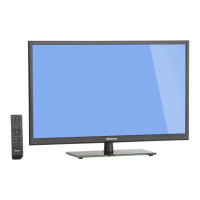
Lists all items included in the TV package for user reference.
Specifies external tools and devices needed for TV installation and connection.
Detailed steps for attaching the two legs to form the TV stand.
Guidance on mounting the TV using a VESA-compatible wall bracket.
Information on using a cable or satellite remote as a universal remote for the TV.
Details accessing a large library of movies and TV episodes via streaming services.
Information on accessing numerous sports channels for live viewing.
Highlights free channels and opportunities for free trials of subscription services.
Showcases diverse streaming channels catering to various interests and hobbies.
Lists receiving channels, tuner type, and signal system specifications.
Outlines additional features like parental controls, sleep timer, and wireless capabilities.
Provides fixes for issues related to audio and video playback on the TV.
Solutions for problems encountered when connecting the TV to a wireless network.
Troubleshooting steps for when the TV remote control is unresponsive.
Information regarding FCC compliance, interference, and user responsibilities.
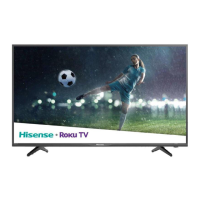
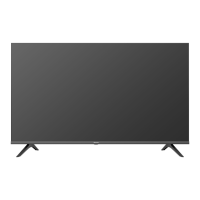
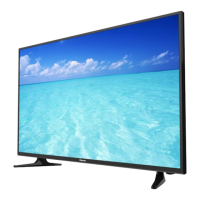
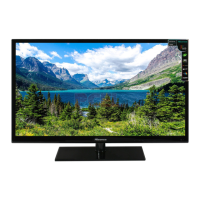
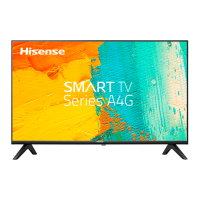
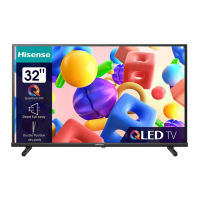
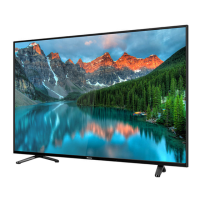
This document describes the Hisense Roku TV H4 Series, an entertainment device designed for easy access to a vast array of content. The TV integrates the Roku operating system, providing a user-friendly interface for streaming movies, TV shows, and various other forms of entertainment.
The Hisense Roku TV H4 Series serves as a central hub for home entertainment. Its primary function is to display visual content from multiple sources, including broadcast television, external devices, and a wide range of streaming services. The integrated Roku platform allows users to access over 450,000 movies and TV episodes from major streaming services like Netflix, Hulu, Amazon Video, and VUDU. Beyond movies and TV shows, the TV offers access to over 140 sports channels, including WatchESPN, FOX Sports Go, NBA, NFL, MLB, WWE, and CBS Sports, catering to diverse interests. Additionally, it provides hundreds of popular free channels such as Crackle, CBS News, PBS, and VEVO, along with free trials for subscription services like HBO NOW and SHOWTIME. The TV also supports browsing photos, music, and movies from USB devices, although it specifically recognizes USB Memory Sticks for this purpose.
The Hisense Roku TV is designed for ease of use, emphasizing a simple and intuitive interface. Upon initial setup, users are guided through connecting the TV to their home wireless network and activating their Roku account. The TV automatically detects wireless networks in the area, and users simply need to provide their network name and password. While a valid credit card number is not strictly required to create a Roku account, providing one facilitates renting and purchasing entertainment from the Roku Channel Store. If a wireless network connection is not immediately available, the TV can still be used to view live broadcast channels through an antenna, Set Top Box (STB), or Satellite.
A key feature of the Roku TV is its automatic software updates. Once connected to the Internet, the TV continuously receives regular software updates in the background, ensuring users always have the latest features and a better experience without manual intervention.
The Home screen is the central navigation point, offering access to streaming entertainment, search functions for movies and TV shows, and various settings. The right side of the Home screen features a grid of tiles, allowing users to visually select their favorite streaming channels and inputs for attached devices such as DVRs, game consoles, antennas, or set-top boxes. Users can personalize their Home screen by easily rearranging the order of these tiles to suit their viewing preferences. This is done by highlighting the desired tile and pressing the "*" button on the Roku TV remote.
The remote control itself is designed to be intuitive. It includes standard buttons for power, back, OK, and directional navigation. Specific buttons are dedicated to channel recall/instant replay, rewind, play/pause, fast forward, and direct access to popular streaming channels. A "VIEW MORE OPTIONS" button provides quick access to picture settings, display options, and other settings. The remote also features volume up/down and mute buttons, conveniently located for easy access.
Connecting external devices to the TV is straightforward. The TV provides various ports, including ANT/CABLE for outdoor or indoor antennas, HDMI for High Definition Multimedia Interface devices, AV IN for composite video and left-right audio cables from external AV devices, DIGITAL AUDIO OUT for external digital audio systems, AUDIO OUT for headphones or external analog audio systems via an adapter, and USB for browsing media from USB Memory Sticks. The manual emphasizes the importance of secure connections to maintain picture quality.
The manual provides essential maintenance tips, primarily focused on troubleshooting common issues and proper handling of the remote control batteries.
For general TV issues, the first recommendation is to turn the TV off and on again. If this doesn't resolve the problem, a troubleshooting guide offers solutions for sound or picture issues, connectivity problems, and remote control unresponsiveness. For instance, if there's no picture, users are advised to check if the LED light is on, if the TV is in Standby mode, and if the power cord is securely plugged into an active electrical outlet. For external source issues, users should ensure the device is turned on, the correct input tile is selected on the Home screen, and connections are snug. Delays in picture appearance upon turning on the TV are noted as normal, as the TV initializes and searches for previous settings.
Sound issues, such as no sound or distorted sound, are addressed by checking the volume level, ensuring "Mute" mode is off, and verifying color settings if the picture is faded or black and white. If the picture or sound is distorted or wavy, users are advised to turn off or remove any nearby electrical appliances and try a different power outlet.
Connectivity issues with wireless networks are covered by ensuring the correct network name and password are entered, checking for SSID broadcasting, and adjusting the TV or wireless router's position to improve signal strength.
Remote control maintenance primarily involves battery care. Users are cautioned to dispose of batteries in designated areas, not to throw them into fire, and to remove old batteries immediately to prevent leakage. If the remote will not be used for an extended period, batteries should be removed. In case of battery leakage, the compartment should be cleaned, and any skin contact with chemicals should be washed immediately. Mixing old and new batteries, or different types of batteries (alkaline, carbon-zinc, NiCd, NiMH), is discouraged. If the remote becomes warm or hot during use, users are instructed to discontinue use and contact customer support.
The manual also provides guidance for using a cable set-top box or satellite receiver remote as a 'Universal' remote, directing users to their service provider's manual for programming instructions and offering a website for compatible codes.
 General
| Screen Size | 32 inches |
|---|---|
| Resolution | 1366 x 768 |
| Display Type | LED |
| Smart TV | Yes |
| HDMI Ports | 2 |
| USB Ports | 1 |
| Refresh Rate | 60 Hz |
| Built-in Wi-Fi | Yes |

 To Next Page