7
Making connections
Make sure that you only use the type of power source indicated on the
marking label.
Always unplug the power cord when not using the TV for a long
period of time.
Selecting a location
You should select a location for the TV:
Where direct light does
That has indirect and soft lighting
Where the TV has access to an antenna or cable TV connection
Where the TV has access to a power outlet
Note:
may cause eye strain.
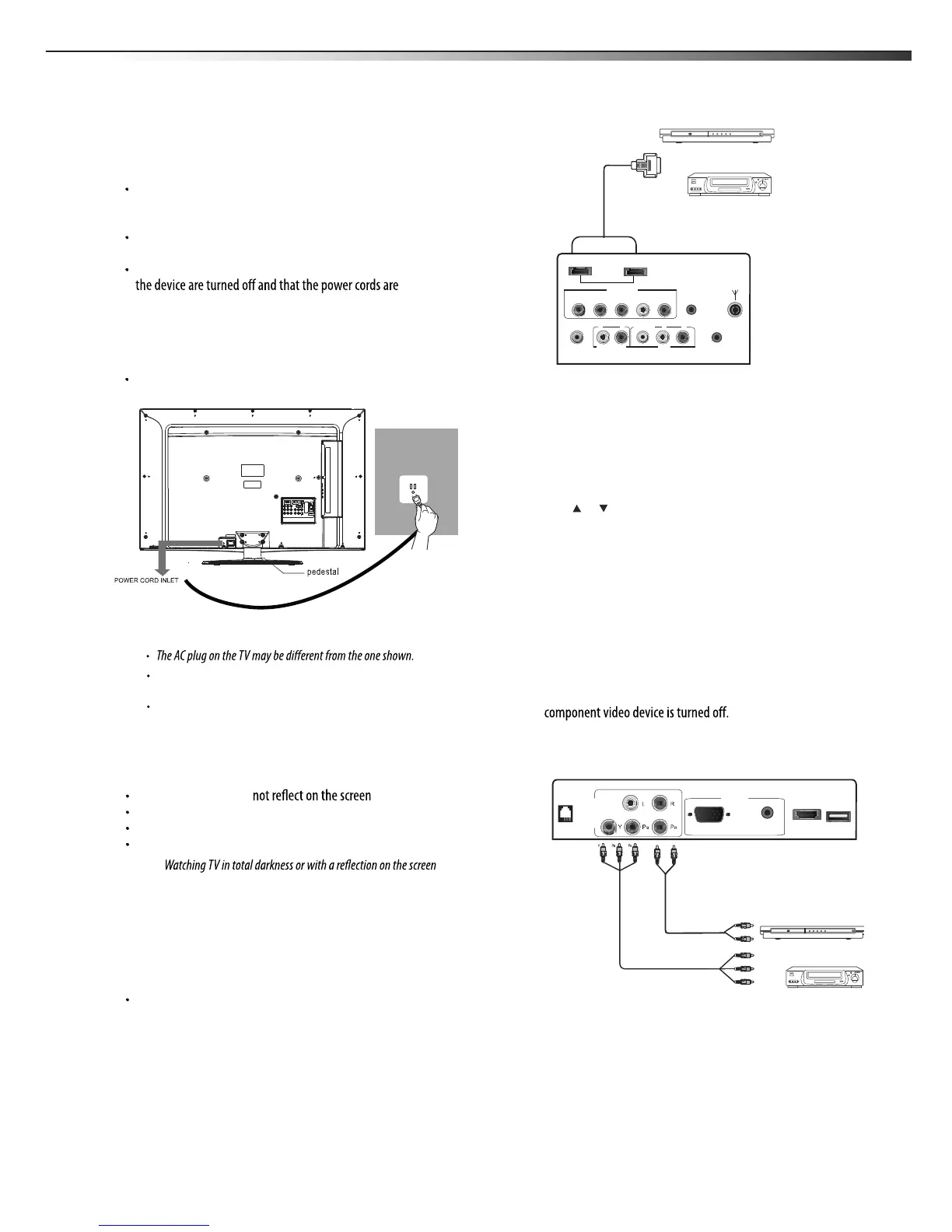
Connecting an HDMI device
Note: If your device has an HDMI connection, we recommend you use it to
get the best picture and sound quality possible.
To connect an HDMI device:
Connect one end of an HDMI cable (not included) to the HDMI 1
or HDMI 2 jack on the back of your TV, then connect the other end
of the cable to the HDMI OUT jack on the HDMI device.
Note: To connect a DVI device, use a DVI to HDMI adapter cable to connect
to the HDMI jack on the TV, then connect an audio cable to the
PC AUDIO jack on the back of the TV.
To play from the HDMI device:
1 Turn on the TV, then press INPUT. The INPUT SOURCE menu
opens.
2 Press or to select HDMI1,HDMI2,HDMI3, then press
ENTER.
3 Turn on the HDMI device, then set it to the correct mode. Refer to
the instructions that came with the HDMI device.
Connecting a component video device
Component cables often have red, green, and blue color-coded video
connectors and red and white audio connectors. Match the colors when
making connections.
To connect a component video device:
1 Make sure that your TV’s power cord is unplugged and the
2 Connect a component video cable to the COMPONENT OUT jacks
on the component video device.
3 Connect the other end of the component video cable to the
COMPONENT jacks on the back/side of your TV.
4 Connect an audio cable to the AUDIO OUT jacks (L/R) on the
component device.
5 Connect the other end
of the audio cable to the COMPONENT
AUDIO-R and AUDIO-L jacks on the back/side of yourTV.
Y
B
R
L
R
Component video device
Component video cable
Audio cable
Making connections
Before you make any connections:
Check the plugs on the ends of cables to make sure that they are
the correct type before you try plugging them into jacks on the
TV.
Make sure that all plugs are securely inserted into the jacks.
Loose connections can result in image or color problems.
When connecting devices to the TV, make sure that the TV and
unplugged.
Connecting the power
To connect the power cord:
Connect the power cable to the AC IN jack on the back of the TV,
then connect the other end to a power outlet.
Notes:
Power cord
Power outlet
HDMI device
HDMI cable
LTDN40V86MH
HDMI2
COMP 2
HEADPHONE
AUDIO OUT
VIDEO L RLR
AV
DIGITAL
AUDIO OUT
YP
B PR LR
HDMI1
SERVICE
ANT IN
HDMI3
COMP1
PC AUDIO
RJ12
PC
USB
VGA



 To Next Page