EasyManua.ls Logo

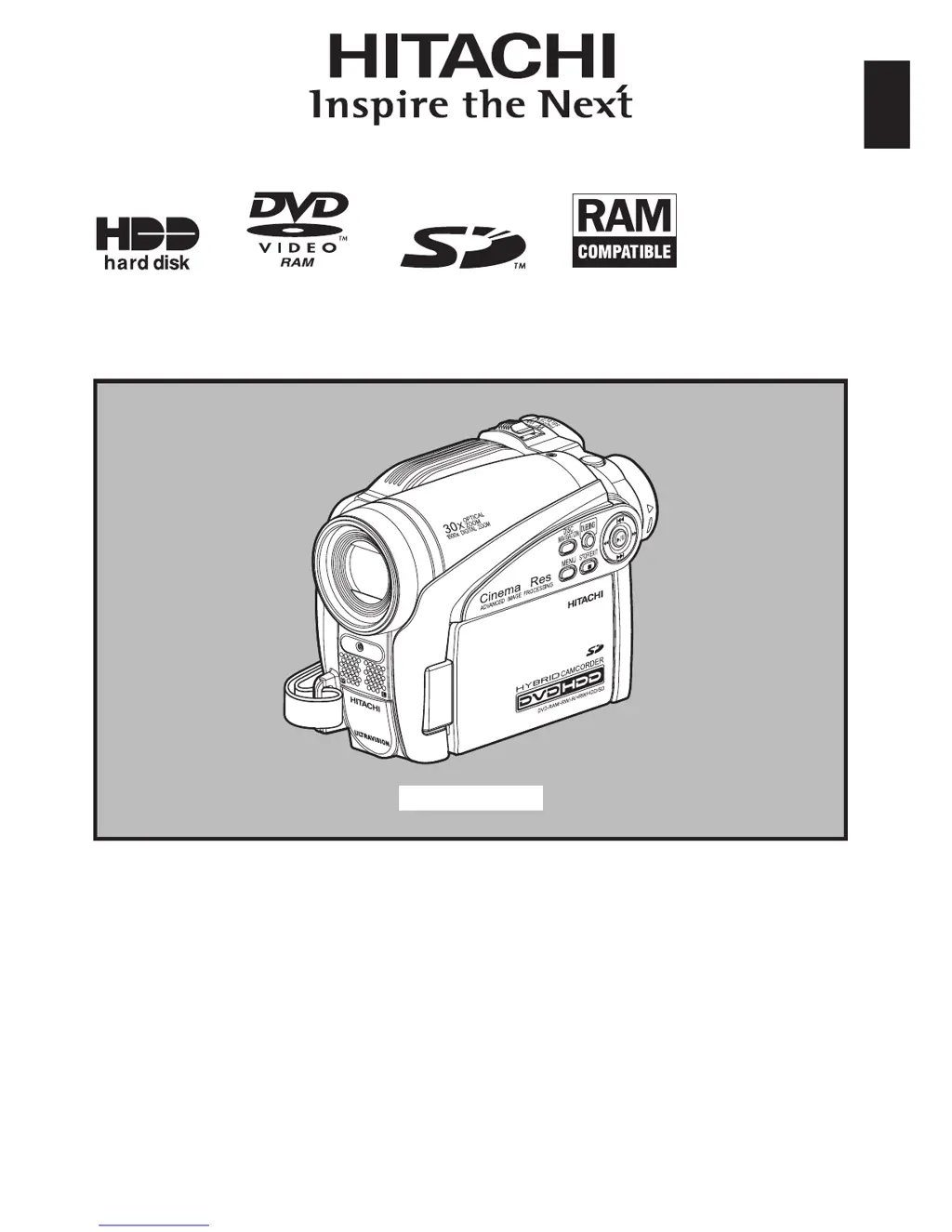
Hitachi DZ-HS500A - User Manual

Hitachi DZ-HS500A
169 pages
Print Icon
To Next Page IconTo Next Page
Loading...
DZ-HS500A
Instruction manual
To obtain the best performance and ensure years of
trouble-free use, please read this entire instruction
manual.
Mode d’emploi
Des performances optimales et un fonctionnement
à long terme seront assurés en appliquant les
présentes instructions après avoir entièrement lu
ce mode d’emploi.
Manual de instrucciones
Para obtener el mejor funcionamiento y asegurar
muchos años de utilización exenta de problemas,
lea todo este manual de instrucciones
.
English
DZ-HS500A

Table of Contents

Questions and Answers

  • J
    Jordan BarkerAug 20, 2025
    Why is my Hitachi DZ-HS500A battery not charging?
    • D
      Donna WilliamsAug 20, 2025
      Your Hitachi Camcorder battery might not be charging because the ambient temperature is too low or too high. Try charging the battery at a temperature between 50 – 86ºF (10 – 30ºC). Also, if the battery is abnormally hot, remove it, let it cool, and then try charging it again. Ensure the DC power cord is not connected to the AC adapter/charger. If the battery has been unused for a long time, remove it and reattach it. If none of these steps work, the battery may be dead, and you may need to purchase a new one.
  • D
    Daniel PrestonAug 22, 2025
    Why does my Hitachi DZ-HS500A Camcorder battery weaken so fast?
    • A
      Amber LoweAug 22, 2025
      If your Hitachi Camcorder battery weakens quickly, especially in low temperatures, consider keeping extra batteries on hand. It is also possible that the battery is dead and needs to be replaced with a new one.
  • T
    Travis JohnsonAug 25, 2025
    Why is the CHARGE indicator blinking on my Hitachi DZ-HS500A AC adapter?
    • J
      Joshua HarrisonAug 25, 2025
      The CHARGE indicator on your Hitachi Camcorder AC adapter/charger may be blinking because the ambient temperature is too low or too high. Charge the battery in an environment where the temperature is between 50 – 86ºF (10 – 30ºC). The battery might also be excessively discharged. Continue charging; the battery will eventually reach the specified voltage, and the CHARGE indicator will light up, indicating normal completion.
  • R
    Robin GriffinAug 26, 2025
    What to do if my Hitachi Camcorder power goes off unexpectedly?
    • J
      Jonathan YoungAug 26, 2025
      If your Hitachi Camcorder turns off unexpectedly, check if the 'Power Save' feature is set to 'On'. When this setting is active, the camcorder will automatically turn off after 5 minutes of inactivity to save battery. To resume recording, switch the power off and then back to 'HDD', 'DVD', or 'SD'. Alternatively, you can disable the automatic power off by setting 'Power Save' to 'Off'. Also, if the camcorder is in sleep/restart status for 30 minutes or more, it will automatically turn off. In this case, set the power switch to 'OFF' and then power the camcorder on again.
  • V
    Veronica RichardsAug 28, 2025
    How to fix incorrect focus on Hitachi Camcorder?
    • M
      monica00Aug 28, 2025
      If the focus on your Hitachi Camcorder is not correct, try these steps: * If auto focus is difficult with your subject, switch to manual focus. * Check if the manual focus icon is displayed, indicating the camcorder is set to manual focus. Adjust the focus manually or disable manual focus. * If using the viewfinder, ensure the diopter control is correctly adjusted. * If none of the above solutions work, try turning the power switch to 'OFF' and then back to 'HDD', 'DVD', or 'SD'.
  • T
    Tina FlemingAug 30, 2025
    What to do if pressing the REC button doesn't start recording on my Hitachi DZ-HS500A Camcorder?
    • U
      ucrosbyAug 30, 2025
      If pressing the REC button on your Hitachi Camcorder does not start recording, ensure the power switch is set to 'HDD' or 'DVD'. Check that the input image is not copy-protected and that the HDD/DVD is not protected. Recording is not possible on a finalized DVD. Also, verify the remaining free space on the HDD/DVD. When using a +RW disc, short recording durations or frequent video quality changes may prevent recording even if space remains.
  • J
    Justin AllenSep 1, 2025
    How to improve LCD screen visibility on Hitachi DZ-HS500A?
    • I
      ianjohnsonSep 1, 2025
      If the LCD screen on your Hitachi Camcorder is hard to see, stop recording and adjust the brightness. If using the camcorder outdoors, try using the viewfinder instead. When using the LCD monitor, adjust its angle to avoid direct sunlight.
  • R
    Rachel AndersonSep 3, 2025
    Why does my Hitachi Camcorder recording start and stop immediately?
    • C
      cbartonSep 3, 2025
      If your Hitachi Camcorder recording starts but stops immediately, the disc may be scratched, dirty, or have fingerprints on it. Clean the disc, and if the problem persists, replace it. Also, if another AV device is connected to the camcorder's video/audio input/output jack through multiple devices, such as an AV selector, the video signal may not transmit correctly. Reduce the number of devices or connect the AV device directly.
  • C
    Christopher HallSep 5, 2025
    What to do if no playback picture appears on TV screen from Hitachi DZ-HS500A?
    • R
      Richard ParrishSep 5, 2025
      If no playback picture appears on the TV screen from your Hitachi Camcorder, ensure the TV input selector is correctly set to match the connected jacks. Some TVs have multiple video input jacks. If the camcorder is connected to a VCR, set its input selector to 'external input (LINE)'. Also, verify that the camcorder is correctly connected to the TV.
  • T
    Timothy RiceSep 7, 2025
    Why does my Hitachi Camcorder power turn off immediately after being turned on?
    • G
      gravesdavidSep 7, 2025
      If your Hitachi Camcorder's power turns off immediately after being turned on, the battery may not be charged. Ensure the battery is fully charged.

Summary

Important Information

For Your Safety

Information regarding safe operation and potential hazards.

Precautions

Important usage guidelines and precautions for optimal performance and safety.

IMPORTANT SAFETY INSTRUCTIONS

Cautions on HDD

Cautions When Using

Handling LCD, Device, and Environmental Cautions

Precautions for handling the LCD, device, and environmental factors like dust, water, and heat.

Additional Environmental and Usage Cautions

Further cautions regarding corrosive gas, condensation, lens cleaning, and prolonged operation.

Operational and Maintenance Cautions

Cautions regarding indicator lights, cleaning, battery, and power switch usage.

Cautions When Storing

Suggestions and Restrictions

CLEANING

HANDLING DISCS

Disc Cleaning

Instructions for cleaning DVD discs to ensure proper playback and recording.

Disc Transfer and Disposal Notes

Notes on transferring or discarding discs and memory cards safely.

About This Manual

Introduction

Setups

Initial Setup and Configuration

Setting up the device, including demonstration, holding, power, date, initial settings, and display adjustments.

Media Handling and Power

Information on compatible media, insertion, removal, power supply, and battery setup.

Basic Device Operation

Turning the device on/off, viewing images, and setting date/time.

Advanced Settings and Adjustments

Initial settings, LCD/EVF adjustments, and disc/card management.

Basic Techniques

Recording Fundamentals

Step-by-step instructions for recording video footage and capturing still images.

Camera and Recording Adjustments

Adjusting camera functions like zoom, focus, exposure, white balance, EIS, and microphone filter.

Disc Navigation and Scene Editing

Navigating, playing back, editing scenes, and using Disc Navigation features.

Programs and Play Lists

Creating, managing, and playing programs and play lists for scene organization.

Disc Management and PC Connectivity

Managing discs, connecting to PC, installing software, and troubleshooting.

Subsidiary Information

Troubleshooting

Hitachi DZ-HS500A Specifications

General IconGeneral
Image SensorCCD
Digital Zoom800x
LCD Screen Size2.7 inches
Optical Sensor Size1/6 inch
Image StabilizerElectronic
Display TypeLCD
Hard Drive Capacity30 GB
USB InterfaceYes
HDMI OutputNo
Battery TypeLithium-ion
Recording FormatMPEG2
Storage MediaHDD
Camcorder Media TypeHDD
LCD Screen2.7" LCD screen
ViewfinderColor
Video Recording FormatMPEG2
Audio Recording FormatDolby Digital
Battery LifeApprox. 1 hour

Related product manuals