5.
Installation Step-by-Step
1
step
To begin installation, shut down your computer.
2
step
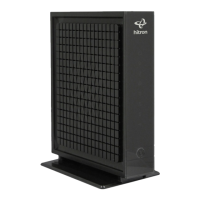
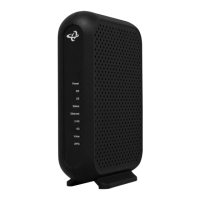
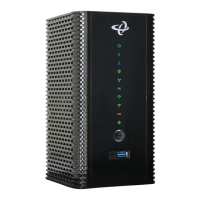
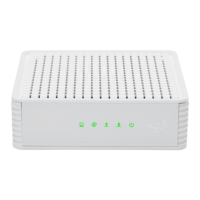
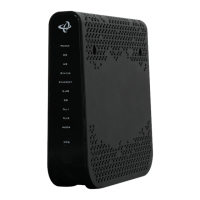
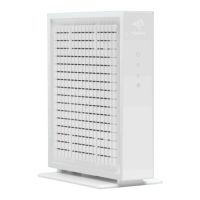
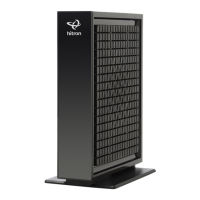
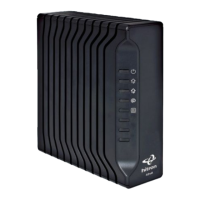
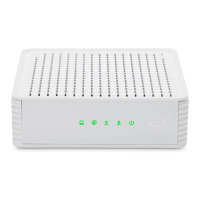
Connect the Comwave Internet Modem using the Cable Jack connection.
3
step
Connect the supplied Power Adaptor to the POWER port and plug into power
bar. Note: Wait until the
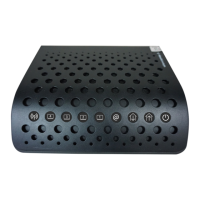
(Online) LED Light Indicator on your Comwave
Internet Modem is steady green and operational. This may take up to 5 minutes.
4
step
Connect the supplied Ethernet Cable from the LAN port of the Comwave
Internet Modem to your computer.
Start your computer. You should be able to browse the Internet instantly.
For Home Phone Connection
5
step
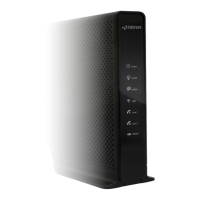
Connect the supplied Ethernet Cable from the LAN port of your Comwave
Internet Modem to the WAN port of the Home Phone Adapter.
6
step
Connect a telephone to the PHONE 1 port on the Home Phone Adapter.
7
step
Connect the Comwave Home Phone Adapter to a power outlet and wait 5
minutes for a dial tone. DO NOT DISCONNECT POWER as it may damage the
Home Phone Adapter.
Test your phone line, you should have a dial tone and be able to make calls.
Can’t Access
the Internet?
1
Unplug the power to your
Comwave Internet modem,
home phone adapter and
shut down your computer.
2
Wait 30 seconds and then
plug your Comwave Internet
modem’s power cord back
into the power outlet.
3
Wait until the LED light
indicators on your Comwave
Internet modem indicate the
modem is operational. This
may take up to 5 minutes.
4
Start your computer and
plug in the home phone
adaptor into a power outlet.
5
Open your browser and start
surng the Internet. Check
for a dial tone.
Still unable to surf the Internet?
Call us at 1-866-210-9149.
WE’LL GET YOU BACK UP ONLINE!



 To Next Page