11 12
DVD BASIC OPERATION
(2) During DVD playback and SUBTITLE ON, press the "SUBTITLE" button."SUBTITLE x / y" will
appear, x represents the current subtitle and y represents the total available subtitle.Press the
"SUBTITLE" button until the preferred subtitle is selected. The SUBTITLE selection will cycle
through all available subtitles.
Note: (1) T he "S UB T ITLE " works only for discs that have multiple subtitle.
(2) In some cases, the subtitle will not changed immediately to the one s elected.
* DVD menu (DVD)
Most DVD discs have unique menu structures call DVD menu.The DVD menu’s contents and
operation may differ from disc to disc.
(1) During DVD playback, press the MENU button.The DVD menu available on the disc will be
displayed.
(2)
Use / / / to select the preferred item or use the numeric button(s) to make a selection.
(3) Press "ENTER" button, the selected item will start playing.
TITLE 01/06 CHAPTER 001/006 TITLE REMAIN CHAPTER ELAPSED CHAPTER REMAIN
* Title menu (DVD)
Some DVD discs may have more than one title. If the disc has a title menu recorded on it, the
"TITLE" button can be used to access it.
(1) During DVD playback, press the TITLE button. A list of the titles may be displayed.
(2) Use / / / to select the preferred item.
(3) Press "ENTER" button, the selected title will start playing.
* DVD DISP function (DVD/CD)
The display function enables you to view the status, current title number, track number and
the total playing time of the disc on the TV screen.
Audio CD
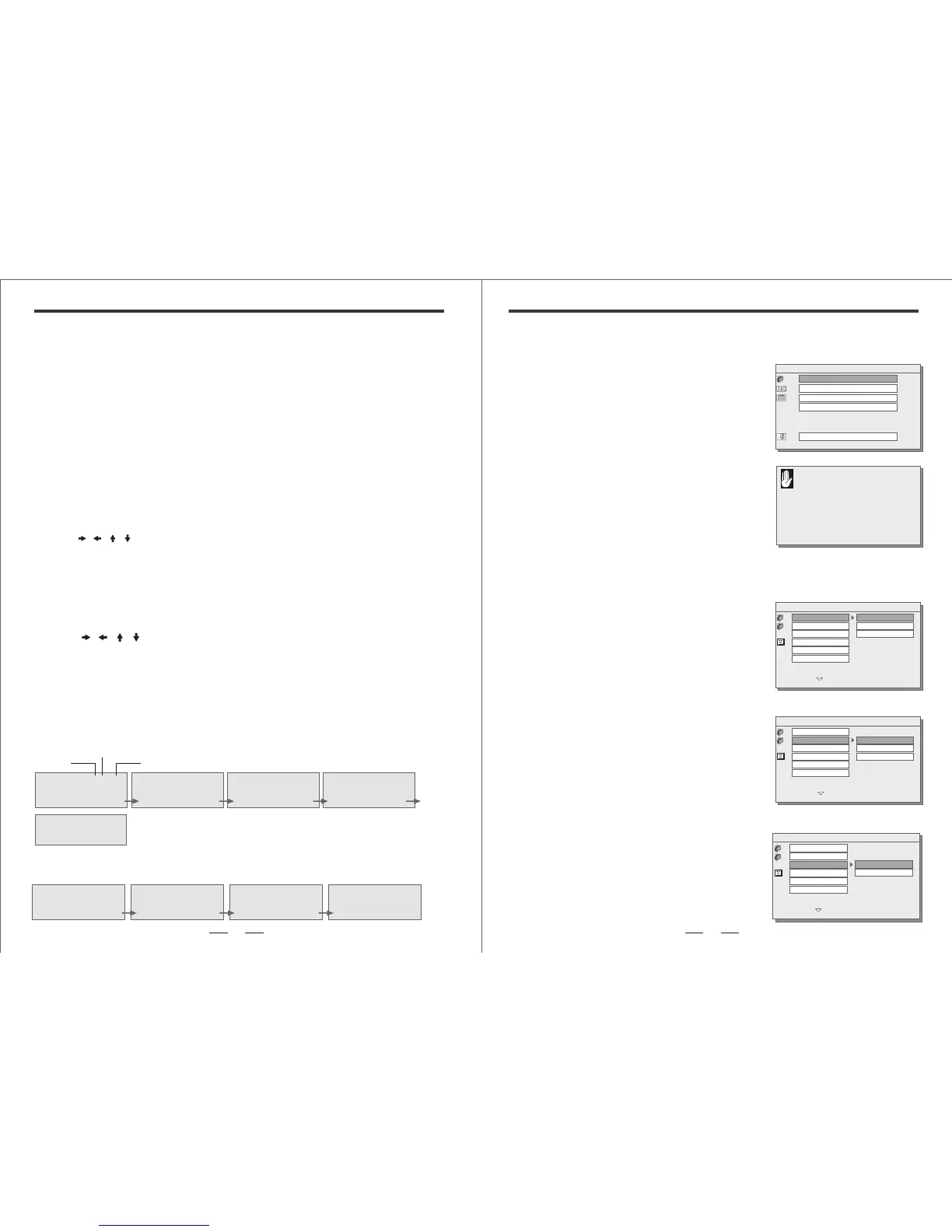
When the display key is pressed, the following OSD will be shown.
SINGLE ELAPSED 01/15 01 : 40 SINGLE REMAIN 01/15 02 : 39 TOTAL ELAPSED 01/15 01 : 40 TOTAL REMAIN 01/15 42 : 19
TOTAL REMAIN OFF
Current
Track
Time
Total Tracks
DVD
When the display key is pressed, the following OSD will be shown.
DVD TYPICAL SETUP MENU AND CONFIGURATION
When the player is in stop mode, pressing "SETUP"
button will allow you to modify some of the player’s
basic settings, you can use "UP / DOWN / RIGHT /
LEFT" buttons to highlight a selection, and press
"ENTER" button to confirm the selection.
Note: S ome DV D menu s ettings do not apply to this
s ys tem, s ince it is s pecifically engineered for
automotive us e. C hanging the state of s ome
s ettings can cause apparent s ys tem failure. If
you try to perform an action that is not permitted
(such as acces sing the P references menu while
a disc is playing), the on-screen-menu will us e
the following s ymbol:
* Changing the Aspect Ratio Mode
This is under the GENERAL tab. The correct setting
is WIDE. Changing this setting to "NORMAL/PS" or
"NORMAL/LB" will result in distorted video.
* Select Picture Mode
To select the pic mode, select "AUTO" / "HI-RES"
and "N-FLICKER" set pic mode.
GENERAL SETUP
AUDIO SETUP
PREFERENCES
VERSION INFO.
EXIT SETUP
GENERAL SETUP
SETUP MENU -- MAIN PAGE
TV DISPLAY
PIC MODE
ANGLE MARK
OSD LANG
CAPTIONS
SCR SAVER
NORMAL/PS
NORMAL/LB
WIDE
GENERAL SETUP
-- GENERAL PAGE --
TV DISPLAY
PIC MODE
ANGLE MARK
OSD LANG
CAPTIONS
SCR SAVER
AUTO
HI-RES
N-FLICKER
SET TV STANDRD MODE
-- GENERAL PAGE --
TV DISPLAY
PIC MODE
ANGLE MARK
OSD LANG
CAPTIONS
SCR SAVER
ON
OFF
ANGLE MARK ON/OFF
-- GENERAL PAGE --
* Cancealing the "ANGLE MARK"
To display or canceling the "ANGLE MARK", which
appears during scenes that support a multiple-
viewing-angle feature, select "GENERAL" and
"ANGLE MARK". Since the remote included does
not support this feature, the default state for this
setting is "OFF"


 To Next Page
 Loading...