EasyManua.ls Logo

HMD Barbie - Slide 4

HMD Barbie
6 pages
Print Icon
To Next Page IconTo Next Page
To Previous Page IconTo Previous Page
Loading...
Step
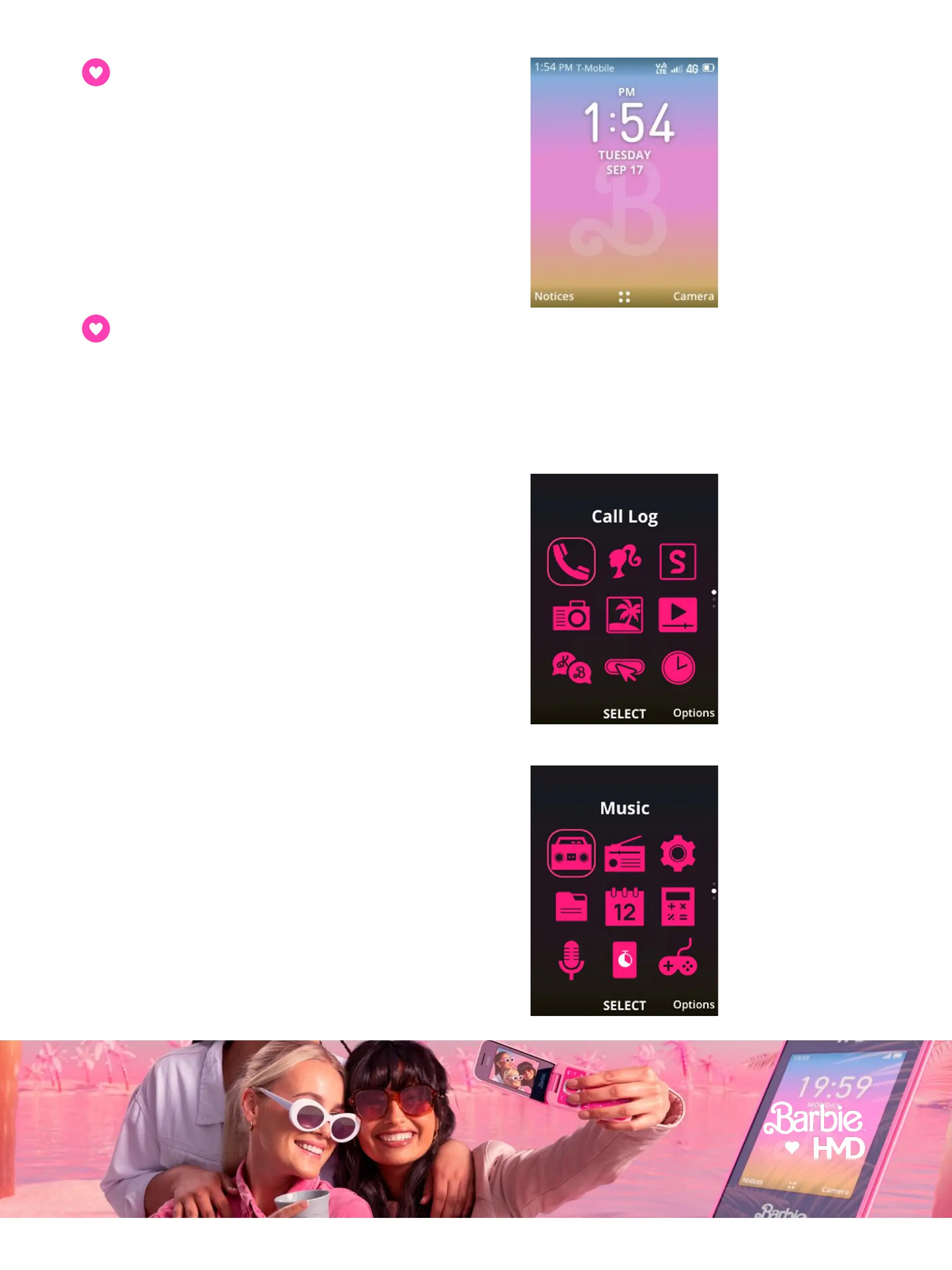
9: Welcome to the Barbie
Theme
UI
Immerse
yourself in the world of
Barbie
with
a fully themed user
interface,
interchangeable
wallpapers, pink
app
icons,
and more.
By
default, the first screen of the main
menu
features
the following apps:
Call log
Contacts
Malibu Snake
Camera
Gallery
Video
Messages
Internet
Clock
Continue
scrolling to view the apps on
the
second
page of the main menu:
Music
FM Radio
Settings
File Manager
Calendar
Calculator
Recorder
Barbie Tips
Games
Step
10: Get to know your main menu
Press
the center of the Scroll Key to open the menu, then use the scroll key to navigate
to
the
app you want to open. To open, press the button in the center of the Scroll Key.
Select
Options
with the Right Selection Key if any time you’d like to customize the apps
that
appear
on the Main Menu, the order in which they appear, or the view (grid, list or
single
app)
.

Related product manuals