Finding balance
Live your best life
Nothing beats spending real time together. That’s what the HMD Barbie Phone is all about! No
distracting apps here. The real magic happens with our friends and family, not on our screens.
Now that your phone is set up, here’s what you can do with your HMD Barbie Phone:
old school! Simply use the keypad to enter the 10-digit phone number you want to
press the center Scroll Key to <Call>. When your call is complete, simply flip
shut, or press the Power/End key to end the call. To view the call log, simply
Phone icon on the main menu.
the Messages icon on the main menu to open the messaging app. Enter the
or select a phone number from your Contacts, then type your text using
(T9) keypad.
Level up your T9 texting skills! Switch between different modes in the texting field – such as to
activate predictive texting, all Caps, numbers, etc. – by pressing the hash key.
the Contacts icon on the Main Menu to add your family and friends’ names
numbers to your contact list. Once saved, you can select Options key to add
as a favorite or add to speed dial.
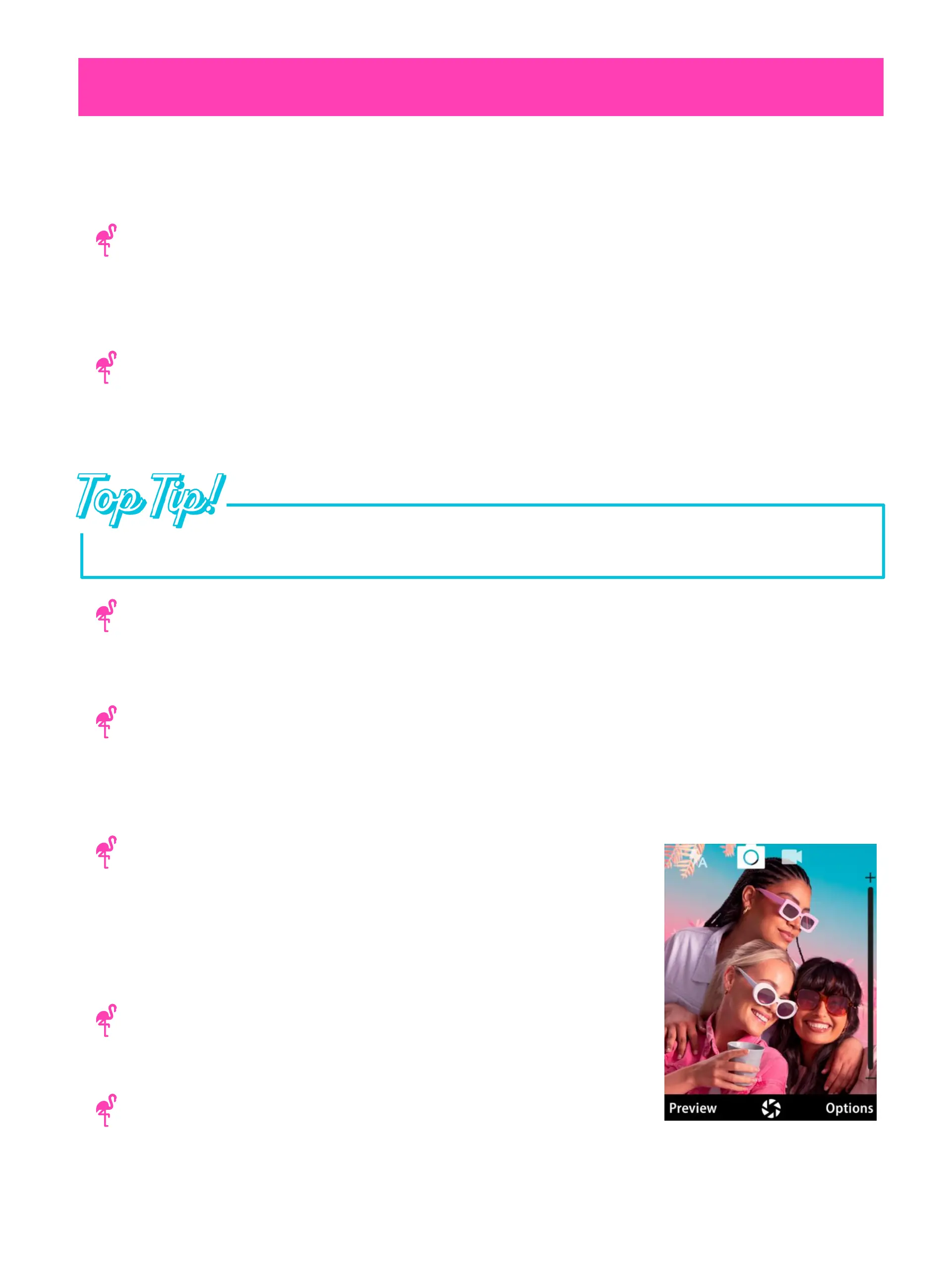
HMD Barbie Phone comes with a retro camera for those cool Y2K shots! Just open
app from the main menu, point and click the center Scroll Key to take a photo!
Scroll Key to toggle between camera and video capture modes. And you can
Options key to manage the Flash and video resolution settings.
memories you capture with your HMD Barbie Phone can
via MMS from the Camera app directly or from
. If you added a microSD to your phone, you can
photos by connecting the phone to your
a USB-C to USB-A or USB-C to USB-C cable
the camera flash to light your way
press the UP direction on the Scroll Key to turn the built
your wired headphones (sold separately) into the headphone jack to use the built
Radio. When you open the FM Radio app from the main menu, press the center
to turn on. You can scan for your local FM radio stations and save your favorites.
also use the Music app to play MP3 music files from your memory card.



 To Next Page