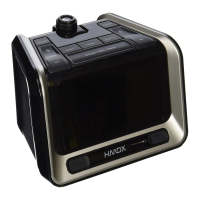
4 5
TochargeyourdeviceusingtheUSBchargingport(locatedonthebackoftheunit):
1.ConnecttheUSBtypeAendofthedevice’scableintotheUSBportontherearofthe
Cube.
2.ConnecttheotherendoftheUSBcabletoyourdevicetobegincharging.
Volume Control (Fig. 2)
To adjust the volume, rotate the volume control clockwise or counterclockwise to the
desired level.
Listening to your device wirelessly over Bluetooth® (Fig. 2)
To listen to your music using the Bluetooth® wireless connection, you need to pair your
device with The CUBE:
1. Make sure your device has Bluetooth® capability.
2.UsetheSOURCEbuttonontheCubetoselectBLUETOOTH.
3.Followtheinstructionsofyourdevicetopairtheunit.
4. Pair your device with the unit by selecting HMDX CUBE from your Bluetooth® listings
onyourdeviceorselectingYES.Ifprompted,enter“0000”asthepasscode.
5.PressplayonyourdeviceandusecontrolsontheCubetoadjustdesiredvolume.
NOTE:Onceyouhavesuccessfullypairedyourdevice,youtypicallywillnotneedto
repeat the above steps. Please ensure the AUX cable is unplugged, the unit source is
set to Bluetooth® and your device has Bluetooth® enabled. The effective range for this
mode is approximately 30 feet.
Listening to a non-Bluetooth® audio device (Figs. 1 & 2)
1.Usingthe3.5mmaudiocable(included),pluginthedeviceviatheAUXaudiolineinput
located on the rear of the Cube.
2. Plug the other end of the audio cable into the line out or headphone jack of your audio
device.
3.PressthePOWERbuttonlocatedontopoftheCube.
4.PresstheSOURCEbuttonontheunituntiltheAUXiconappearsonthedisplay.
5.Pressplayontheconnecteddevice.
NOTE:Youmayneedtoadjustthevolumeonyouraudiodevicetoachieveproper
volume.
Listening to the Radio/Station Presets (Figs. 1 & 2)
Note:Forbestreception,fullyextendthewireantenna.DONOTstrip,alterorattachto
other antennas.
1.Tolistentotheradio,pressthePOWERbuttonlocatedontopoftheCube.
Power Source (Fig. 1)
This unit is supplied with an AC adapter; take the following steps to connect the adaptor.
1. Unwind the power cord of the AC adaptor to its full length.
2.ConnecttheACadaptertotheDCJack(Fig.1).
3.PlugtheACadapterintoanoutlet(100v–240VAC50/60Hz).Connectingthissystem
toanyotherpowersourcemaycausedamagetothesystem.Forsufficientventilation,
keep other objects at least 4 inches away from the unit.
4. To switch the unit off completely, unplug the AC adapter from the wall outlet.
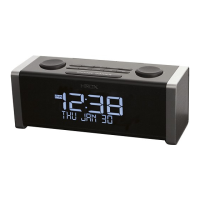
Setting Clock Time (Fig. 2)
AUTOSETCLOCK
The Cube Bluetooth® clock radio is equipped with an autoset clock, meaning the clock
will automatically set itself when first plugged in. Please note: the clock will automatically
defaulttoEasternStandardTimeandwillneedtobeadjustedforothertimezonesby
manually setting the clock.
Manually Setting the Clock (Fig. 2)
1. Make sure the Cube is plugged in, but powered off.
2.PressandholdtheTIMEbuttontoenterTimeSettingmode.Thehourwillbegin
flashing.UsetheSETTUNEdialtoadjustthehour,payingattentiontotheAMand
PM indicators
3.OncethehourhasbeensetpresstheTIMEbuttonagainandtheminutewillbegin
flashing.UsetheSETTUNEdialtoadjusttheminute.
4. Press the TIME button again to set the year, month and day of the week repeating the
steps above.
Display Dimmer Control (Fig. 2)
PresstheSNOOZE/DIMMER/SLEEPbartoadjustthebacklightintensityofclock
display. The power needs to be off to use the dimmer control.
Night Light (Fig. 2)
PresstheLIGHTbuttonontopoftheCube.Thenightlightwillturnonandcanbeset
tooneoffourlevels(High,Medium,Low,Off).Thenightlightcanbeoperatedwiththe
power on or off.
USB Charging Port
• ThisUSBportisforchargingonly.Itcannotbeusedtoplaymusicthroughtheunit.
• InordertousetheUSBchargingfeature,youmusthavethepropercordtoconnect
toyourdevicewithaUSBTypeAconnectorontheotherend.


 To Next Page
 Loading...