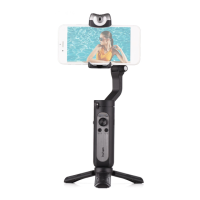
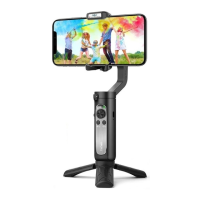
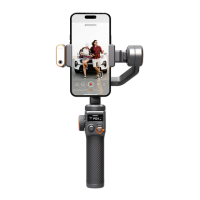
AI Visual Tracking & LED Video Light
①
②
③
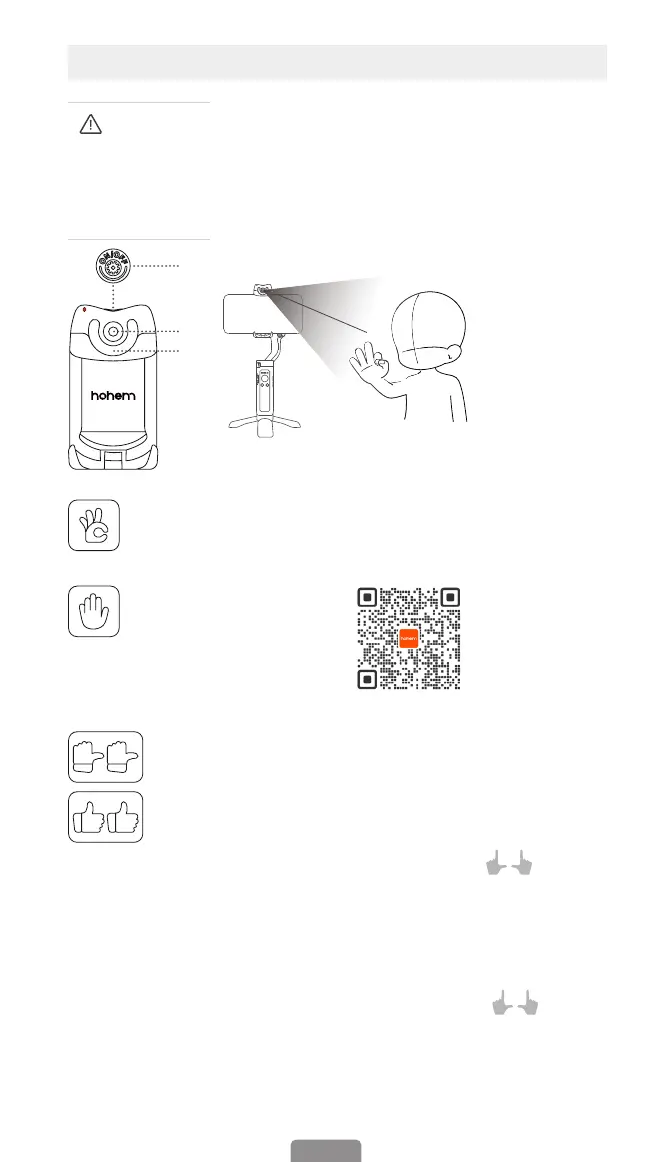
① AI Tracking
Press the button on the top to power on the AI Vision
Sensor (Press it for 3s to power it o).
The red indicator LED light and double-ashed LED video
light mean that the AI Sensor is on. (To activate AI Smart
Tracking, make an OK gesture.)
② Gesture Control
(Note: The best
distance of
gesture control is
between 0.5 and
1.5 meters (1.6 - 5
ft). Make sure that
both gesture and
face are shown in
front of AI sensor
within this range.)
0.5~1.5m
03
Before operation,
ensure that the
gimbal is powered
on.
Start smart tracking: Take
an OK gesture towards the
AI vision sensor and the AI
indicator turns green.
Turn o smart tracking:
Show a palm gesture towards
the AI vision sensor and AI
vision indicator turns red.
Switch between landscape and
portrait mode:
Portrait mode:
Two thumbs right
Landscape mode:
Two thumbs up
③ LED Video Light (make sure that AI
vision sensor is on)
Press once the button to turn on the
light and adjust the light intensity.
LED turns according to low-medium-
high-close modes.
FAQ: How to make AI vision
positioning adjustments?
(Customized Composition)
Scan the QR
code for tutorial
of customized
composition
If the framed subject cannot be
centered on the phone screen, or
you want to customize the AI vision
position to be tracked:
1. Make sure the gimbal & AI vision
sensors are on.
2. Take the gesture " " towards
the AI vision sensor and and the
indicator light will quickly blink in
green color.
3. Move in front of the screen until
you nd the preferred position to be
tracked.
4. Show the gesture " "to lock
the position and create the ideal
composition (the indicator light will
stop ashing).


 To Next Page