EasyManua.ls Logo

Homeworks HQP7-RF-2 - User Manual

Homeworks HQP7-RF-2
24 pages
Print Icon
To Next Page IconTo Next Page
Loading...
P/N 043554 Rev. A
07/2021
Wireless Processor
HQP7-RF-2
48 V- 100 mA
English
Installation Instructions
Please Read Before Installing
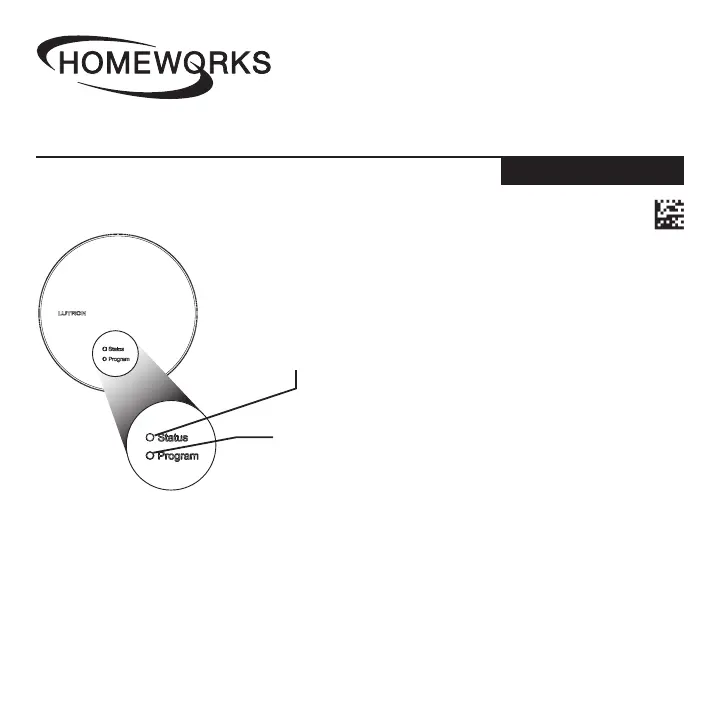
Product Overview
Status LED
Green = Normal operation
Blue = Firmware upgrade in process
Red = Error
Program Button
Used to factory reset processor
and to associate into a system
This HomeWorks wireless processor is compatible with Sunnata dimmers/switches/keypads,
Maestro dimmers/switches/fan controls, Pico controls, Radio Powr Savr sensors, Triathlon
and Sivoia QS wireless shades, seeTouch keypads, HomeWorks plug-in dimmers and
switches, HomeWorks RF dimmer and switch modules, and Ketra wireless fixtures and lamps.
Other products may also be compatible; see individual product spec sheets for details on
system compatibility.
This HomeWorks wireless processor must be powered by an IEEE 802.3af 2003 or 802.3at
2009 compliant LPS / SELV PoE or PoE+ power supply.

Questions and Answers

  • T
    Tiffany BarnettAug 5, 2025
    What to do if Homeworks HQP7-RF-2 Computer Hardware unit does not control surrounding lights?
    • T
      Timothy StokesAug 6, 2025
      If your Homeworks Computer Hardware unit isn't controlling the surrounding lights, the lights might be out of range of the wireless processor. Try moving the lights closer to the wireless processor. Alternatively, the processor may have lost power or the Ethernet wire run might be too long, requiring a PoE booster. In this case, check the processor's power and consider installing a PoE booster.
  • B
    Brandi WareAug 15, 2025
    Why Homeworks HQP7-RF-2 Computer Hardware unit does not power on?
    • K
      Kevin ForbesAug 16, 2025
      If your Homeworks Computer Hardware unit does not power on, it could be because a PoE switch is not being used or is not configured as a PoE switch. To resolve this, use or configure a PoE switch. Another potential cause is that the other end of the Ethernet cable is not connected to a PoE switch; make sure to connect it properly.
  • S
    staceymichaelAug 26, 2025
    What to do if Homeworks Computer Hardware unit cannot be found in software?
    • M
      Meredith ThorntonAug 26, 2025
      If your Homeworks Computer Hardware unit cannot be found in the software, ensure that the Ethernet cable is connected to the same LAN as the wired processor. Also, verify if your model is supported (Athena / myRoom vs. HomeWorks). If the Ethernet run is longer than the supported 328 ft (100 m), you may need to use a PoE extender.

Summary

Product Overview

Status LED

Explains LED states for normal operation, firmware upgrade process, and error conditions.

Program Button

Details the function of the button for factory reset and system association.

Additional Components

Tools You May Need

Step 1 - Choose a Location to Install

Distances for Wireless Devices

Specifies maximum communication ranges for Clear Connect Type A and Type X devices.

Step 2 - Provide Opening for Adapter

Step 3 - Select the Mounting Adapter for your Installation

Step 4 a - Installation using the Recess-Mount Adapter

Step 4 b - Installation using the Junction Box Mount Adapter

Step 4 c - Installation using the Shelf-Mount Adapter

Step 5 - System Setup

LED Diagnostics

Details LED patterns for normal operation, software updates, errors, and processor identification.

Troubleshooting

Provides common symptoms and their probable causes for installation and operational issues.

FCC;IC;IFT Information

Customer Assistance

Limited Warranty

Homeworks HQP7-RF-2 Specifications

General IconGeneral
BrandHomeworks
ModelHQP7-RF-2
CategoryComputer Hardware
LanguageEnglish