Navigation System 19
Getting Started
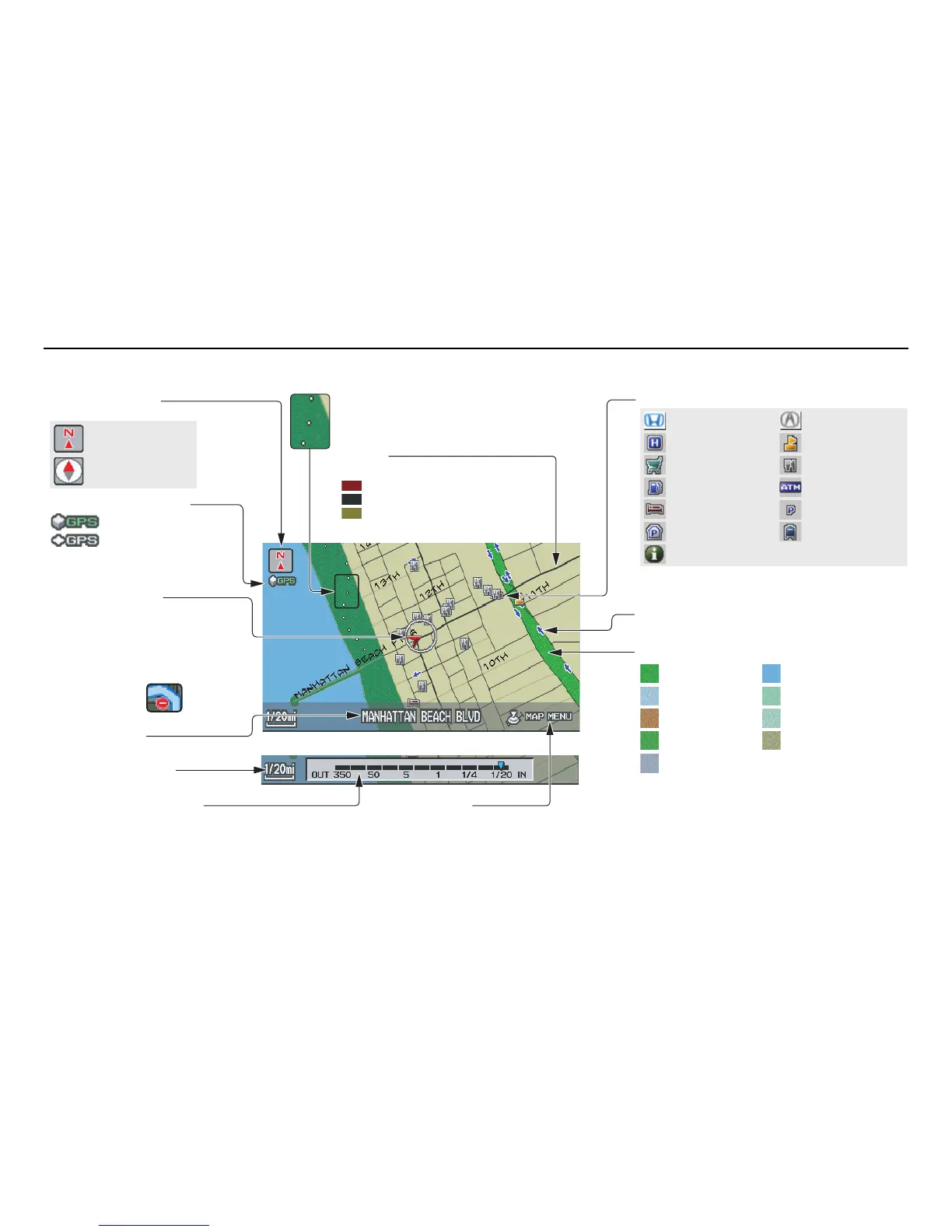
Map Screen Legend
Acura Dealer
School
Restaurant
AT M
Parking Lot
Post Office
Honda Dealer
Hospital
Grocery Store
Gas Station
Hotel/Lodging
Parking Garage
Freeway Exit Information
Vehicle Position
(see page 63)
(Use voice command
“Display the current location,” or
use the Interface Dial to show
current location.)
Landmark Icon - Generic (see page 58)
Current Map Scale
(see page 56)
Map Features
NOTE:
If you move the Interface Dial over an
area (map features shown above), the
name is displayed on the screen.
: Park
: Hospital
: Shopping Mall
: Golf Course
: Water Area
: Cemetery
: University
: Indian Reservation
: Airport/Stadium/Business
Streets
(see Map Overview on page 6)
Current Street
(see page 6)
NOTE:
See Map Legend on the Information screen for further explanation.
Breadcrumbs
(see Off-road Tracking on page 62)
GPS Signal Strength
: Best Reception
: Good Reception
Missing: Poor/No Reception
Map Orientation
(see page 57)
Map Menu
(see page 53)
(Push in on the Interface Dial to view.)
Map Scale Adjustment
(Mile or km per half-inch appears only when you
zoom in or out by rotating the Interface Dial knob.)
One-Way Traffic Icon (1/20 mile scale only)
(see page 58)
Interstates or Freeways
Verified Streets
Unverified Streets








 To Next Page