EasyManua.ls Logo

Honeywell HB12CESV Series - User Manual

Honeywell HB12CESV Series
90 pages
Print Icon
To Next Page IconTo Next Page
Loading...
Customer Support:
Web: www.jmatek.com
+31 20 5207422 | Support.eu@jmatek.com
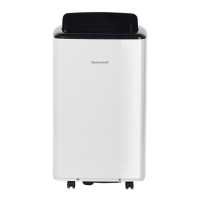
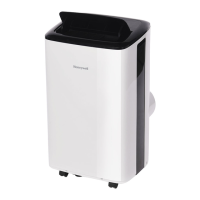
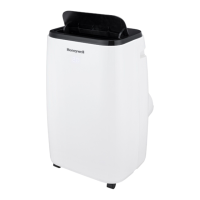
Smart Portable Local Air Conditioner
User Manual - Honeywell Air Comfort
App
Read and save these instructions before use
EN
Slimme Mobiele Lokale Airconditioner
Gebruikershandleiding- Honeywell Air
Comfort App
Lees de gebruiksaanwijzing zorgvuldig en
bewaar deze goed
NL
Portatile Smart Condizionatore D'aria
Locale
Manuale dell'utente - App Honeywell Air
Comfort
Leggere attentamente le istruzioni prima
dell'utilizzo dell'apparecchio
IT
Tragbare Smart Lokale Klimaanlage
Bedienungsanleitung - Honeywell Air
Comfort App
Lesen sie die anleitung vor dem gebrauch
und heben sie sie auf
DE
Portátil Inteligente Aire Acondicionado
Local
Manual de usuario - Aplicación
Honeywell Air Comfort
Lea y guarde estas instrucciones antes
de usar la unidad
ES
Portatif Intelligente Climatiseur Local
Manuel d’utilisation – Application
Honeywell Air Comfort
Lire ces instructions avant l'utilisation et
les conserver
FR
Model / Modèle / Modelo / Modello /
Modell / Model / Malli / Model:
HB12CESV**/ HB14CESV**/ HB16CESV**
Portátil Wifi Ar Com Condicionado Local
Manual do utilizador - Aplicação
Honeywell Air Comfort
Leia e guarde estas instruções antes da
utilização
PT
Przenośny klimatyzator smart
Instrukcja obsługi – aplikacja Honeywell
Air Comfort
Przed użyciem zapoznaj się z instrukcją i
zachowaj ją na później
PL
Question and Answer IconNeed help?

Do you have a question about the Honeywell HB12CESV Series and is the answer not in the manual?

Overview

This document serves as a user manual for the Honeywell Smart Portable Local Air Conditioner, specifically for models HB12CESV**, HB14CESV**, and HB16CESV**. It details the setup and operation of the air conditioner through the Honeywell Air Comfort App, and its integration with Amazon Echo and Google Home devices.

Function Description:

The Honeywell Smart Portable Local Air Conditioner is a smart appliance designed to provide localized cooling (and heating, for applicable models) and air comfort. It is controlled primarily through a dedicated mobile application, the Honeywell Air Comfort App, which allows users to manage various settings and features remotely. The device can also be integrated with smart home ecosystems like Amazon Echo and Google Home for voice control.

Important Technical Specifications:

  • Wi-Fi Connectivity: Requires connection to a 2.4 GHz Wi-Fi network for proper operation with the Honeywell Air Comfort App and smart home devices.
  • App Compatibility: The Honeywell Air Comfort App is compatible with iOS 10 or later and Android 4.4 or later.
  • Wi-Fi Password Requirements: Wi-Fi passwords must not contain the characters: ", /, \ or &.

Usage Features:

App Download and Account Registration:

  • The Honeywell Air Comfort App can be downloaded from the Apple App Store or Google Play.
  • Account Registration:
    • Open the app and tap "Register."
    • Read and agree to the Privacy Policy.
    • Enter your email address and tap "Get Verification Code."
    • Enter the verification code received via email (from "system.az@notice.2.ismartlife.me" with the subject "Registration Verification Code"). Users should check junk/spam folders if the email is not received within 60 seconds and can resend the code.
    • Set a password and tap "Next."

Setting Up a Group:

  • Tap "Me" on the bottom right of the app.
  • Tap "Group Management."
  • Set a "Group Name" and "Location."
  • Mark the location of the air conditioner within the group.
  • Tap "Done."

Connecting the Air Conditioner with the App:

  • Ensure the air conditioner is in standby mode.
  • On the app, tap "+" to add a device.
  • Choose your PAC-HB series model.
  • Enter your Wi-Fi password and tap "Confirm."
  • Device Reset (if needed):
    • Ensure the product is in standby mode.
    • Press and hold the "Speed" button on the device until it beeps twice.
    • After the beep, when "CF" flashes on the LED screen, check the option and tap "Next."
  • Wait for the connection to complete, then tap "Done."

Main Screen Overview:

  • Family Settings: Allows management of family-related settings.
  • Current Weather Conditions: Displays outdoor temperature, humidity, air pressure, and wind speed.
  • Temperature Unit Settings: Configurable temperature units.
  • Connected Devices: Lists all connected air conditioners.
  • Adding a Device: "+" button to add new devices.
  • Locations: Grid view, device sequence, and room management options.
  • Switch Appliance ON/OFF: Toggle button to power the air conditioner.
  • Group Management: Access to group settings.
  • Message Center: For notifications and alerts.
  • FAQ & Feedback: Support resources.
  • Settings: Includes sound, app notifications, about, network diagnosis, clear cache, and log out options.
  • Home Button: Navigates to the main screen.
  • Smart Control Button: Accesses smart features.

Basic Controls:

  • Tap on the "Portable Air Conditioner" icon to access its controls.
  • Power ON/OFF: Tap the power icon to switch the air conditioner on or off.
  • Set Desired Temperature: Adjust temperature using "+" and "-" buttons.
  • Current Settings: Displays current operational parameters.
  • Mode Button: Selects operating modes: Auto, Heat (for applicable models), Cool, Dry, Fan, or Sleep.
  • Speed Button: Adjusts fan speed: Auto, High, Medium, or Low.
  • Schedule Button: Accesses timer settings.
  • Swing Button: Controls the swing function.
  • Device Settings: Includes device name, information, third-party control (Alexa/Google Assistant), offline notification ON/OFF, share device, FAQ & feedback, check device network, check for firmware update, and remove device.

Setting a Timer:

  • Tap the "Schedule" button.
  • Tap "Add Timing."
  • Set the desired time (AM/PM, hour, minute).
  • Select days of the week for the timer to be active.
  • Configure "Switch Off" and "Switch On" times.
  • Choose the operating mode (Auto, etc.) and C-F switch (Celsius/Fahrenheit).
  • Set the temperature.
  • Tap "Save." Multiple timers can be set.

Adding a Tap-to-Run Action:

  • Tap the "Smart" control button.
  • Tap "Tap-to-Run."
  • Tap "+."
  • Select the condition(s) you want to add.
  • Select the task you want to add.
  • Tap "Name" to set the action's name.
  • Tap "Style" to set the background color or image.
  • Tap "Effective Period" to choose when the action should activate.
  • Tap "Next," then "Save."

Adding an Automation:

  • Tap the "Smart" control button.
  • Tap "Add Automation."
  • Tap "+."
  • Select the condition(s) you want to add.
  • Select the task you want to add.
  • Tap "Name" to set the automation's name.
  • Tap "Style" to set the background color or image.
  • Tap "Effective Period" to choose when the automation should activate.
  • Tap "Next," then "Save."

Connecting to Amazon Echo:

  • Ensure the Amazon Echo device is on and connected to Wi-Fi.
  • Open the "Amazon Alexa" app.
  • Tap the menu icon (three lines) and select "Skills & Games."
  • Tap the search icon (magnifying glass) and type "Honeywell Air Comfort."
  • Tap the "Honeywell Air Comfort" skill.
  • Tap "ENABLE TO USE."
  • Enter your Honeywell Air Comfort App login and password.
  • Tap "Link Now," then "Authorize."
  • Tap "Done."
  • Tap "DISCOVER DEVICE," choose "Portable Air Conditioner."
  • Tap "SET UP DEVICE," choose a group or "SKIP."
  • Choose "Portable Air Conditioner," then "DONE."

Connecting to Google Home:

  • Ensure the Google Home device is on and connected to Wi-Fi.
  • Open the "Google Home" app.
  • Tap "+" on the top left, then "Set up device."
  • Tap "Have something already set up?"
  • Tap the search icon (magnifying glass) and type "Honeywell Air Comfort."
  • Tap "Honeywell Air Comfort."
  • Enter your Honeywell Air Comfort App login and password.
  • Tap "Link Now," then "Authorize."
  • To add the portable air conditioner to a room, tap "Portable Air Conditioner," then "Add to a room," or tap "X" to skip.
  • Choose a room for the device, tap "Next," then "DONE."

Maintenance Features (Troubleshooting):

The manual includes a comprehensive troubleshooting section for common issues:

  • Unable to register/login:
    • Possible Cause: Mobile device's Wi-Fi is off, weak Wi-Fi signal, or forgotten password.
    • Solution: Turn on Wi-Fi, install a Wi-Fi extender, move the AC closer to the router, or reset the password via the "Forgot Password" option.
  • Portable AC cannot pair with the App:
    • Possible Cause: AC not connected to socket, incorrect Wi-Fi settings on the device, weak Wi-Fi signal, incorrect Wi-Fi frequency (must be 2.4 GHz), incorrect Wi-Fi password, invisible Wi-Fi network, Wi-Fi name with foreign characters, wrong router encryption method (should be WPA2-PSK/AES, 802.11n only is not allowed), too many connected devices, or MAC address filter enabled on the router.
    • Solution: Connect the AC to the socket, reset the device by holding the "Speed" button until it beeps twice and "CF" flashes, install a Wi-Fi extender, move the AC closer to the router, select a 2.4 GHz Wi-Fi network, use the correct Wi-Fi password, set the Wi-Fi network to visible, use standard alphanumeric characters for Wi-Fi name, set router encryption to WPA2-PSK/AES or automatic, turn off Wi-Fi functions of some connected devices, reconfigure the router, or remove the device from the MAC address filter and ensure it's not prohibited from connecting.

Smart Commands:

A QR code and URL (https://honeywellaircomfort.com/smart-devices-voice-control/) are provided to access a full list of voice commands for Amazon Echo and Google Home devices.

Honeywell HB12CESV Series Specifications

General IconGeneral
BrandHoneywell
ModelHB12CESV Series
CategoryAir Conditioner
LanguageEnglish

Related product manuals