l Switch to a recently used app: Swipe left or right on the screen to nd the app you want to use,
and touch the app tab.
l Close an app: Swipe up on an app tab to close the corresponding app.
l Close all apps: Touch to close all apps.
Use Shortcut Switches to Quickly Enable Frequently
Used Features
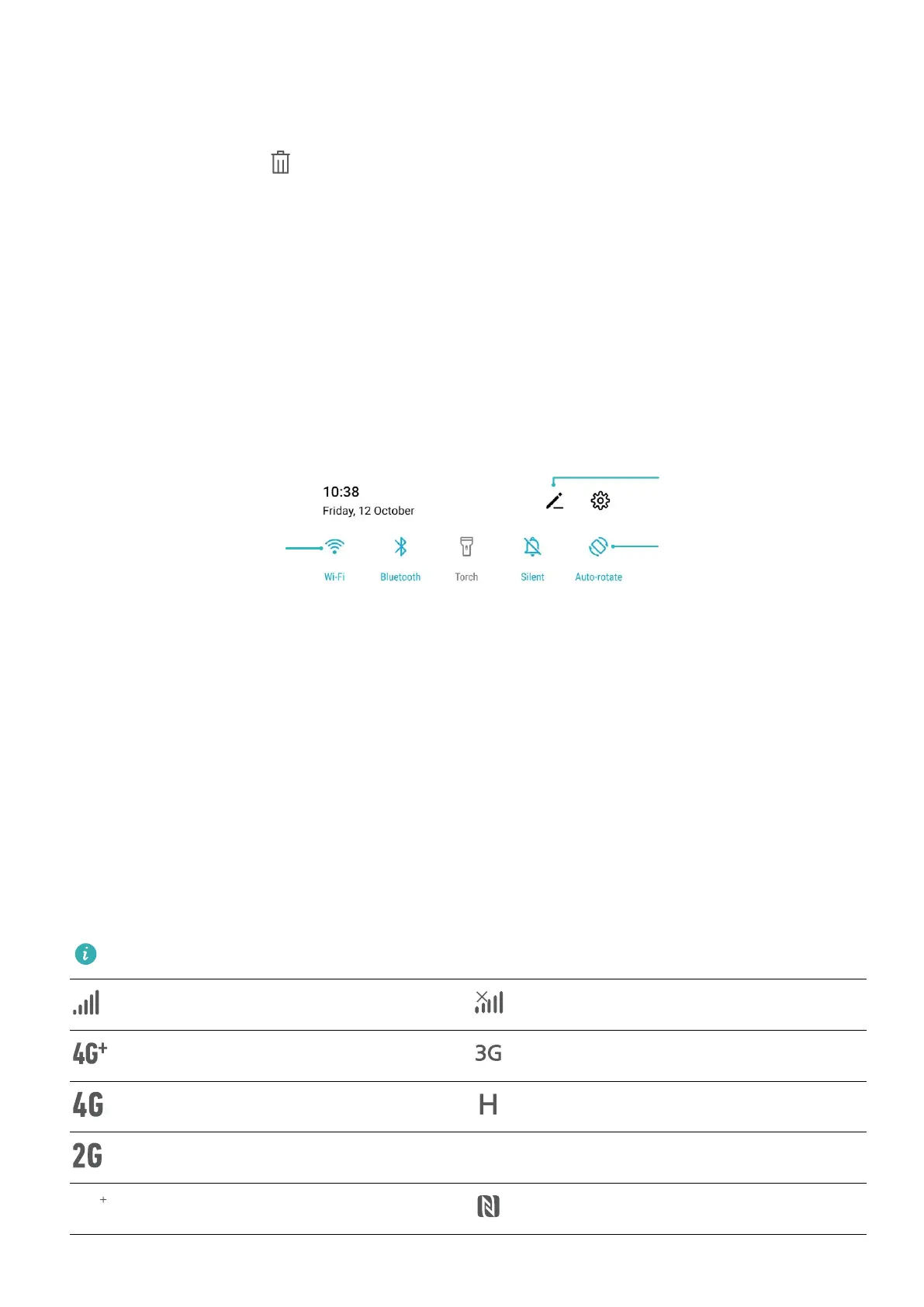
Want to quickly enable or disable mobile data or Wi-Fi? Swipe down from the status bar and open the
shortcuts panel, then touch the corresponding shortcut switch to enable or disable a feature. Touch
and hold a shortcut switch icon to enter the feature's settings page.
Touch to enable
this feature
Touch and hold to
enter Settings
Organize shortcuts
Notication Panel and Status Bar
Notication and Status Icons and Descriptions
The icons in the status bar give you a quick view of the overall status of your device, including its
network connection, battery level, and any new messages received when your device is in Silent
mode.
Status icons: By glancing at the status icons, you can quickly learn the status of your device, such as
network connection, signal strength, battery level, time, and more.
The network status icons may vary by regions and service providers.
Signal strength No signal
4G+ network connected 3G network connected
4G network connected HSPA network connected
2G network connected
LTE network connected
LTE+ network connected NFC enabled
Home Screen
14



 To Next Page