HP 4120 Quick Start Guide
10
ENGLISH
E
N
G
L
I
S
H
Sign in to Your Phone Using Your PIN
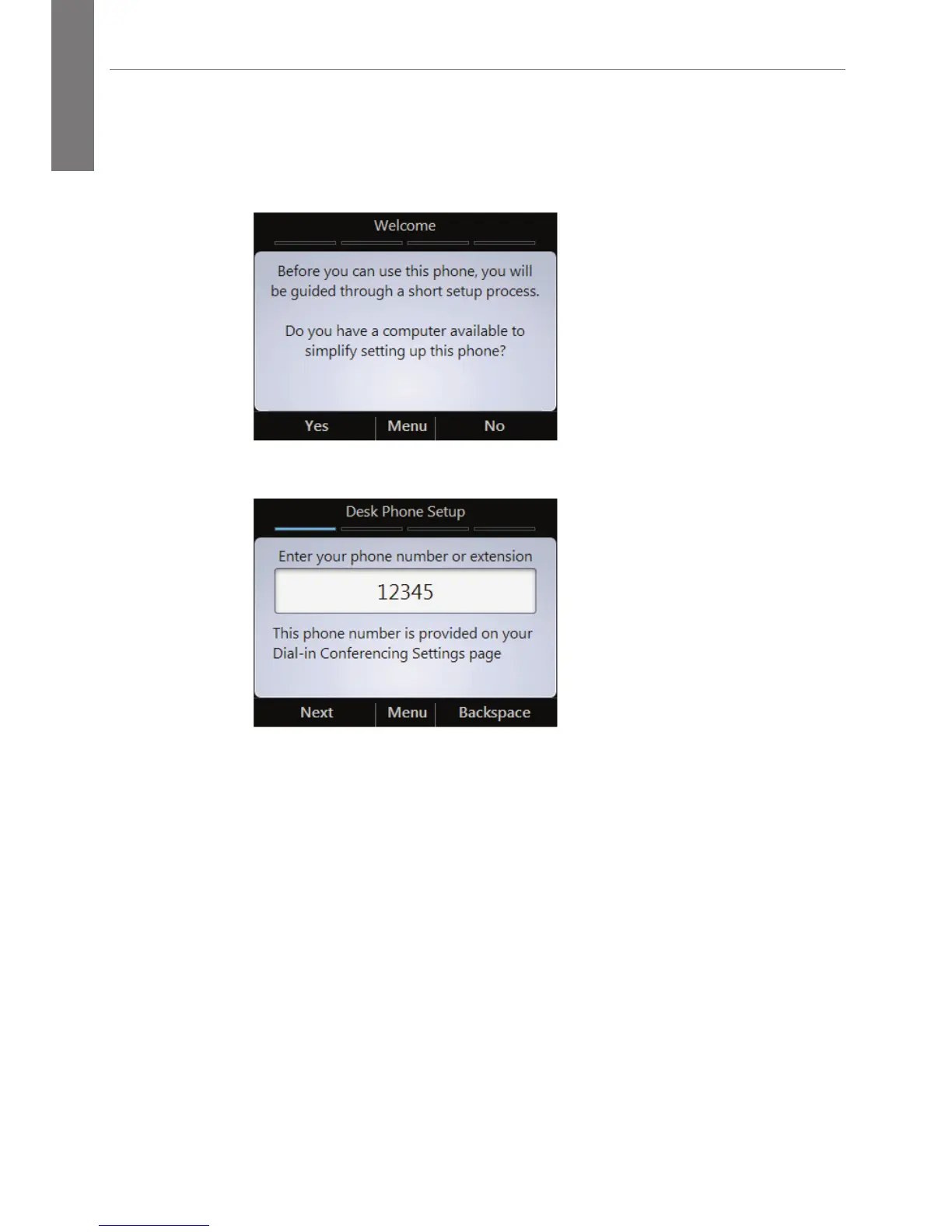
1. If you do not have a computer connected to the phone, from
the Welcome screen, select No.
2. Enter your phone number or extension, then select Next.
3. Enter your PIN, then select Sign In.
Configure Your PIN to Unlock Phone
The PIN auto-lock feature is enabled by default in Lync Server, so if
the administrator has not disabled it, you will be prompted to create
a PIN upon registering your phone. Once the auto-lock PIN has been
set, your phone will lock when left unattended for a specified period
of time (determined by your support team). You also have the option
to manually lock/unlock your phone.




 To Next Page