3/27/97 11:15 am Final version given to printer
...............................................................................................................
5-8
HP Company Confidential
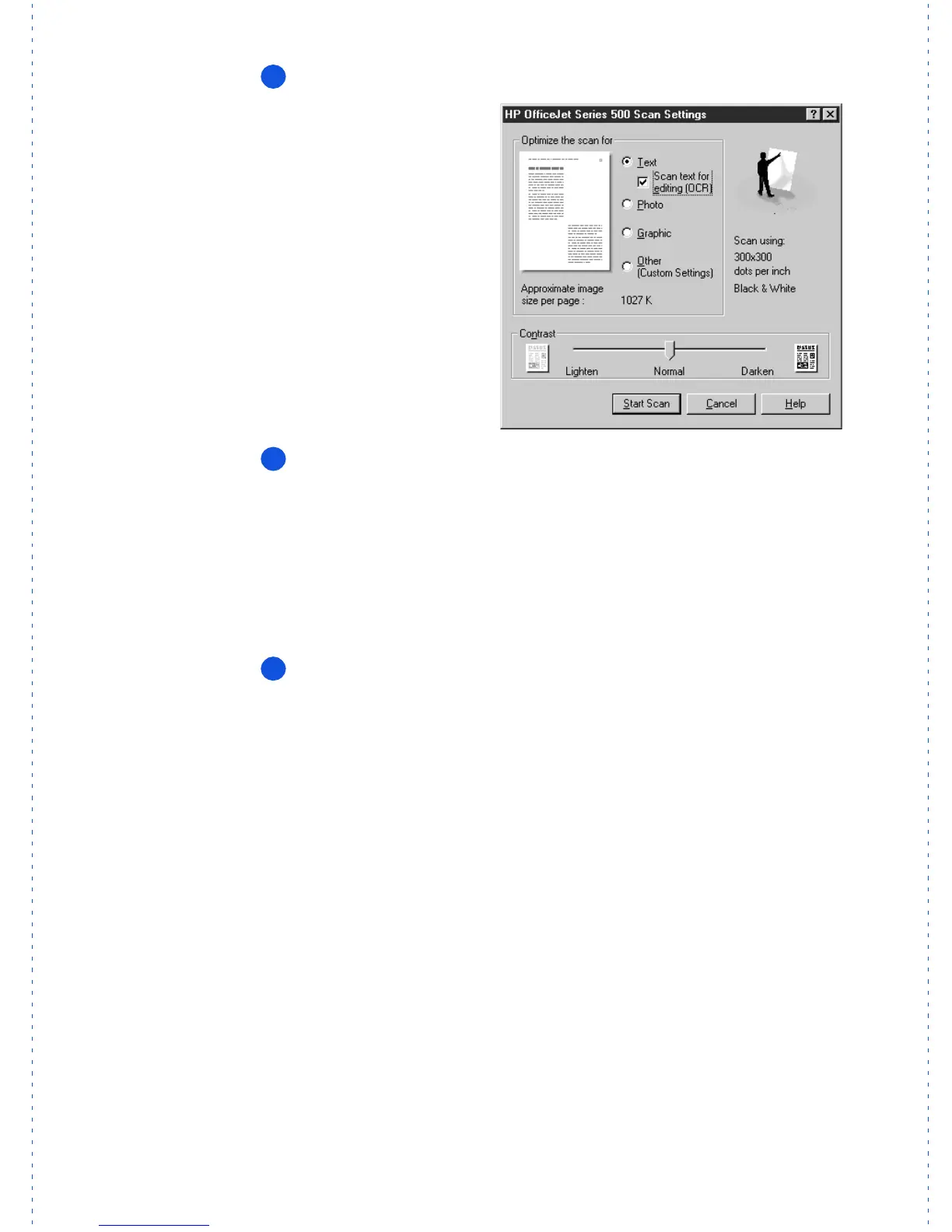
Click the
Text
and
Scan text for editing (OCR)
checkboxes.
Click
Start Scan
.
Your document will be scanned into the word processing program
that you selected when you first installed the OmniPage OCR soft-
ware (at the end of the HP OfficeJet software installation procedure).
Note: To change the selected word processing program, double-click
the
HP OfficeJet Manager
icon on your Windows desktop, click
HP
OfficeJet
and select
Settings and Maintenance
, click the
Software
tab, and select from the
File format for OCR results
menu.
Edit and proofread
your scanned document.
3
Click
Scan text for editing
(OCR)
to edit the words in
your document.
4
5



 To Next Page