14 Getting Started Guide
Chapter 1: Getting to know your computer
✎
The computer also support additional TouchPad features. To view and turn on these
features, click the Synaptics icon in the notification area, at the far right of the taskbar.
Click Pointer Device Properties, and then click the Device Settings tab. Select the
device, and then click Settings.
Scrolling
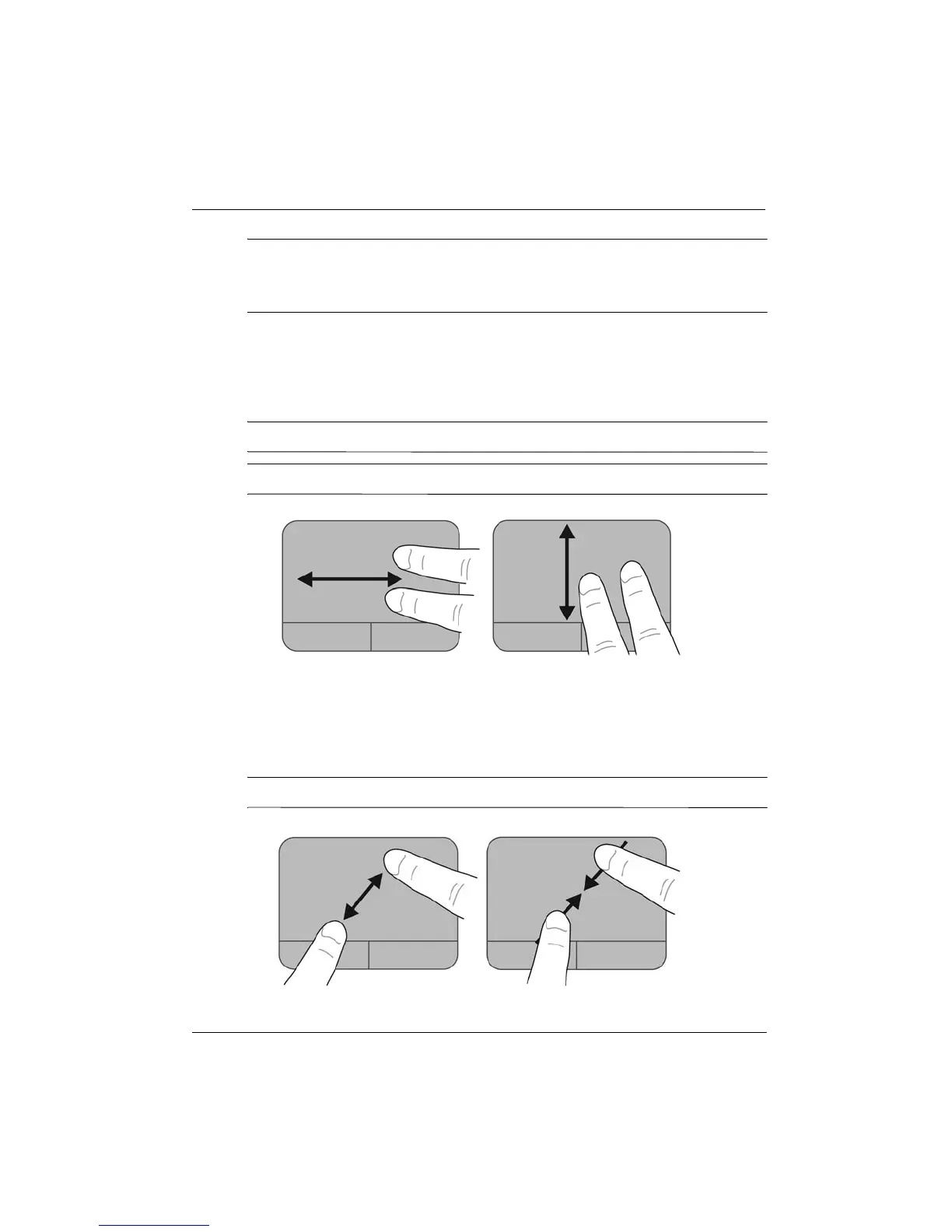
Scrolling is useful for moving up, down, or sideways on a page or image. To scroll, place two
fingers slightly apart on the TouchPad, and then drag them across the TouchPad in and up,
down, left, or right motion.
✎
Scrolling speed is controlled by finger speed.
✎
Two-finger scrolling is enabled at the factory.
Pinching/Zooming
Pinching allows you to zoom in or out on images or text.
■ Zoom in by placing two fingers together on the TouchPad, and then moving them apart.
■ Zoom out by placing two fingers apart on the TouchPad, and then moving them together.
✎
Pinching/zooming is enabled at the factory.







 To Next Page