Removing an Internal 3.5-inch Hard Drive
NOTE: Before you remove the old hard drive, be sure to back up the data from the old hard drive so
that you can transfer the data to the new hard drive. Also, if you are replacing the primary hard drive,
make sure you have created a Recovery Disc Set to restore the operating system, software drivers, and
any software applications that were preinstalled on the computer. If you do not have this CD set, select
Start > HP Backup and Recovery and create it now.
1. Remove/disengage any security devices that prohibit opening the computer.
2. Remove all removable media, such as diskettes or compact discs, from the computer.
3. Turn off the computer properly through the operating system, then turn off any external devices.
4. Disconnect the power cord from the power outlet and disconnect any external devices.
CAUTION: Regardless of the power-on state, voltage is always present on the system board as
long as the system is plugged into an active AC outlet. You must disconnect the power cord to
avoid damage to the internal components of the computer.
5. Remove the computer access panel.
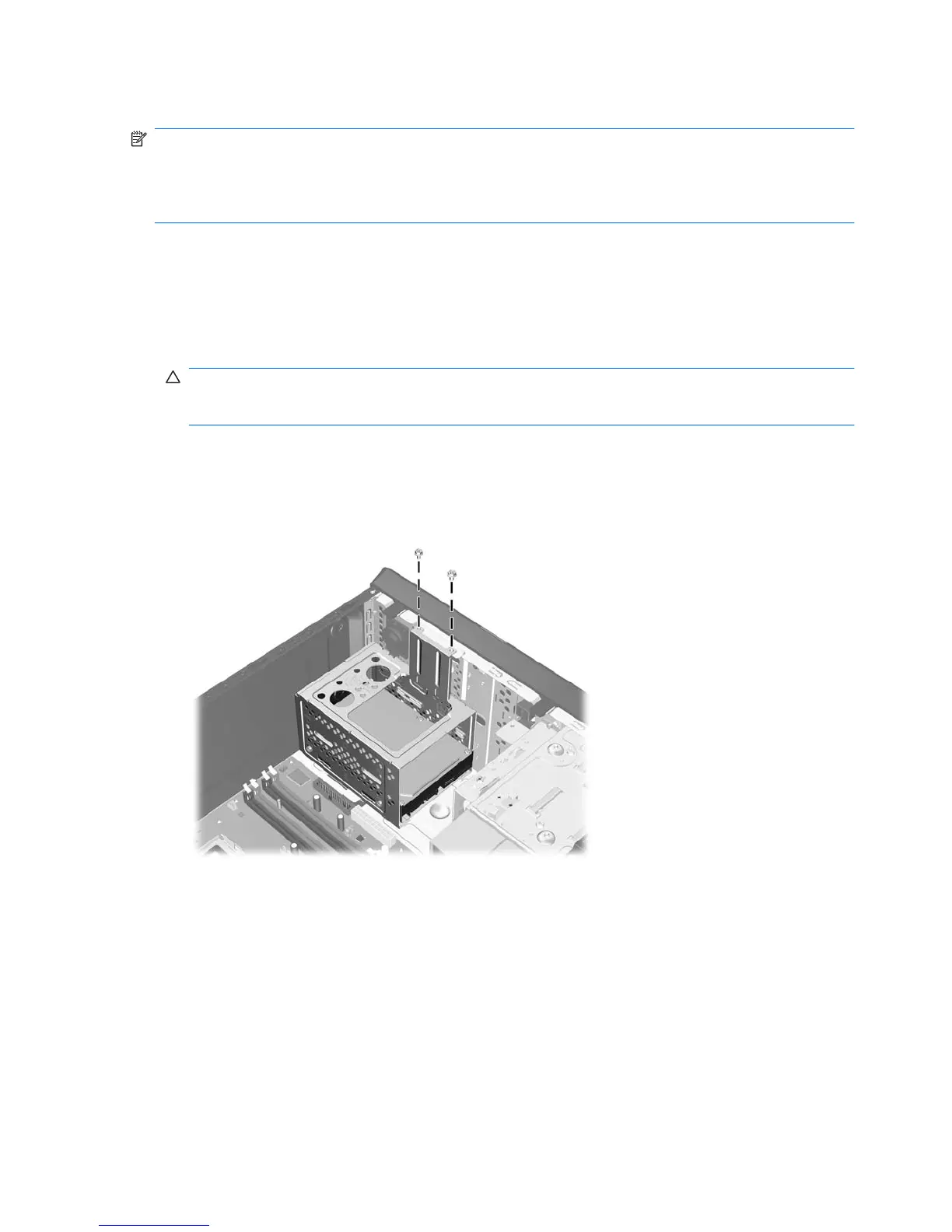
6. Remove the two screws that secure the hard disk drive cage to the chassis.
Figure 2-26 Removing the Hard Drive Cage Screws
34 Chapter 2 Hardware Upgrades ENWW




 To Next Page