16
8
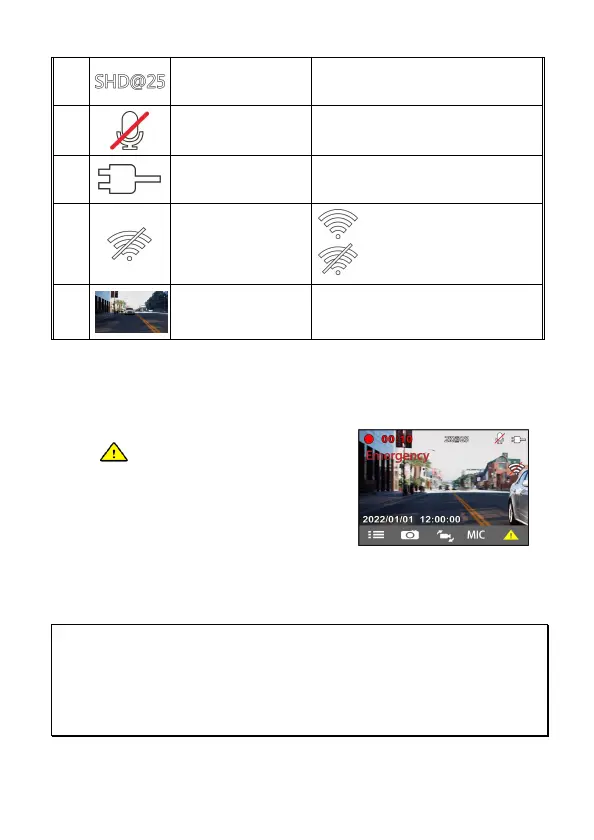
Resolution
icon
Indicates the video resolution.
9
Voice Record
icon
Indicates voice recording sets as off,
the sound will not be recorded.
10
Power icon
Indicates camcorder is connected with
power.
11
Wi-Fi icon
Wi-Fi on
Wi-Fi off
12
VIV (Video in Video)
Indicates rear camera recording
screen.
3.3 Emergency Recording
To Start the Emergency Recording, do the following:
1. During Video Recording, press the
button to enter emergency
recording mode, the “Emergency”
will show up on the upper left corner
of the screen. The recorded file will
be protected.
2. The emergency video recording length is same as the recording
interval setting. When the emergency recording length reaches the
setting, the system will return to the general recording mode.
Note:
1. If the Collision Detection function is enabled and a collision is detected, the camcorder will
automatically trigger the emergency recording. The sensitivity can be adjusted from “Setting”.
2. The emergency file is created as a new file and saved in Emergency folder, which will be protected
to avoid being overwritten by normal loop recording. The Emergency folder will occupy 20% of
available memory card capacity. When the Emergency folder is full, the oldest emergency file will be
automatically deleted by the newest emergency file.



 To Next Page