EasyManua.ls Logo

HP F310 - User Manual

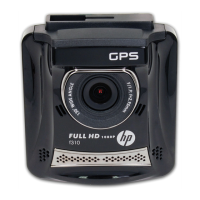
HP F310
34 pages
Print Icon
To Next Page IconTo Next Page
Loading...

Other manuals for HP F310

Question and Answer IconNeed help?

Do you have a question about the HP F310 and is the answer not in the manual?

Summary

Document and Compliance Overview

About this Guide

General information about the manual's content and accuracy.

Regulatory Statements

Details FCC and WEEE compliance information.

Vehicle Installation and Safety Guidelines

CE Regulatory Notice

Compliance with EU directives for radio and telecom devices.

Installation Notes

Key considerations for mounting the device in a vehicle.

Safety Precautions

Important warnings for safe operation and handling.

Introduction to the HP f310 Car Camcorder

Key Features Overview

Lists the device's main capabilities.

Package Contents List

Details the items included in the product package.

Device Components and Physical Layout

Product Overview Diagram and Labels

Identifies and explains the different parts of the device.

Getting Started: Initial Device Setup

Inserting and Removing the Memory Card

Instructions for inserting and removing the memory card.

Installing the Camcorder in Your Vehicle

Mounting the Device to the Windshield

Step-by-step guide for attaching the device.

Adjusting Device Position and Orientation

Device Position Adjustment Guide

Explains how to swivel and secure the device.

Connecting Power for Operation

Connecting the Car Adapter and Power Source

Details connecting the device to the car's power.

Powering the Camcorder On and Off

Automatic and Manual Power Control Methods

Explains automatic power management and manual operation.

Initial Device Configuration and Settings

Setting Automatic Recording Function

How to enable automatic recording upon startup.

Setting the Date and Time

Procedure for configuring the device's date and time.

Time Synchronization and UTC Settings

Setting the Universal Time Code (UTC)

How to adjust UTC for GPS time synchronization.

Using the Car Recorder: Video Recording

Recording While Driving Automatically

How the device records automatically when the engine starts.

Driver Fatigue Alert System Function

Feature that warns drivers of fatigue.

Advanced Video Recording Modes

Manual Video Recording Procedure

How to manually start and stop recording.

Emergency Recording Function Activation

How to activate and what happens during emergency recording.

Understanding the Recording Screen Interface

Recording Screen Indicators and Data

Description of icons and data shown during recording.

Capturing Still Images with the Camcorder

Taking Photographs from Standby Screen

Instructions for taking a photo.

4 Grid Function Display Mode Explained

Grid Display Information Details

Explanation of speed, time, compass, and warnings.

Playback and Reviewing Recorded Content

Accessing Playback Menu and File Types

Steps to enter the playback menu and select file types.

Viewing Recorded Videos and Photos

Playing Video Files Guide

Instructions for selecting and playing video files.

Viewing Photo Files Guide

Instructions for selecting and viewing photo files.

Understanding the Playback Screen Interface

Playback Screen Elements and Controls

Description of controls and information displayed.

Managing Recorded Files: Deleting Content

File Deletion Procedure and Options

Steps to select, confirm, and delete files.

Customizing Device Settings via Menus

Navigating the OSD Menu System

Guide on navigating and using the menus.

Detailed Menu Options and Their Functions

Menu Items and Descriptions Table

Table detailing available settings and their functions.

Configuring System Settings (Part 1 of 3)

Key Setting Options Explained

Details for various settings like Fatigue Alert, LCD, etc.

Configuring System Settings (Part 2 of 3)

More Setting Options Explained

Details for Delay Shutdown, Speed Position, WDR, Language, etc.

Configuring System Settings (Part 3 of 3)

Final Settings Explained

Details for TV Standard, Format, and Default settings.

Installing Supporting Software on PC

Software Installation Guide and Process

Steps to install software from the CD.

Using the SuperCar Analysis Software

SuperCar Interface and Feature Overview

Description of the software's layout and capabilities.

Technical Specifications of the Car Camcorder

Device Hardware Specifications List

Lists image sensor, resolution, media, lens, etc.

Device Specifications: Operational Details

Battery, Environment, and Physical Specs

Lists battery, operating conditions, dimensions, and weight.

HP F310 Specifications

General IconGeneral
Video Resolution1080p
Screen Size2.4 inches
G-SensorYes
Loop RecordingYes
Night VisionYes
StorageMicroSD up to 32GB
Power SourceCar charger
Field of View130 degrees

Related product manuals