Need help?
Do you have a question about the HP f870g and is the answer not in the manual?
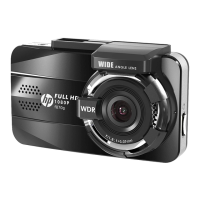
Lists the main technical specifications and capabilities of the car camcorder.
Details the items included in the product package for user reference.
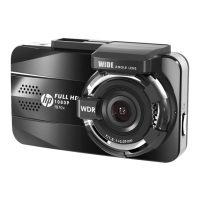
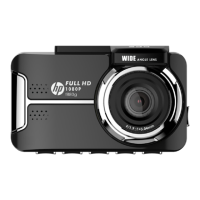
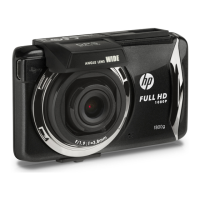
Identifies and explains the different parts and components of the car camcorder.
Explains how to manage storage, including inserting and removing memory cards.
Instructions for physically installing the car camcorder within a vehicle.
Guidance on adjusting the camcorder's angle and position after mounting.
Explains how to connect the camcorder to a power source for operation and charging.
Illustrates and explains the icons and indicators for battery power levels and charging.
Describes the low voltage warning and its implications for recording.
Details the function and color codes of the camcorder's LED status indicator.
Explains how to turn the camcorder on, off, and reset it.
Guides users through essential initial configurations like time and date.
Step-by-step instructions to set the correct time zone for accurate recording timestamps.
Detailed instructions for setting the correct date and time on the camcorder.
Describes how the camcorder automatically starts and stops recording based on vehicle activity.
Details the various icons and information displayed on the camcorder's recording screen.
Explains how to activate and use the emergency recording feature for protected footage.
Instructions for customizing and adding speed camera locations to the system.
Describes how to take still snapshots while the camcorder is recording video.
Overview of the driving safety features designed to alert the driver.
Details how to enable and use the speed camera alert system for warnings.
Explains the speed limit alert function, which warns drivers exceeding set speed limits.
Guides users on activating and configuring parking mode for vehicle monitoring.
Explains Motion Detection operation using the camcorder's embedded battery.
Explains Vibration Detection operation using the camcorder's embedded battery.
Explains Parking Mode operation when connected to car's battery via ACC or a power bank.
Details how the camcorder initiates emergency recording upon detecting a collision.
Explains the driver fatigue alert system, which warns drivers of potential drowsiness.
Describes the Lane Departure Warning System that alerts drivers for unintentional lane changes.
Details the Forward Collision Warning System that alerts drivers of potential frontal collisions.
Explains how to view vehicle speed and direction information in a dual-grid display.
Guides users on how to browse and play recorded videos and view photos.
Details the elements and controls visible on the playback screen for reviewing footage.
Instructions on how to delete recorded video and photo files from the memory card.
Explains the general procedure for navigating and using the camcorder's on-screen display menus.
Lists and describes the various settings available in the camcorder's main menu.
Instructions for connecting the camcorder to a computer via USB for data transfer.
Details how to connect the camcorder to a TV using an HDMI cable for playback.
 General
| Frame Rate | 30 fps |
|---|---|
| GPS | Yes |
| G-Sensor | Yes |
| Parking Mode | Yes |
| LDWS (Lane Departure Warning System) | Yes |
| FCWS (Forward Collision Warning System) | Yes |
| HDR | Yes |
| Memory Card Type | MicroSD |
| Maximum Memory Card Size | 128 GB |
| Loop Recording | Yes |
| Night Vision | Yes |
| Video Resolution | 1920x1080 |
| Aperture | f/1.8 |
| Display Size | 2.7 inch |

 To Next Page