Need help?
Do you have a question about the HP f880x and is the answer not in the manual?
States device must not be co-located with other antennas.
Details proper disposal of electronic waste and batteries.
Confirms compliance with EU directives for battery, RED, and RoHS.
Instructions for optimal windshield mounting and lens cleaning.
Lists key features such as SONY sensor, Full HD, and Collision Detection.
Details items included in the product package.
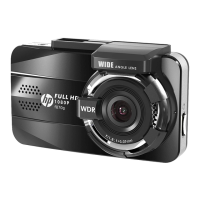
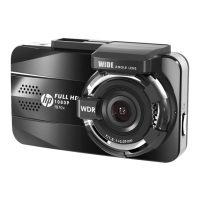
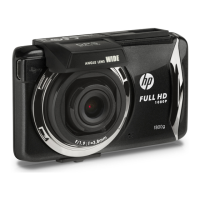
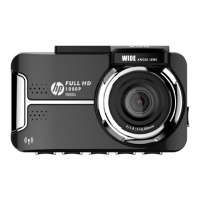
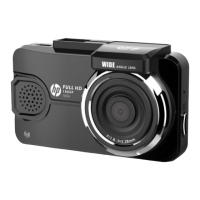
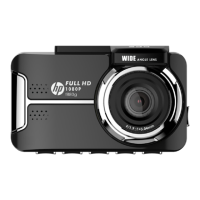
Provides a detailed diagram and list of camcorder components.
Explains how to insert and remove memory cards.
Guides on mounting the camcorder to a vehicle windshield.
Details how to connect the camcorder to the vehicle's power source.
Explains the meaning of different LED indicator lights.
Instructions for powering the device on/off and performing a reset.
Guides on setting the time zone, date, and time.
Explains how the camcorder automatically powers on and records with the car engine.
Details the icons and information displayed during recording.
How to manually activate emergency recording and its automatic triggers.
How to customize speed camera positions.
Instructions for taking snapshots while recording.
Overview of driving safety features like LDWS and FCWS.
Alerts for approaching speed cameras based on GPS data.
Alerts when the vehicle's speed exceeds a set limit.
Alerts the driver if fatigue is detected after a period of driving.
Lane Departure Warning System alerts for unintentional lane changes.
Forward Collision Warning System alerts for imminent collisions.
Front Car Move Detection alerts when the car ahead moves.
Alerts for poor lighting conditions, such as night driving.
Enables monitoring and recording when the vehicle is parked.
Details how Park Recording functions and is activated.
Detects motion or collision while parked for recording.
Records in timelapse mode to save storage space.
Adjusts sensitivity for detecting collisions.
Displays driving speed and direction information.
How to stop recording and access the playback menu.
Explains the interface and controls for playback.
Step-by-step guide to deleting video and photo files.
Steps to download and install the Pixi Car mobile application.
Instructions for connecting the camcorder to a mobile device via Wi-Fi.
Guides on setting up Wi-Fi and camera configurations.
How to preview, record, and take snapshots using the app.
Steps to playback, delete, or download files via the app.
Accessing and managing downloaded files on the mobile device.
How to navigate and use the on-screen display (OSD) menus.
Detailed list of available menu options and their functions.
How to transfer or view files by connecting to a computer.
 General
| GPS | Yes |
|---|---|
| Wi-Fi | No |
| Frame Rate | 30 fps |
| G-Sensor | Yes |
| Loop Recording | Yes |
| Parking Mode | Yes |
| LDWS (Lane Departure Warning System) | Yes |
| FCWS (Forward Collision Warning System) | Yes |
| Storage | microSD up to 32GB |
| Aperture | F1.8 |

 To Next Page