Need help?
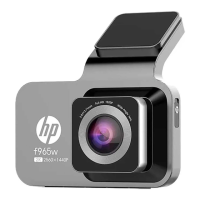
Do you have a question about the HP f965w and is the answer not in the manual?
Covers WEEE, CE, and co-location notices relevant to the product's compliance.
Instructions for windshield placement, lens care, charger usage, and tinted window considerations.
Warnings about driving safety, settings accuracy, and device warm-up.
Covers non-commercial use, Wi-Fi limits, interference, and RF precautions for various environments.
Guidelines for medical facilities, explosion sites, battery disposal, and liability.
Highlights of the car camcorder and a list of included package items.
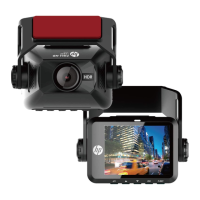
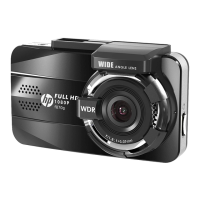
Detailed diagram and list of the camcorder's physical components and their functions.
Instructions for inserting and removing microSD cards, including recommended specifications and formatting.
Step-by-step guide on mounting the camcorder on the windshield using the provided sticker and bracket.
Procedure for connecting power and explanation of LED indicator meanings.
Details on automatic and manual methods for turning the camcorder on and off.
Instructions for setting the correct date and time as an initial setup step.
How the camcorder automatically starts and stops recording based on the vehicle's engine status.
Explanation of icons and information displayed on the camcorder's recording screen.
How to manually trigger emergency recording and its automatic activation by collision detection.
Instructions for capturing snapshots and details on the driver fatigue alert system.
How to set up Parking Mode and adjust collision detection sensitivity.
Instructions for browsing, playing back, and deleting recorded videos and photos.
Guide to downloading and installing the companion smartphone application for the camcorder.
Steps to connect the camcorder to a smartphone using Wi-Fi, including default credentials.
Instructions for activating and authorizing the Go Carcam app for initial use.
Explanation of the main screen interface and available functions within the Go Carcam app.
Set recording duration and video resolution, noting effects of Wi-Fi and rear camera.
Configure voice recording, voice commands, and collision detection sensitivity.
Configure LCD auto-off time, volume, and key tone.
Configure Anti-flicker, Driver Fatigue Alert, App Download, and Reset to Default.
Details on image sensor, pixels, lens, focus, shutter, G-Sensor, ISO, and white balance.
Specifications for video/image formats, microphone, speaker, interface, and power.
Information on operating temperature/humidity, app support, dimensions, weight, and Wi-Fi specs.
 General
| Brand | HP |
|---|---|
| Model | f965w |
| Category | Dash Cameras |
| Language | English |

 To Next Page