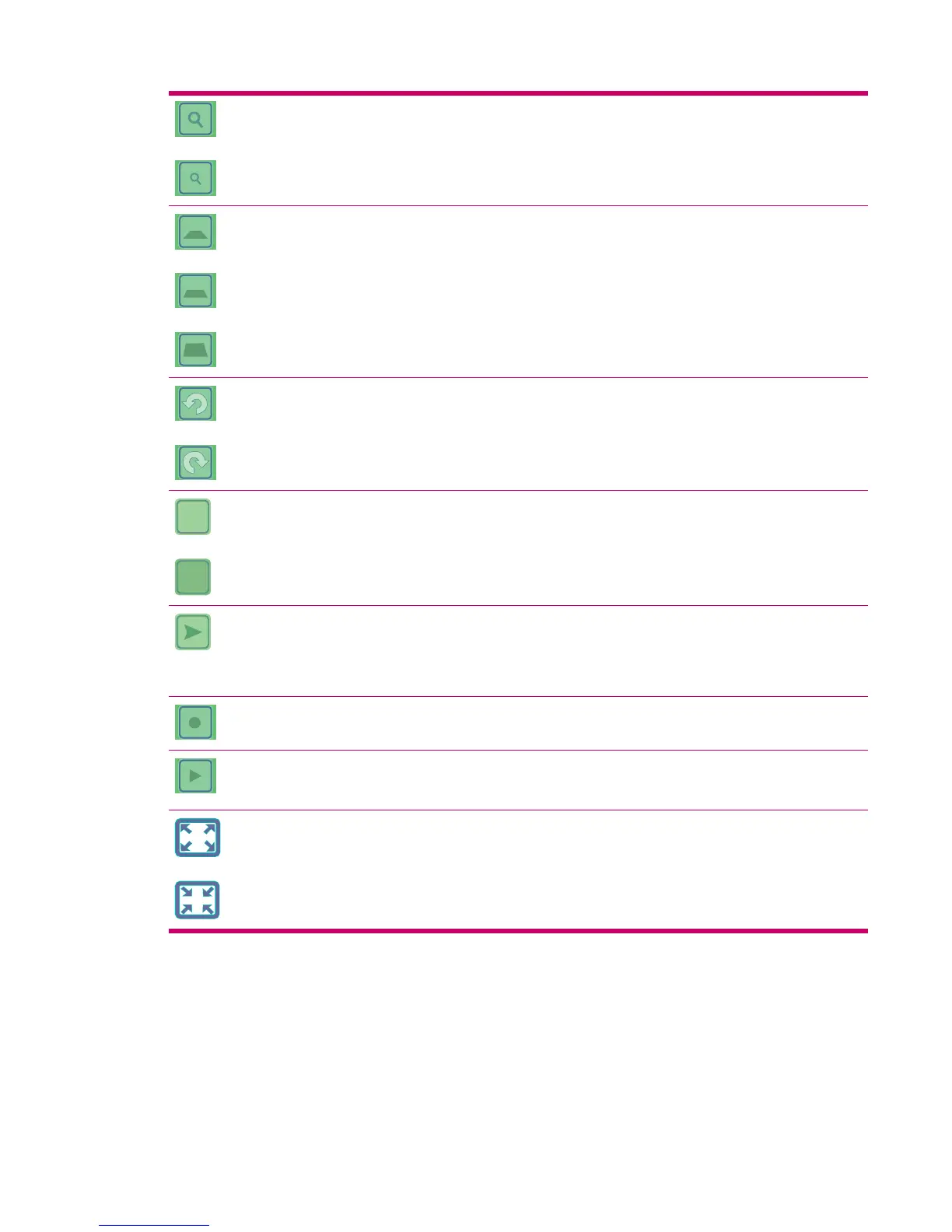
On the 3D map screen (screen designed for navigation) you
can access fixed tilt (and zoom) levels using these icons.
These icons appear only when GPS position is available.
These icons rotate the map left and right.
2D
3D
Only one of these icons is displayed. Tap 3D to switch from the
2D map (designed for map browsing) to the 3D map (Cockpit,
designed for navigation). Tap 2D to return.
This icon moves the map back to the current GPS position (to
the position arrow), and re-enables Smart Zoom that
automatically scales and tilts the map based on the distance
of the next route event. When GPS position is not available,
the map jumps to the position of the Cursor.
This icon is displayed on the screen when a track log is being
recorded. Tap it to jump to the list of track logs.
This icon is displayed on the screen during route simulation
and track log playback. Tap the screen anywhere to stop
simulation.
These icons help you to view the map in the full screen view
and to return to the normal screen view.
Selectors
In the following sections, you can find some of the controls frequently used in the Travel Companion.
Selectors 17



 To Next Page