EasyManua.ls Logo

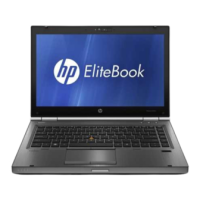
HP Laptop - User Manual

HP Laptop
126 pages
Print Icon
To Next Page IconTo Next Page
Loading...
User Guide

Table of Contents

Other manuals for HP Laptop

Questions and Answers

  • B
    Brent SandersSep 9, 2025
    What to do if a movie is not visible on an external display connected to my HP Laptop?
    • A
      Ashley LeonardSep 9, 2025
      If a movie is not visible on an external display connected to your HP Laptop, and both the computer display and an external display are turned on, press fn+f4 one or more times to switch between the 2 displays. Alternatively, configure the monitor settings to make the external display primary.
  • A
    anthony65Sep 7, 2025
    What to do if the optical disc tray does not open for removal of a CD or DVD from my HP Laptop?
    • A
      Anna BrownSep 7, 2025
      If the optical disc tray does not open for removal of a CD or DVD from your HP Laptop, insert the end of a paper clip into the release access in the front bezel of the drive. Press in gently on the paper clip until the disc tray is released, and then pull out the tray until it stops. Remove the disc from the tray by gently pressing down on the spindle while lifting the outer edges of the disc.
  • M
    Madison KhanAug 22, 2025
    What to do if my HP Laptop is on but not responding?
    • C
      Christina SullivanAug 22, 2025
      If your HP Laptop is on but not responding, try pressing and holding the power button for at least 5 seconds. Alternatively, disconnect the computer from external power and remove the battery.
  • J
    Joseph CastilloSep 5, 2025
    What to do if an external device is not working with my HP Laptop?
    • S
      sanchezpaulSep 5, 2025
      If an external device is not working with your HP Laptop, make sure to turn on the device according to the manufacturer's instructions. Also, ensure that all device connections are secure and that the device is receiving electrical power. Check that the device is compatible with the operating system, especially if it is an older device. Finally, verify that the correct drivers are installed and updated.
  • P
    Peter RogersSep 4, 2025
    How to resolve a low battery level on HP Laptop?
    • M
      Martin HouseSep 4, 2025
      If your HP Laptop has a low battery level, connect an AC adapter if external power is available. If not enough power source is available, initiate Hibernation.
  • M
    Michelle GentrySep 2, 2025
    What to do if I cannot connect to a preferred network on HP Laptop?
    • C
      Colleen GutierrezSep 3, 2025
      If you cannot connect to a preferred network on your HP Laptop, it may be a security-enabled WLAN, and you must have the security code to connect. Alternatively, it may be a corrupted WLAN connection. If there is a network status icon in the notification area, right-click the icon, and then click Troubleshoot problems. If there is no network status icon in the notification area, follow these steps: Start > Control Panel > Network and Internet > Network and Sharing Center.
  • M
    Miss Madison AguirreSep 1, 2025
    Why is WLAN connection very weak on my HP Laptop?
    • B
      Brenda VazquezSep 1, 2025
      If the WLAN connection on your HP Laptop is very weak, try moving your computer closer to the wireless router or access point. You can also temporarily disconnect wireless devices such as a microwave, cordless phone, or cellular phone.
  • A
    Amanda PenningtonAug 31, 2025
    What to do if current network security codes are unavailable on HP Laptop?
    • M
      Mrs. Andrea AdamsAug 31, 2025
      If the network security codes are unavailable on your HP Laptop, it is possible that the network is protected by security. For a network connected to your personal wireless router, review the router user guide for instructions on setting up the same codes on both the router and the WLAN device. Alternatively, contact the network administrator to obtain the codes, and then enter the codes when prompted.
  • C
    christopherwhiteAug 30, 2025
    How to fix wireless network connection on HP ?
    • M
      Michelle WhiteAug 30, 2025
      If the wireless network connection on your HP Laptop isn't working, try these steps: * Enable the wireless network device by right-clicking the Network Connection icon in the notification area, and selecting the check box from the menu option. * Ensure the wireless device is turned on. * Make sure the computer wireless antennas are free from obstructions. * Check that the cable or DSL modem and its power cord are properly connected and that the lights are on. * Verify the wireless router or access point is properly connected to its power adapter and to the cable or DSL modem, and that the lights are on. * Disconnect and then reconnect all cables, and turn the power off and then back on.
  • K
    Kevin CharlesAug 28, 2025
    What to do if my HP does not detect the optical drive?
    • J
      Julia MillerAug 28, 2025
      If your HP Laptop does not detect the optical drive, remove any discs from the optical drive. Click Computer and then click System Monitor. On the Hardware tab, identify the Storage Controller in the Type column. Click the triangle next to the devices until you locate your optical drive. If the drive is listed, it should be functioning correctly.

Summary

Connecting to a Network

Power Management

Shutting Down and Power States

Procedures for shutting down, Sleep, and Hibernation modes to manage power.

Power Options and Battery Usage

Details on setting power options, managing battery life, and using external AC power.

Drives and Storage Management

Handling, Replacing, and Optimizing Drives

Procedures for managing hard drives and optical drives, including performance optimization.

Computer Security

Protecting the Computer

Overview of security measures for protecting the computer from unauthorized access.

Passwords and Security Settings

Guidance on setting and managing BIOS and Windows passwords for system security.

Antivirus, Firewall, and Updates

Information on using antivirus, firewall software, and installing critical security updates.

Backup and Recovery

Data Backup and System Recovery

Methods for backing up data, performing system recovery, and reinstalling Windows.

Windows 8 Media and Refresh Options

Using Windows 8 installation media or the Refresh option for system recovery.

Computer Setup and Diagnostics

Using Computer Setup (BIOS)

Navigating and modifying settings within the computer's BIOS or Computer Setup utility.

Updating the BIOS

Instructions for determining the BIOS version and downloading/installing BIOS updates.

Advanced System Diagnostics

Running diagnostic tests to check the computer's hardware components for proper function.

Troubleshooting and Safety

Resolving Common Issues

Solutions for common problems like startup failures, blank screens, and device malfunctions.

HP Laptop Specifications

General IconGeneral
BrandHP
ModelLaptop
CategoryLaptop
LanguageEnglish

Related product manuals