ENWW Setting Fit-to-page 55
English
Setting Fit-to-page
When selecting a page size to print a fax, the MFP determines the
closest page size that matches the intended size from sizes available
in the MFP. If the fit-to-page setting is enabled and the received image
is larger than that page size, the MFP attempts to scale the image to
fit the page. If this setting is disabled, an incoming image larger than
the page, splits across pages.
To enable or disable fit-to-page, perform the following steps.
1 On the control panel, press the Menu button to display the main
menu.
2 Touch FAX to display the fax menu.
3 Scroll down and touch FAX RECEIVE.
4 Touch FIT TO PAGE to display the fit-to-page settings.
5 Touch ON to enable fit-to-page, or touch OFF (default) to disable
fit-to-page.
Setting paper tray
The paper tray setting selects the MFP paper tray to pull paper from
for printing faxes.
To select the paper tray, perform the following steps.
1 On the control panel, press the Menu button to display the main
menu.
2 Touch FAX to display the fax menu.
3 Scroll down and touch FAX RECEIVE.
4 Touch FAX PAPER TRAY to display the settings screen.
5 Use the up and down arrows to select the number for the tray
(default=0), and then touch OK.
Setting the destination bin
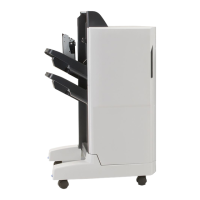
The destination bin setting specifies the MFP output bin to receive the
printed fax.
To set the destination bin, perform the following steps.
1 On the control panel, press the Menu button to display the
main menu.
2 Touch FAX to display the fax menu.
3 Scroll down and touch FAX RECEIVE.



 To Next Page