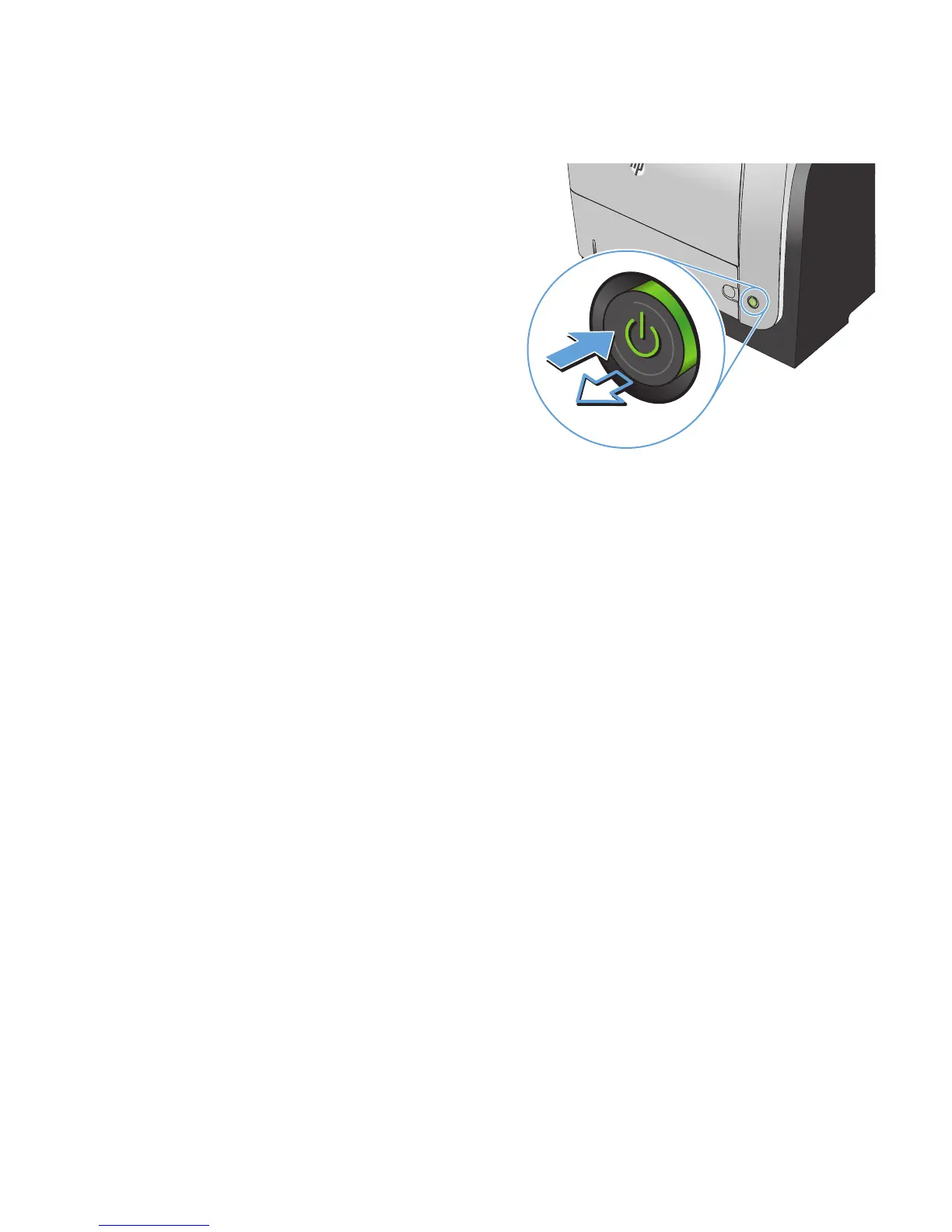
4. Dry the glass and white plastic parts with a
chamois or a cellulose sponge to prevent
spotting.
5. Connect the power cable to an outlet, and
then press the power button to turn the product
on.
Check the paper settings
1. From the Home screen on the product control panel, touch the Copy button.
2. Touch the Settings button, and then scroll to and touch the Paper button.
3. From the list of paper sizes, touch the name of the paper size that is in Tray 1.
4. From the list of paper types, touch the name of the paper type that is in Tray 1.
5. Touch the Start Copy button to start copying.
Optimize for text or pictures
The following copy-quality settings are available:
●
Auto Select: Use this setting when you are not concerned about the quality of the copy. This is the
default setting.
●
Mixed: Use this setting for documents that contain a mixture of text and graphics.
●
Text: Use this setting for documents that contain mostly text.
●
Picture: Use this setting for documents that contain mostly graphics.
ENWW
Improve copy quality
187



 To Next Page