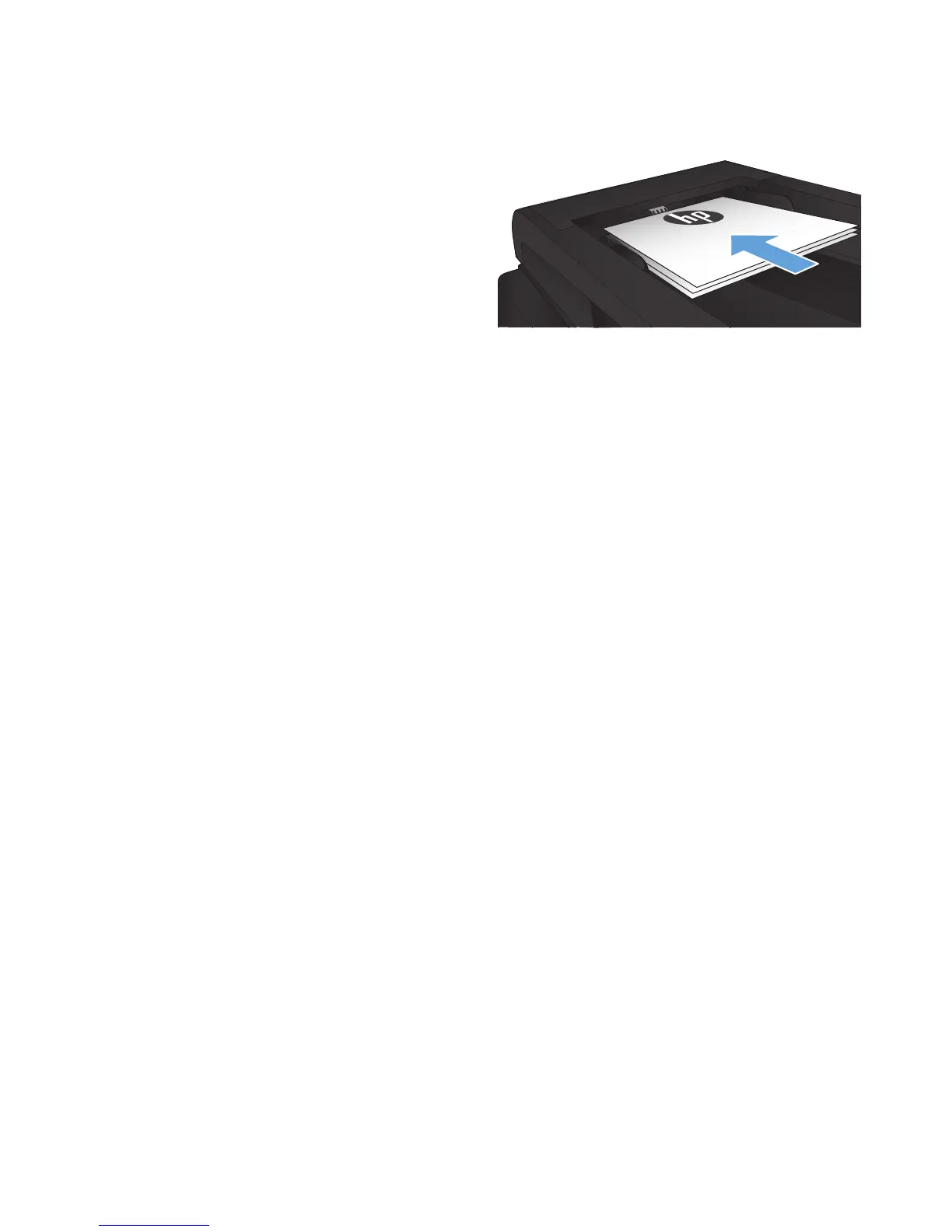
1. Load the document onto the scanner glass or
into the document feeder.
2. From the Home screen on the product control
panel, touch the Copy button.
3. Touch the Settings button, and then scroll to
and touch the Optimize button. Touch the
arrow buttons to scroll through the options,
and then touch an option to select it.
4. Touch the Start Copy button to start copying.
Edge-to-edge copying
The product cannot print fully edge-to-edge. There is a 4 mm unprintable border around the page.
Considerations for printing or scanning documents with cropped edges:
●
When the original is smaller than the output size, move the original 4 mm (1/6 inch) away from
the corner indicated by the icon on the scanner. Recopy or scan in this position.
●
When the original is the size of the printed output that you want, use the Reduce/Enlarge feature
to reduce the image so the copy is not cropped.
Clean the pickup rollers and separation pad in the document
feeder
If the product document feeder experiences paper-handling problems, such as jams or multiple-page
feeds, clean the document-feeder rollers and separation pad.
188 Chapter 9 Solve problems ENWW



 To Next Page