The print carriage moves to the center of the printer.
NOTE: Wait until the print carriage stops moving before proceeding.
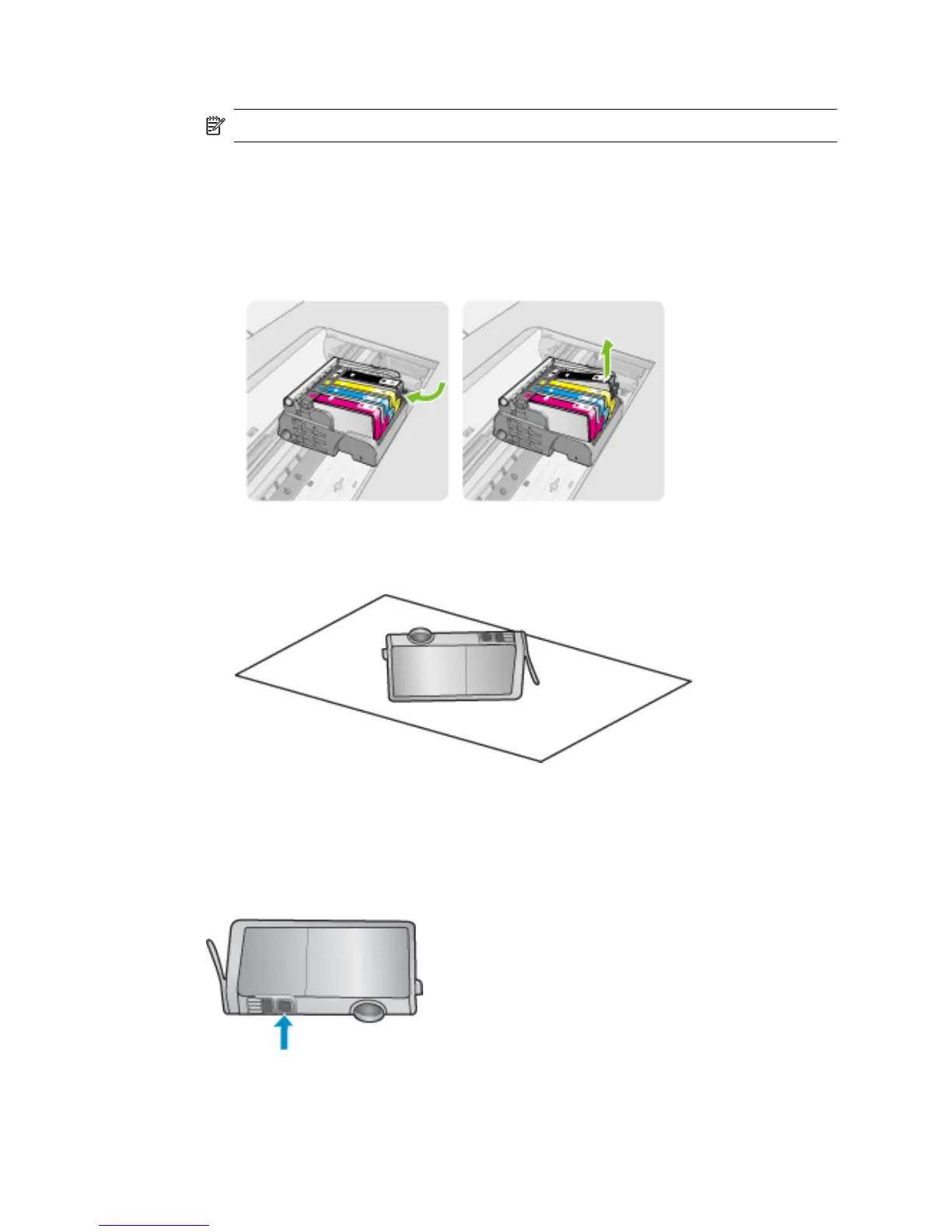
4. Remove all of the ink cartridges and place them on a piece of paper with the ink
openings pointing up.
To remove the ink cartridges
a. Press the tab on the ink cartridge to release it, and then remove it from the slot.
b. Place the ink cartridge on a sheet of paper with the ink opening pointing up.
c. Repeat steps a and b for each ink cartridge.
5. For each ink cartridge, wipe the sensor window with a dry swab or lint-free cloth.
The sensor window is an area of clear plastic near the copper or gold-colored metal
contacts on the bottom of the ink cartridge. Try not to touch the metal contacts.
Chapter 8
126 Solve a problem



 To Next Page