23
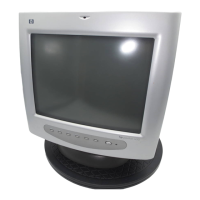
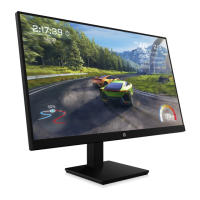
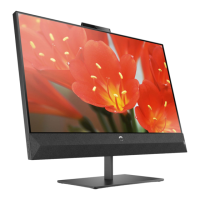
hp pavilion f50/f70 LCD Monitor
Adjusting the Monitor
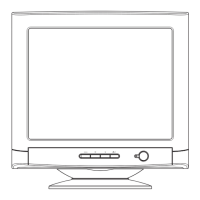
Monitor control buttons
*NOTE: For the best performance and sound range of the f70
monitor, use the keyboard for the primary volume control
and use the audio base as a secondary volume control.
Auto-Adjustment function
You can easily optimize the screen performance for the VGA
interface by using the Auto button and the auto-adjustment pattern on
the CD-ROM disc provided.
1 Insert the provided CD-ROM disc into the computer. Run the
program D:\F50.exe or D:\F70.exe to display a pattern used for
setup.
2 Press the Auto button to produce a stable, centered image.
The optimizer utility on the CD-ROM contains the drivers for
Windows Me, Windows 2000, or Windows XP. For the f50
monitor, use the D:\Drivers\f50.inf file. For the f70 monitor, use the
D:\Drivers\f70.inf file.
Control
button/icon
Function when not in
Display Manager
Function in
Display Manager
Menu: Opens and closes the
Display Manager window
Closes setting screens
and exits Display
Manager
Left Browse/Brightness:
Shortcut to Brightness setting
screen
Navigates through
setting option icons and
adjusts settings
Right Browse/Contrast:
Shortcut to Contrast setting
screen
Navigates through
setting option icons and
adjusts settings
Auto/Select: Performs an
auto-adjustment which will
optimize the image quality
Acts as an Enter (Select)
key to select setting
screen options
On/Off On/Off: Turns the monitor
on or off
Turns the monitor on
or off
Volume control Volume control*: Adjusts
volume setting (f70 only)
Adjusts volume setting



 To Next Page
 Loading...