load paper and load originals
18
hp psc 900 series
Paper Tips
4” x 6” Photo
paper (works
only with
printing)
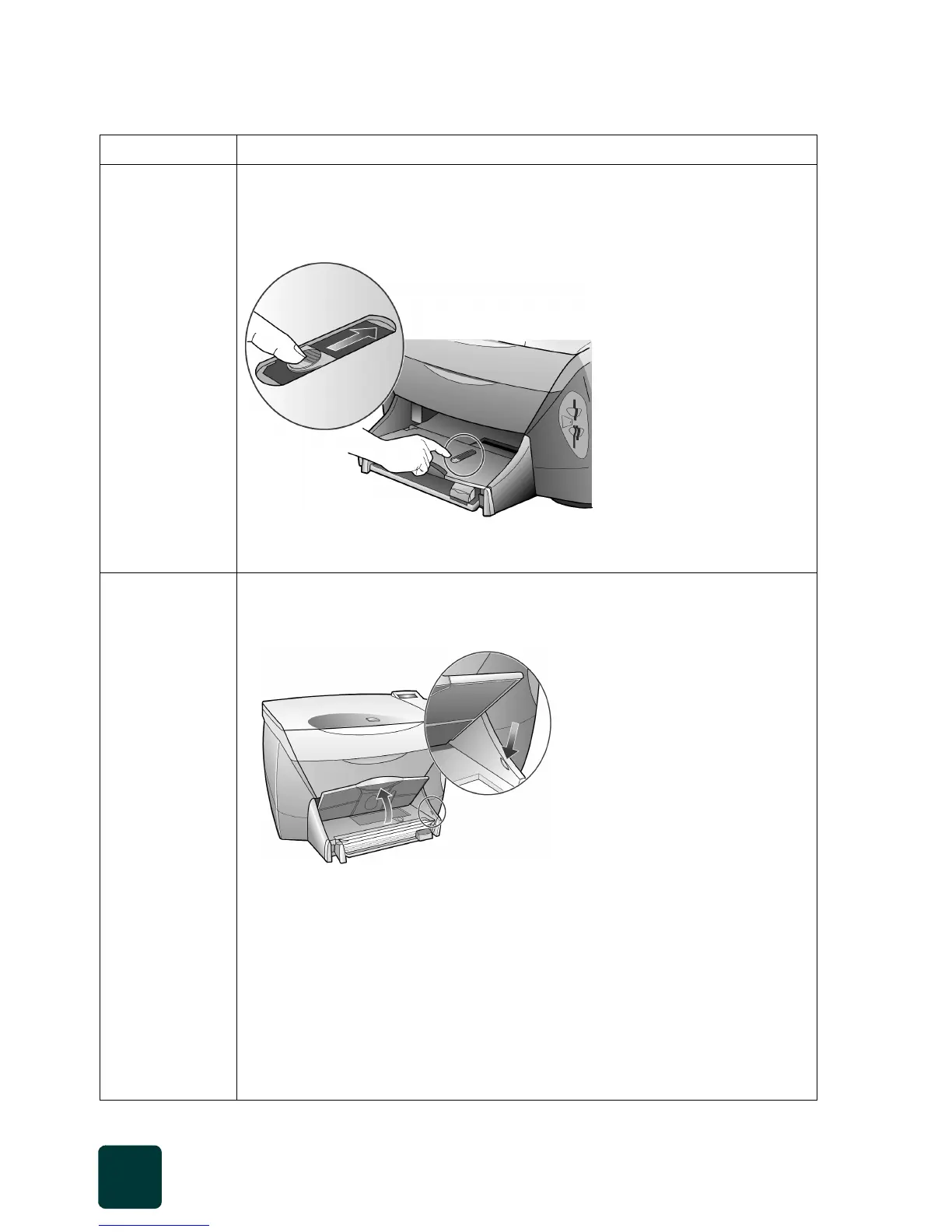
Lift the output tray to expose the photo tray. Make sure the instruction insert has
been removed. Insert a stack of 4” x 6” photo papers print-side down into the
photo tray. Lower the output tray, then slide the photo tray release button into
the correct position. See load 4 x 6 photo paper on page 20.
When the button is pushed into position, the photo tray is engaged. Paper is
pulled only from the photo tray.
Continuous
(banner) paper
(only works with
printing)
Continuous banner paper is also known as computer or z-fold paper.
• Before loading banner paper, remove all other paper from the input tray,
then raise the output tray above the catch on the right side.
• If you use non-HP banner paper, use 20-lb. paper and fan the paper before
loading it.
• Verify that the stack of banner paper contains at least five pages in the
stack.
• Carefully tear off the perforated edge strips from both sides of the paper
stack, if any, and unfold and refold the paper to make sure the pages do
not stick together.
• Put the paper in the input tray so that the unattached edge is at the top of
the stack. Insert the first edge into the input tray until it stops, as shown in
the figure above.
Raise the output tray
above the catch on the
right side.



 To Next Page