Need help?
Do you have a question about the HP Z Turbo Drive Quad Pro and is the answer not in the manual?
This document guides the installation of the HP Z Turbo Drive Quad Pro into specific HP workstations.
Details the items included in the kit and essential pre-installation checks and requirements.
Covers critical safety information regarding hot surfaces, electrical shock, and static electricity.
Detailed instructions for installing the drive into an HP Z440 workstation.
Detailed instructions for installing the drive into an HP Z640 workstation.
Detailed instructions for installing the drive into an HP Z840 workstation.
Guide on setting unique addresses for multiple HP Z Turbo Drives to avoid conflicts.
Instructions for connecting LED cables when installing multiple HP Z Turbo drives.
Procedures for completing the installation, including reinstalling components and powering up.
Essential information on NVMe driver installation for Windows and Linux systems.
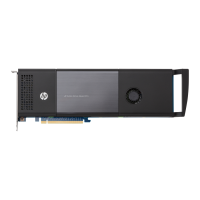
This document outlines the installation process for the HP Z Turbo Drive Quad Pro into HP Z440, Z640, and Z840 series workstations. It serves as a comprehensive guide for users looking to enhance their workstation's storage capabilities with this high-performance NVMe device.
The HP Z Turbo Drive Quad Pro is a high-performance storage solution designed to significantly boost the speed and responsiveness of compatible HP workstations. It allows for the installation of up to four M.2 PCIe SSD modules, providing substantial storage capacity and ultra-fast data transfer rates. This device is particularly beneficial for users who require rapid access to large files, run demanding applications, or perform intensive data processing tasks, such as video editing, 3D rendering, or scientific simulations. By leveraging NVMe technology, the Z Turbo Drive Quad Pro offers superior performance compared to traditional SATA-based SSDs, reducing boot times, application load times, and overall system latency. It integrates seamlessly into the workstation's PCIe slots, providing a direct and efficient pathway for data. The design of the drive, including its heat sink and cover, is engineered to manage thermal performance effectively, ensuring sustained high performance even under heavy workloads. The ability to configure multiple M.2 modules within a single PCIe card optimizes slot utilization and simplifies cable management within the workstation chassis.
The installation process for the HP Z Turbo Drive Quad Pro is designed to be straightforward, guiding users through each step from opening the drive cover to securing it within the workstation chassis. Before beginning, users are advised to consult the QuickSpecs for compatibility with their specific HP computer model and to ensure their workstation's BIOS revision meets the minimum requirement of 1.62. This prerequisite is crucial for the computer to properly recognize the drive.
A key usage feature is the flexibility in installing M.2 modules. The drive allows for the installation of up to four M.2 PCIe SSD modules, which should be loaded from the cover hinge to the PCIe edge connector in a specific order. It is recommended to install all M.2 modules before installing the HP Z Turbo Drive Quad Pro assembly into the workstation. The process involves loosening captive screws on the heat sink, lifting the heat sink to expose the M.2 slots, and then inserting the standoff into the curve of the right edge of the M.2 module. The M.2 module is then slid into the connector and pressed down until the standoff aligns with the embedded nut, followed by screwing the standoff into the nut. Finally, the heat sink is reinstalled and secured by tightening the captive screws, ensuring the tabs on the heat sink are properly positioned under the metal pins. The drive cover is then closed and latched.
For optimal performance, especially when installing an operating system image on the drive, users are instructed to remove all other storage devices initially. The drive should be installed in the primary PCIe slot indicated for the workstation, and the operating system image should be installed before adding additional HP Z Turbo Drives, HP Z Turbo Drive Quad Pros, or reinstalling other storage devices. If the drive is intended solely as a data drive, removing other storage devices is not necessary.
The document also provides detailed instructions for installing the drive into specific HP Z440, Z640, and Z840 Workstations. This includes steps for accessing internal components, such as powering down the workstation, disconnecting power cords and external devices, and removing the access panel. For each workstation model, specific instructions are given for manipulating PCI retention clips and slot covers to properly seat the PCIe drive into the system board socket.
A critical aspect of using multiple HP Z Turbo Drives or HP Z Turbo Quad Pro Drives in a single system is configuring unique addresses for each drive. Both HP Z Turbo Drive and HP Z Turbo Drive G2 support a single M.2 module and have jumpers for setting eight unique addresses. The HP Z Turbo Drive Quad Pro, however, has switches that can be set to four unique addresses. The manual provides diagrams and a chart to guide users in setting these addresses, emphasizing the importance of preventing identical address configurations to avoid conflicts. HP recommends setting the addresses of any HP Z Turbo Drive Quad Pros first, followed by HP Z Turbo Drive solutions, and suggests using Address C or D for the Quad Pro and Addresses 0, 1, 2, or 3 for the single-module solutions when combining them.
Furthermore, configuring the LED cables is essential for proper functionality, especially when multiple drives are installed. Instructions are provided for systems with two HP Z Turbo Drive Quad Pros and for systems with a combination of an HP Z Turbo Drive Quad Pro and an HP Z Turbo Drive. These steps ensure that the HDD activity headers on the drives are correctly connected to each other and to the HDD LED connector on the system board, allowing for visual feedback on drive activity.
Upon completing the physical installation, the computer requires configuration. The HP Z Turbo Drive Quad Pro is an NVMe device, necessitating an NVMe driver for proper detection and operation. Windows 8 and higher operating systems typically include this driver by default, while Windows 7 users may need to download it from the HP support website. For Linux users, an NVMe driver was integrated into version 3.3 of the Linux kernel. After installation, the new hard drive will identify itself as uninitialized storage, and users will need to consult their operating system documentation to set up the new drive.
While the document primarily focuses on installation, it implicitly touches upon maintenance aspects through its emphasis on proper handling and configuration. The robust design of the HP Z Turbo Drive Quad Pro, including its heat sink, suggests an inherent maintenance feature aimed at thermal management. Effective heat dissipation is crucial for the longevity and sustained performance of SSDs, especially under heavy loads. The heat sink ensures that the M.2 modules operate within optimal temperature ranges, preventing thermal throttling and extending the lifespan of the components.
The instructions regarding static electricity precautions (ESD) are also a form of preventative maintenance. By advising users to discharge static electricity before handling components, work on a static-free mat, and wear a static strap, the manual helps prevent damage to the sensitive electronic components of the computer and the drive itself. This proactive approach minimizes the risk of component failure due to electrostatic discharge, which can be a significant cause of hardware issues.
The recommendation to remove automatic defragmenting sessions for SSDs in the operating system is another maintenance-related tip. Defragmentation, while beneficial for traditional hard disk drives, offers no performance advantage for SSDs and can actually contribute to unnecessary wear by writing data repeatedly. By disabling this feature, users can preserve the lifespan of their SSDs and conserve energy, highlighting a software-based maintenance practice.
The detailed instructions for accessing internal components, such as removing the access panel, imply that the device is designed for user-level serviceability, at least for installation and module replacement. This modularity allows users to upgrade or replace individual M.2 modules as needed, rather than replacing the entire drive assembly, offering flexibility and cost-effectiveness in maintenance and upgrades. The clear labeling of connectors and retention mechanisms further simplifies these tasks, making future maintenance more accessible.
The provision of warranty information, though not detailed in the excerpt, is a standard maintenance-related feature, assuring users of support in case of manufacturing defects or issues within a specified period. This provides a safety net for users and underscores the manufacturer's commitment to product quality and reliability.
 General
| Category | SSD |
|---|---|
| Compatibility | HP Z Workstations |
| Operating Temperature | 0°C to 70°C |
| Storage Temperature | -40°C to 85°C |
| RAID Support | Yes |
| MTBF | 2, 000, 000 hours |
| Shock Resistance | 1500G |
| Vibration Resistance | 20 G (10-2000 Hz) |

 To Next Page