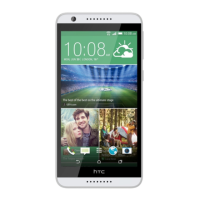
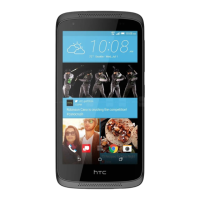
§ On the Home screen, tap the camera icon to open the Camera app.
§ Swipe up from the camera icon at the bottom-right corner of the lock screen.
§ Press the POWER button twice.
Make sure Jump to camera is turned on in Settings System Gestures.
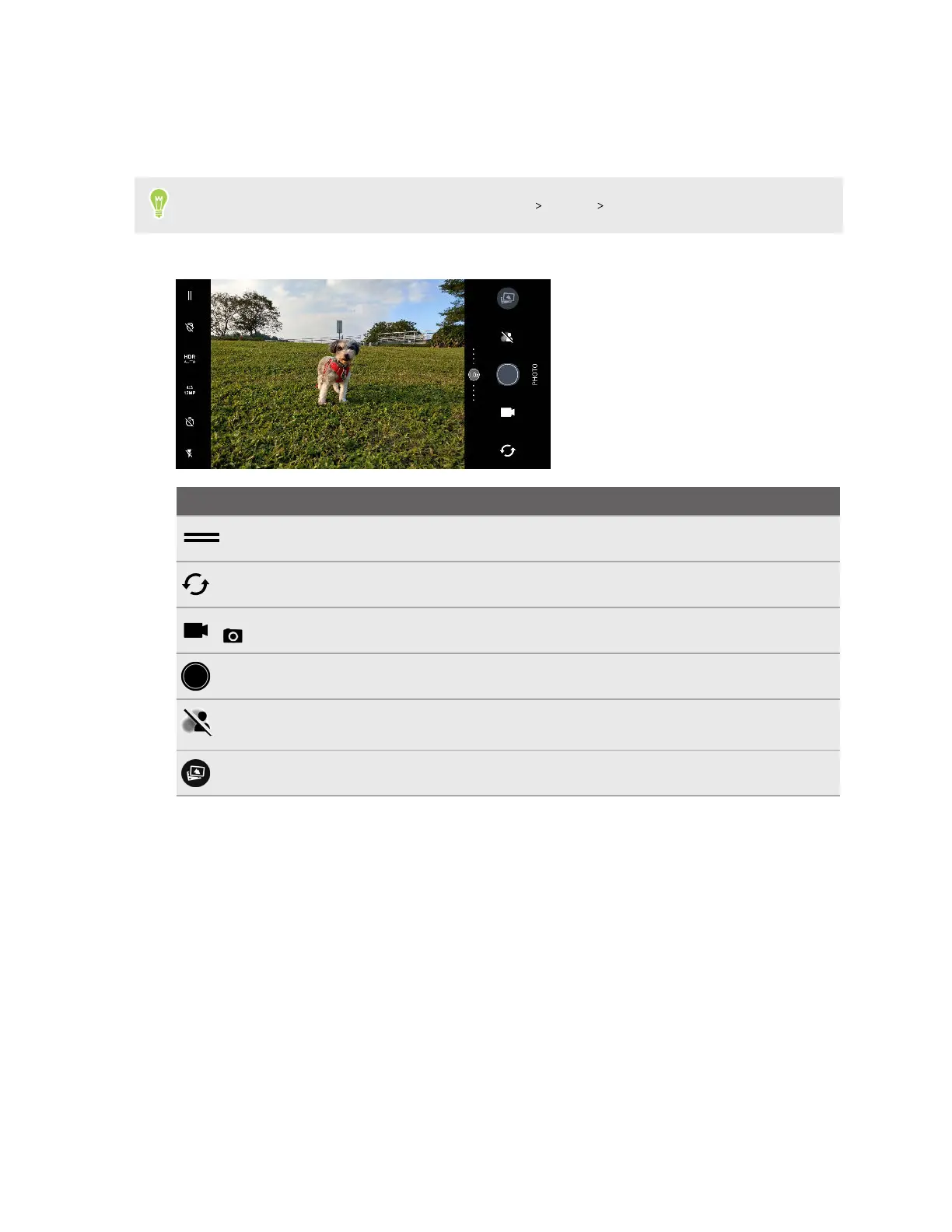
You'll see Photo mode the first time you use the Camera app.
Icon Function
Open the menu to select a capture mode or change camera settings.
Switch between the front and rear cameras.
/
Switch between Video and Photo modes.
Capture a photo.
Choose either the manual or auto Bokeh mode option so you can take photos with
blurred background.
View the last photo or video taken.
40 Taking photos and videos



 To Next Page