Creating a drawing
You can create a drawing, scribble, or illustration and include it in your note.
1. With a note opened, tap .
2. Choose a color to use.
3. Draw on the blank area using your fingertip.
4. If you need to erase a part of the drawing, tap and then move your finger
left and right on the area that you want to erase. You can also tap > Undo to
erase the last stroke you made.
5. To insert the drawing in your note, > Save.
Playing an audio recording in Notes
After recording a meeting, you can listen to the audio clip to review key points. If you
took notes while audio recording, 'timemarks' (small colored nodes in the audio bar)
are added to pin your notes within the audio recording's time frame.
1. Open a note where you have recorded a voice clip.
2. Tap to play the audio recording.
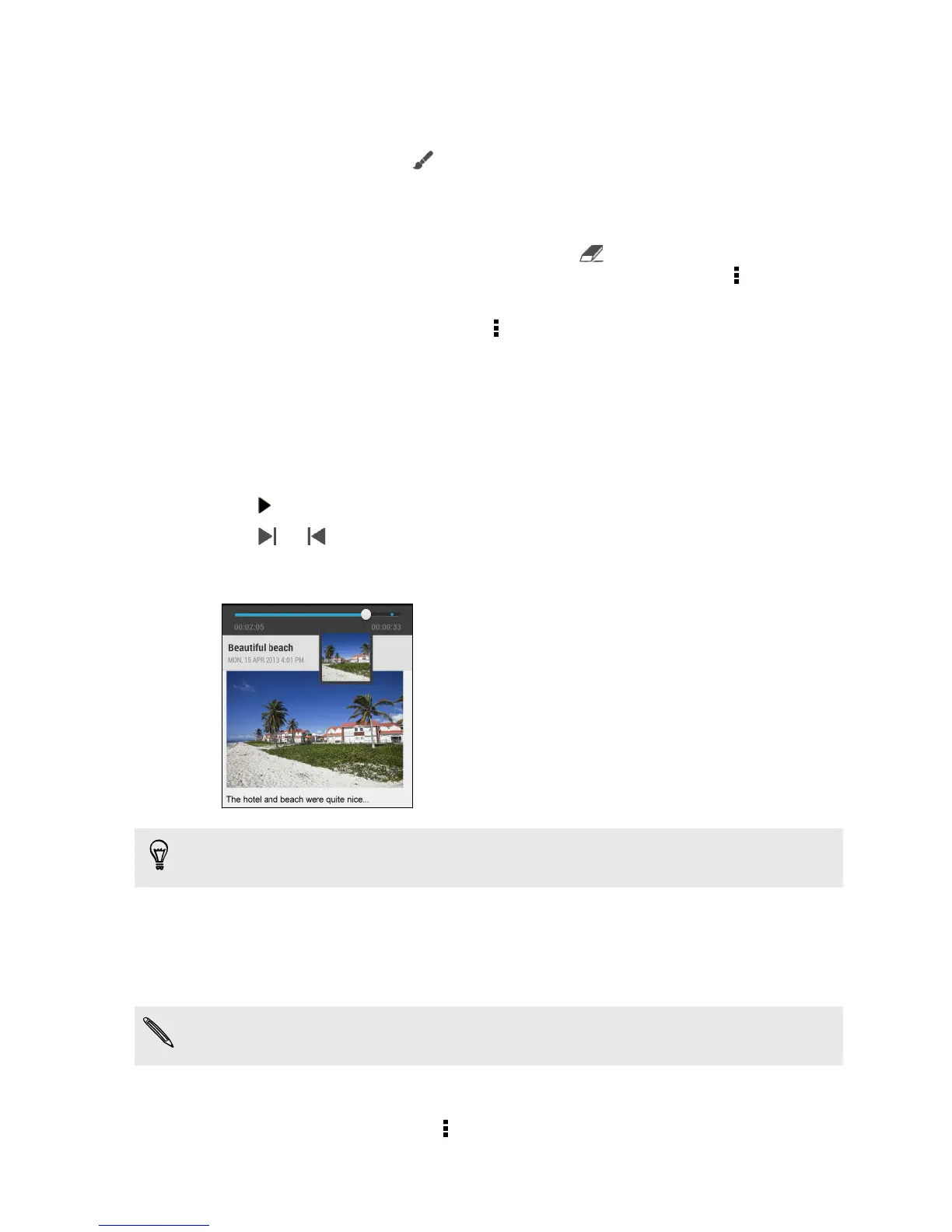
3. Tap or to go to the next or previous timemark. When you're moving
from one timemark to another, you'll see a note thumbnail for a quick preview of
what you noted down while recording.
You can also tap a particular item on your note to jump to its timemark and hear
the audio you've recorded at that time.
Syncing notes
You can choose whether to automatically or manually sync your notes between
HTC Desire 600 and your Evernote account on the Web.
You need to log in to your Evernote account from HTC Desire 600 to start syncing
notes.
1. Open the Notes app.
2. To manually sync notes, tap on the All notes screen, and then tap Sync.
146 Google Play and other apps



 To Next Page