Recording videos in slow motion
Relive high speed action bit by bit and add a touch of suspense to your videos.
1. On the Viewfinder screen, tap .
2. Under Video capture mode, tap Scene > Slow motion video.
3. Frame your subject on the Viewfinder screen.
4. Tap to start recording.
Gallery
Viewing photos and videos in Gallery
Reminisce on good times. Gallery lets you view all the photos and videos on
HTC Desire 600 or online albums. You can view photos by event or location, trim
videos, add photo frames and special effects, and more.
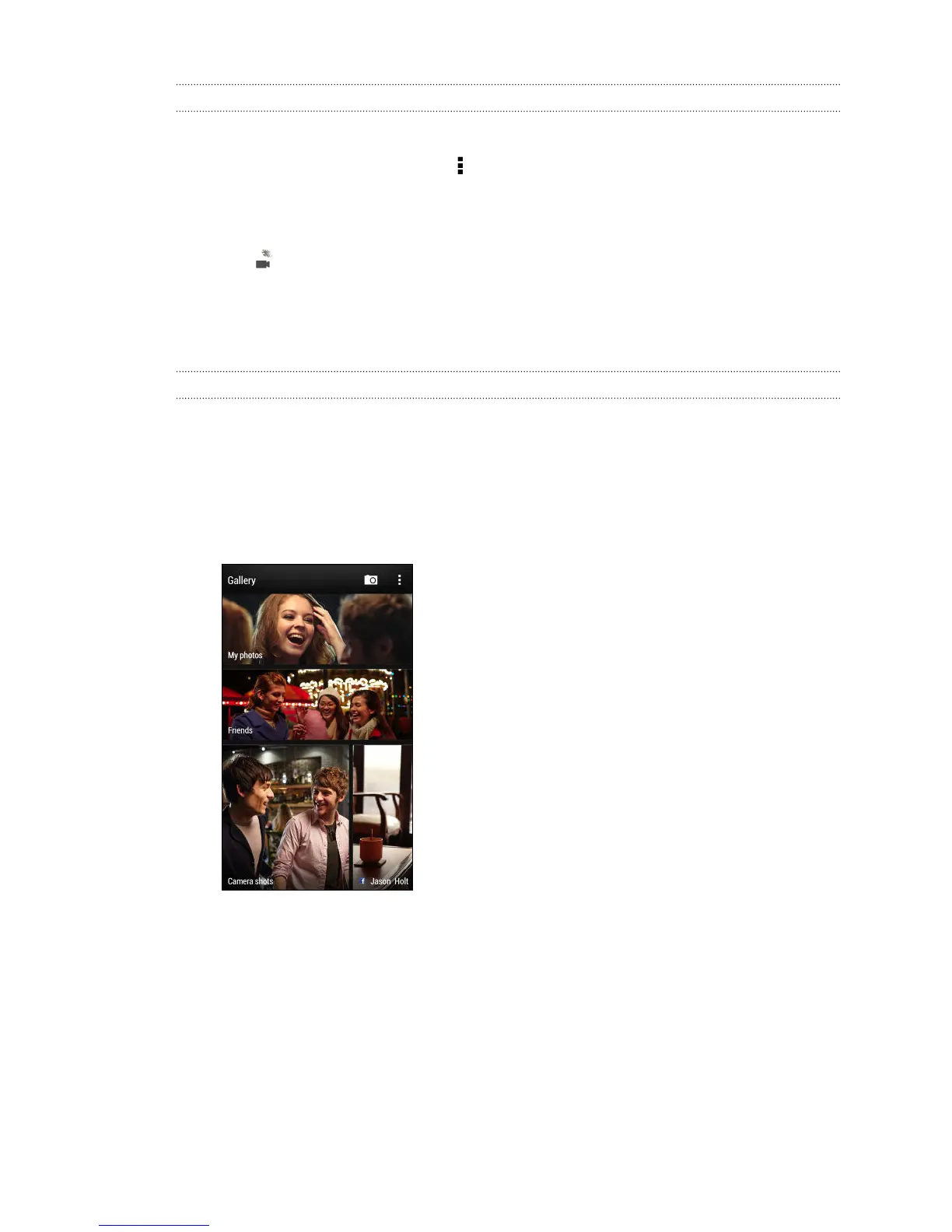
1. Open the Gallery app. You'll see tiles of photos on your HTC Desire 600, online
friends' photos, the last camera shot you took, and more. The view is refreshed
every time new photos or videos are shot or new images are added.
2. Tap a tile to browse the photos inside. To view photos stored on
HTC Desire 600, tap My photos. To browse photos on your friends' online social
networks, tap Friends.
3. Browse to an album or a group of photos.
4. Tap a photo or video to view it in full screen.
49 Camera and Gallery



 To Next Page