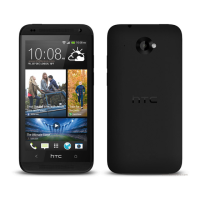
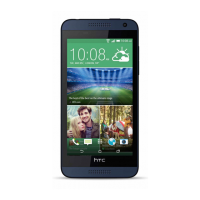
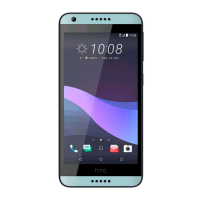
3. Swipe to choose a lock screen style.
4. Tap the lock screen style to see a preview. If you want to further customize it,
tap Settings.
5. Tap Apply.
Hiding missed calls and messages on the lock
screen
You'll see missed calls and messages on the lock screen. Want these hidden instead?
1. Slide the Notifications panel open, and then tap > Security.
2. Clear the Phone notification preview and Message notification preview options.
Securing HTC Desire 600 with a personal
touch
Make unlocking your phone as easy as looking at it. Help protect your personal
information and help prevent others from using HTC Desire 600 without your
permission by setting up face unlock.
1. Slide the Notifications panel open, and then tap > Security.
2. Tap Screen lock > Face Unlock.
3. Tap Set it up and follow the onscreen instructions.
4. Choose a backup lock to use in case the phone doesn't recognize you.
5. Tap Lock phone after, then specify the idle time before the screen is locked.
You can also tap Improve face matching on the Security screen to train
HTC Desire 600 to recognize your face in different situations, such as when you're
wearing glasses or sporting a beard.
You'll be asked to unlock the screen every time HTC Desire 600 is turned on or when
it’s idle for a certain period of time.
To further improve security, select Liveness check on the Security screen. You'll be
asked to blink to unlock the screen.
63 Personalizing



 To Next Page