User guide 7
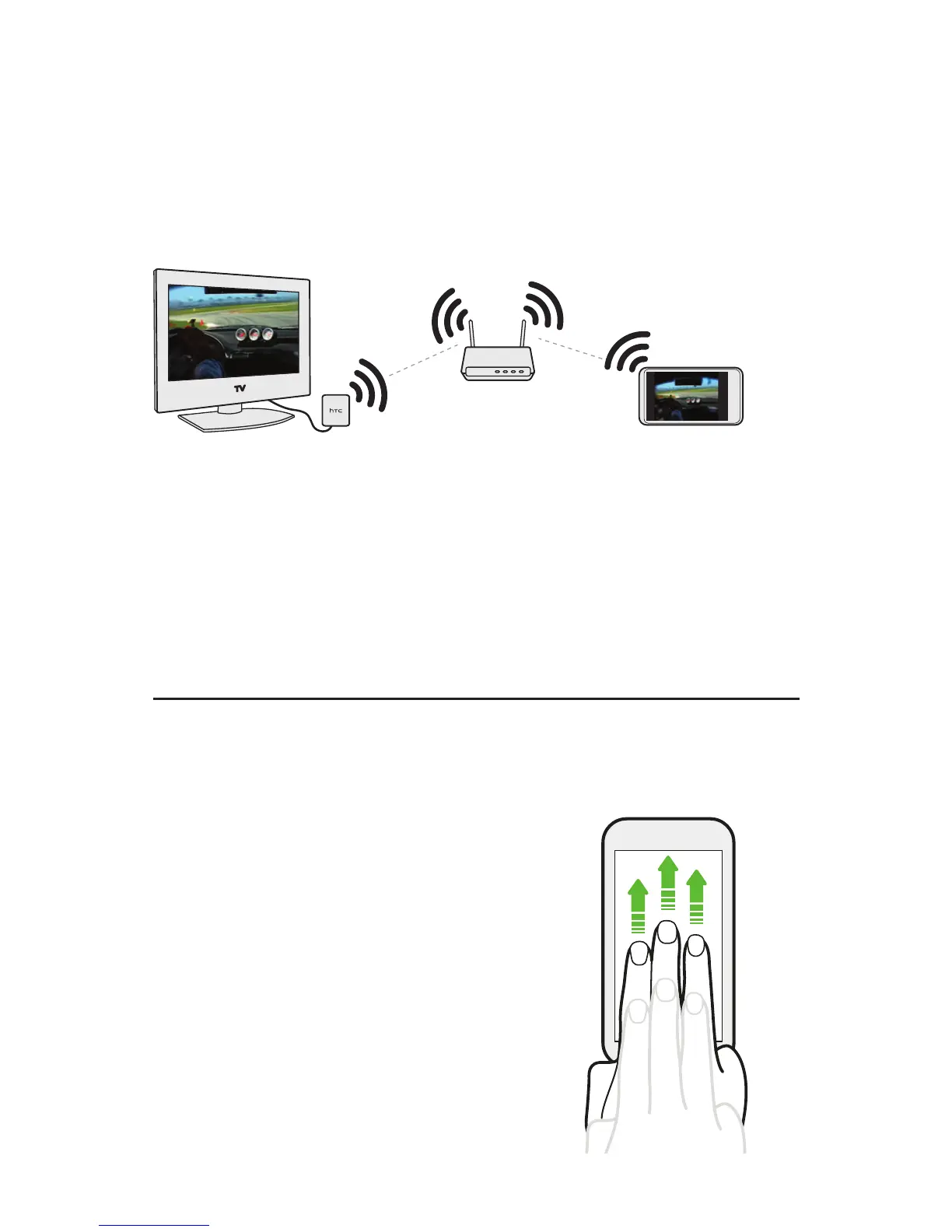
Connect your phone to your home network through your
phone’s Wi-Fi settings. Refer to your phone’s user guide
to find out how to set up a Wi-Fi connection.
Tip Your HTC Media Link HD will have better performance if
the Wi-Fi signal is strong.
Your phone connects to the HTC Media Link HD through
your Wi-Fi router except in the following situations
where a peer-to-peer connection will be used:
A Wi-Fi router is unavailable or inaccessible.
IP multi-casting is blocked on the network.
Sharing on your TV
Important Make sure your HTC Media Link HD is on and
connected to your TV.
Whenever you want to share on
your TV, you’ll only have to swipe
up with three fingers to connect
your phone to the HTC Media
Link HD.
Note Make sure that HTC gestures is
enabled. To check, go to Settings
> Display, gestures & buttons (or
Display & gestures).
To stop sharing, just swipe down
with three fingers.


 To Next Page