Accessibility settings
Accessibility features
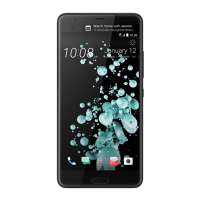
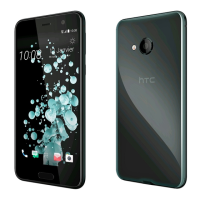
HTC U Play comes with features and settings that allow easy access and use of apps and functions.
Improve screen readability
If you have low vision, take advantage of these features to help improve screen readability.
§ Increase the font size, use color inversion, or enable high-contrast text using the
Accessibility settings. See Accessibility settings on page 164.
§ Turn magnification gestures on. See Turning Magnification gestures on or off on page 165.
§ Turn on automatic screen rotation. See Automatic screen rotation on page 160.
Get audible feedback when using the phone
Use TalkBack to hear audible feedback on what you do on your phone. See Navigating HTC U Play
with TalkBack on page 165.
Use your voice
You can use your voice to perform an action on HTC U Play.
Enter text with your voice. See Entering text by speaking on page 44.
Use Motion Launch
Motion Launch combines a motion and finger gesture to perform an action such as waking HTC U
Play from sleep mode or launching the camera. See Motion Launch on page 40.
Open Camera with Motion Launch Snap. See Launching the camera on page 43.
Accessibility settings
Use these settings to turn accessibility functions or services on or off. When you’ve downloaded and
installed an accessibility tool, such as a screen reader that provides voice feedback, you can also
control them using these settings.
1. From the Home screen, tap Settings Accessibility.
2. Tap or select the settings you want.
164 Accessibility settings


 To Next Page