EasyManua.ls Logo

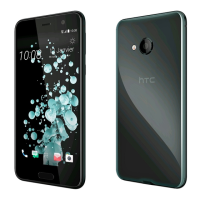
HTC U Play - User Manual

HTC U Play
175 pages
Print Icon
To Next Page IconTo Next Page
Loading...
User guide
HTC U Play
www.devicemanuals.eu/

Table of Contents

Question and Answer IconNeed help?

Do you have a question about the HTC U Play and is the answer not in the manual?

Summary

Features youll enjoy

Whats special with Camera

Highlights the camera's simple interface and organization for quick mode and setting changes.

Fingerprint sensor

Explains how to use the fingerprint scanner for quick phone wake-up and unlocking.

Boost+

Details the Boost+ app's functions for phone performance optimization and battery life extension.

Android 6.0 Marshmallow

Describes improvements in battery life and storage options with Android 6.0 Marshmallow.

Unboxing and setup

HTC U Play overview

Familiarizes users with card slots and button controls on the HTC U Play.

nano SIM card

Instructions on inserting a standard nano SIM card into the phone.

Storage card

Guide to using a storage card for photos, videos, music, and apps.

Charging the battery

Procedure for charging the HTC U Play battery using the provided adapter and cable.

Setting up HTC U Play for the first time

Walkthrough for initial phone setup, including Internet connection and account sign-in.

Fingerprint scanner

Step-by-step guide to adding and using fingerprints for unlocking the phone.

Your first week with your new phone

Unlocking the screen

Methods for unlocking the phone using the fingerprint sensor or swipe gestures.

Motion gestures

Instructions on using motion gestures to mute, lower volume, and auto-answer calls.

Touch gestures

Explanation of basic touch gestures like tap, press and hold, swipe, and drag.

Restarting HTC U Play (Soft reset)

Procedure for rebooting the phone to resolve unresponsiveness or app issues.

Notifications

Notification LED

Describes the meaning of different colored lights shown by the notification LED.

Notifications panel

How to open and interact with the panel displaying notification icons and details.

Motion Launch

Motion Launch

Combines motion and finger gestures to perform actions like waking the phone or launching apps.

Waking up and unlocking

Steps to wake and unlock the phone from sleep mode without pressing the power button.

Launching the camera

Procedure to launch the Camera app from sleep mode using a gesture.

Selecting, copying, and pasting text

Entering text

How to use the onscreen keyboard to enter letters, numbers, and symbols.

How can I type faster?

Tips to enhance typing experience with keyboard customization and prediction.

Getting help and troubleshooting

Having hardware or connection problems?

Using the Help app to troubleshoot hardware or connection issues on the phone.

Updates

Software and app updates

Information on downloading and installing software and app updates for enhancements.

Enabling automatic updates

How to configure automatic download and installation of app and system updates.

Home screen layout and fonts

Adding or removing a widget panel

Instructions for adding new panels or removing existing ones from the Home screen.

Changing your main Home screen

Steps to set HTC BlinkFeed or a widget panel as the primary Home screen.

Setting your Home wallpaper

Guide to changing the Home screen wallpaper from available options or photos.

Widgets and shortcuts

Launch bar

Customizing the launch bar for one-touch access to frequently used apps and shortcuts.

Adding Home screen widgets

How to add widgets to the Home screen for at-a-glance information.

Grouping apps on the widget panel and launch bar

Instructions on creating folders to group apps on the Home screen or launch bar.

What is the HTC Sense Home widget?

Setting up the HTC Sense Home widget

Guide to setting up the HTC Sense Home widget for personalized content.

Sound preferences

Changing your ringtone

Steps to select and set a ringtone for incoming calls.

Setting the default volume

How to adjust volume levels for different sound sources like ringtones and media.

Tuning your HTC USonic earphones

Guide to setting up personal audio profiles for HTC USonic earphones.

Taking photos and videos

Camera screen

Overview of the Camera app interface and its default Photo mode.

Choosing a capture mode

How to switch between different photo and video capture modes.

Recording video

Instructions for recording videos, changing focus, and using controls.

Tips for capturing better photos

Advice on improving photo quality, including lens cleaning and proper handling.

Using HDR

Selfies

Guide to taking selfies using Selfie Photo mode and its resolution options.

Taking selfies automatically

How to enable and use the auto-selfie feature for hands-free capture.

Taking a panoramic selfie

Instructions for capturing wide-angle selfies using Selfie Panorama mode.

Advanced camera features

Manually adjusting camera settings

How to control camera settings like white balance, exposure, and ISO in Pro mode.

Taking a RAW photo

Guide to capturing photos in RAW DNG format for advanced editing.

Phone calls

Making a call with Smart dial

Using Smart dial to quickly place calls by searching contacts or call history.

Receiving calls

Information on the incoming call screen and how to manage calls.

Answering or rejecting a call

Methods for answering or declining incoming phone calls.

Emergency call

How to make emergency calls even without a SIM or network signal.

What can I do during a call?

Options available during an active call, like speakerphone and call holding.

Call History

Blocking a caller

Instructions on how to block unwanted phone numbers or contacts.

Switching between silent, vibrate, and normal modes

How to change the phone's sound profile between silent, vibrate, and normal.

SMS and MMS

Sending a text message (SMS)

Step-by-step guide to sending text messages, including adding recipients and text.

Sending a multimedia message (MMS)

How to send messages with attachments like photos or videos.

Blocking unwanted messages

Process for moving spam messages to the block box and managing blocked contacts.

Contacts

Your contacts list

Overview of the People app and its capabilities for managing contacts.

Finding people

How to search for contacts within the phone, company directory, or social networks.

Adding a new contact

Detailed steps for adding new contact information and details.

Editing a contact’s information

Instructions for modifying existing contact details in the People app.

Getting in touch with a contact

Importing or copying contacts

Methods for importing contacts from SIM card, phone storage, or accounts.

Merging contact information

How to combine duplicate contact entries from different sources.

Contact groups

Steps for organizing contacts into groups for efficient messaging or emailing.

Battery

Tips for extending battery life

General advice and features to help increase the phone's battery duration.

Using power saver mode

How to enable and use Power saver mode to reduce battery consumption.

Extreme power saving mode

Guide to activating Extreme power saving mode for maximum battery extension.

Checking battery usage

How to monitor battery consumption by system and apps.

Battery optimization for apps

Information on how battery optimization helps prolong standby time and how to manage it.

Storage

Freeing up storage space

Tips and methods to free up phone storage space by managing data.

Should I use the storage card as removable or internal storage?

Guidance on choosing between removable and internal storage for a microSD card.

Setting up your storage card as internal storage

Steps to format and set up a storage card as internal storage for the phone.

Moving apps and data between the phone storage and storage card

How to move apps and data between internal phone storage and the storage card.

Moving an app to the storage card

Copying files between the phone storage and storage card

How to copy files between phone storage, storage card, and external USB devices.

Copying files between HTC U Play and your computer

Instructions for transferring files between the phone and a computer via USB.

Backup and reset

Ways of backing up files, data, and settings

Overview of methods to back up phone data before resets or upgrades.

Android Backup Service

Using Google Drive for automatic backup of app data and settings.

Restoring from your previous HTC phone

Guide to restoring data from a previous HTC phone backup.

Backing up contacts and messages

Tips for separately backing up contacts and text messages.

Resetting HTC U Play (Hard reset)

Procedure for performing a factory reset to restore the phone to initial state.

Transfer

Ways of transferring content from your previous phone

Methods for transferring content based on the previous phone's operating system.

Transferring content from an Android phone

Using HTC Transfer Tool to move data from an Android phone to HTC U Play.

Transferring iPhone content through iCloud

How to transfer iPhone content from iCloud storage to HTC U Play.

Transferring photos, videos, and music between your phone and computer

Ways to transfer media files between the phone and a computer.

Installing and removing apps

Getting apps from Google Play

Guide to finding and installing free and paid apps from the Google Play Store.

Finding and installing an app

Steps for finding, reviewing, and installing apps from Google Play.

Uninstalling an app

How to remove downloaded and installed apps from the phone.

Managing apps

Arranging apps

How to arrange and rearrange apps on the Apps screen alphabetically or by folder.

Controlling app permissions

How to manage app permissions for data access, enhancing phone privacy and security.

Setting default apps

Choosing default applications for web browsing, messaging, and other functions.

Disabling an app

How to disable apps that cannot be uninstalled but may run in the background.

HTC BlinkFeed

What is HTC BlinkFeed?

Introduction to HTC BlinkFeed for personalized news and social updates.

Turning HTC BlinkFeed on or off

Instructions to enable or disable the HTC BlinkFeed feature.

Ways of adding content on HTC BlinkFeed

How to personalize BlinkFeed by adding news sources and selecting feeds.

Showing content from your apps and social networks

Displaying friends' posts and content from HTC apps on HTC BlinkFeed.

Removing content from HTC BlinkFeed

How to remove unwanted tiles, feed sources, social networks, or apps from BlinkFeed.

Themes

What is HTC Themes?

Introduction to HTC Themes for customizing phone appearance with wallpapers, sounds, icons.

Downloading themes or individual elements

How to find and download themes and elements for phone personalization.

Editing your theme

Guide to mixing and matching theme parts like sounds, icons, and wallpapers.

Deleting a theme

Instructions on how to delete themes that are no longer wanted on the phone.

Choosing a Home screen layout

Options for selecting between Classic and Freestyle Home screen layouts.

Lock screen wallpaper

How to set a different wallpaper for the phone's lock screen.

Boost+

About Boost+

Overview of Boost+ app features for monitoring usage and optimizing performance.

Turning Smart Boost on or off

How to enable or disable the Smart Boost feature for automatic memory freeing.

Manually clearing junk files

Procedure for regularly removing junk files to improve storage and performance.

Optimizing apps running in the foreground

How to enable optimization for apps to improve system resources and battery life.

Managing apps running in the background

Setting the Boost+ app to automatically stop unused background apps.

Creating an unlock pattern for some apps

How to add a security pattern to lock specific apps for privacy.

Weather and clock

Checking Weather

Using the Weather app and widget to view current and forecast weather information.

Setting an alarm

Instructions for setting one or more alarms using the Clock app.

Setting the date and time manually

How to manually set the date, time, and time zone on the phone.

Google Photos

Viewing photos and videos

How to view, edit, and share photos and videos, including cloud-backed media.

Editing your photos

Guide to editing photos within the Google Photos app, including adjustments and filters.

Trimming a video

How to trim video clips using the Google Photos app to select start and end points.

Mail

Checking your mail

How to access and read email messages from various accounts in the Mail app.

Sending an email message

Step-by-step guide to composing and sending email messages with attachments.

Reading and replying to an email message

How to read, reply to, or forward email messages and conversations.

Managing email messages

Options for sorting, moving, and deleting email messages within the Mail app.

Searching email messages

How to search for specific emails by keywords, sender, or subject.

Working with Exchange ActiveSync email

Managing Exchange ActiveSync accounts, including flagging emails and setting out-of-office replies.

Voice Recorder

Recording voice clips

Instructions for using the Voice Recorder app to capture audio recordings.

Internet connections

Turning the data connection on or off

How to enable or disable the mobile data connection to save battery and data charges.

Managing your data usage

How to track and manage mobile data usage to stay within allowance limits.

Keeping track of your data usage

Monitoring data usage per app and setting monthly data limits or alerts.

Wi-Fi connection

Turning Wi-Fi on or off

Steps to enable or disable the Wi-Fi connection and scan for networks.

Connecting to a Wi-Fi network

How to connect to detected Wi-Fi networks, including secured ones.

Connecting to VPN

Instructions for adding and connecting to virtual private networks (VPNs).

Using HTC U Play as a Wi-Fi hotspot

How to turn the phone into a Wi-Fi hotspot to share its data connection.

Sharing your phones Internet connection by USB tethering

How to connect the phone's Internet to a computer using USB tethering.

Wireless sharing

What is HTC Connect?

Introduction to HTC Connect for wirelessly streaming media to speakers or TVs.

Using HTC Connect to share your media

How to use HTC Connect to stream music or video from the phone to devices.

Turning Bluetooth on or off

Steps to enable or disable the Bluetooth connection on the phone.

Connecting a Bluetooth headset

Guide to pairing and connecting a Bluetooth headset to the phone.

Receiving files using Bluetooth

How to receive various files like photos and documents via Bluetooth.

Using NFC

Turning NFC on or off

How to enable or disable NFC (Near Field Communication) on the phone.

Beaming content

How to share content instantly to another NFC-capable device using Android Beam.

Common settings

Do not disturb mode

How to use Do not disturb mode to silence alerts while keeping data connection.

Turning location services on or off

How to enable or disable location services and select location modes.

Setting when to turn off the screen

How to set the idle time before the phone's screen automatically turns off.

Airplane mode

How to turn Airplane mode on or off to disable all wireless radios.

Screen brightness

How to adjust screen brightness manually or using automatic brightness.

Security settings

Assigning a PIN to a nano SIM card

How to protect the nano SIM card by assigning a Personal Identification Number (PIN).

Setting a screen lock

How to set a screen lock pattern or PIN to protect personal information.

Setting up Smart Lock

How to set up Smart Lock to unlock the phone using trusted devices or locations.

Accessibility settings

Improve screen readability

Features to enhance screen readability for users with low vision.

Get audible feedback when using the phone

Using TalkBack for audible feedback to navigate the phone.

Use Motion Launch

How Motion Launch combines gestures to perform actions like waking the phone.

Turning Magnification gestures on or off

Using finger gestures to magnify portions of the phone's screen.

Navigating HTC U Play with TalkBack

Guidance on using TalkBack for spoken feedback navigation.

Using TalkBack gestures

Explanation of TalkBack gestures that replace regular touch gestures.

Summary

Features youll enjoy

Whats special with Camera

Highlights the camera's simple interface and organization for quick mode and setting changes.

Fingerprint sensor

Explains how to use the fingerprint scanner for quick phone wake-up and unlocking.

Boost+

Details the Boost+ app's functions for phone performance optimization and battery life extension.

Android 6.0 Marshmallow

Describes improvements in battery life and storage options with Android 6.0 Marshmallow.

Unboxing and setup

HTC U Play overview

Familiarizes users with card slots and button controls on the HTC U Play.

nano SIM card

Instructions on inserting a standard nano SIM card into the phone.

Storage card

Guide to using a storage card for photos, videos, music, and apps.

Charging the battery

Procedure for charging the HTC U Play battery using the provided adapter and cable.

Setting up HTC U Play for the first time

Walkthrough for initial phone setup, including Internet connection and account sign-in.

Fingerprint scanner

Step-by-step guide to adding and using fingerprints for unlocking the phone.

Your first week with your new phone

Unlocking the screen

Methods for unlocking the phone using the fingerprint sensor or swipe gestures.

Motion gestures

Instructions on using motion gestures to mute, lower volume, and auto-answer calls.

Touch gestures

Explanation of basic touch gestures like tap, press and hold, swipe, and drag.

Restarting HTC U Play (Soft reset)

Procedure for rebooting the phone to resolve unresponsiveness or app issues.

Notifications

Notification LED

Describes the meaning of different colored lights shown by the notification LED.

Notifications panel

How to open and interact with the panel displaying notification icons and details.

Motion Launch

Motion Launch

Combines motion and finger gestures to perform actions like waking the phone or launching apps.

Waking up and unlocking

Steps to wake and unlock the phone from sleep mode without pressing the power button.

Launching the camera

Procedure to launch the Camera app from sleep mode using a gesture.

Selecting, copying, and pasting text

Entering text

How to use the onscreen keyboard to enter letters, numbers, and symbols.

How can I type faster?

Tips to enhance typing experience with keyboard customization and prediction.

Getting help and troubleshooting

Having hardware or connection problems?

Using the Help app to troubleshoot hardware or connection issues on the phone.

Updates

Software and app updates

Information on downloading and installing software and app updates for enhancements.

Enabling automatic updates

How to configure automatic download and installation of app and system updates.

Home screen layout and fonts

Adding or removing a widget panel

Instructions for adding new panels or removing existing ones from the Home screen.

Changing your main Home screen

Steps to set HTC BlinkFeed or a widget panel as the primary Home screen.

Setting your Home wallpaper

Guide to changing the Home screen wallpaper from available options or photos.

Widgets and shortcuts

Launch bar

Customizing the launch bar for one-touch access to frequently used apps and shortcuts.

Adding Home screen widgets

How to add widgets to the Home screen for at-a-glance information.

Grouping apps on the widget panel and launch bar

Instructions on creating folders to group apps on the Home screen or launch bar.

What is the HTC Sense Home widget?

Setting up the HTC Sense Home widget

Guide to setting up the HTC Sense Home widget for personalized content.

Sound preferences

Changing your ringtone

Steps to select and set a ringtone for incoming calls.

Setting the default volume

How to adjust volume levels for different sound sources like ringtones and media.

Tuning your HTC USonic earphones

Guide to setting up personal audio profiles for HTC USonic earphones.

Taking photos and videos

Camera screen

Overview of the Camera app interface and its default Photo mode.

Choosing a capture mode

How to switch between different photo and video capture modes.

Recording video

Instructions for recording videos, changing focus, and using controls.

Tips for capturing better photos

Advice on improving photo quality, including lens cleaning and proper handling.

Using HDR

Selfies

Guide to taking selfies using Selfie Photo mode and its resolution options.

Taking selfies automatically

How to enable and use the auto-selfie feature for hands-free capture.

Taking a panoramic selfie

Instructions for capturing wide-angle selfies using Selfie Panorama mode.

Advanced camera features

Manually adjusting camera settings

How to control camera settings like white balance, exposure, and ISO in Pro mode.

Taking a RAW photo

Guide to capturing photos in RAW DNG format for advanced editing.

Phone calls

Making a call with Smart dial

Using Smart dial to quickly place calls by searching contacts or call history.

Receiving calls

Information on the incoming call screen and how to manage calls.

Answering or rejecting a call

Methods for answering or declining incoming phone calls.

Emergency call

How to make emergency calls even without a SIM or network signal.

What can I do during a call?

Options available during an active call, like speakerphone and call holding.

Call History

Blocking a caller

Instructions on how to block unwanted phone numbers or contacts.

Switching between silent, vibrate, and normal modes

How to change the phone's sound profile between silent, vibrate, and normal.

SMS and MMS

Sending a text message (SMS)

Step-by-step guide to sending text messages, including adding recipients and text.

Sending a multimedia message (MMS)

How to send messages with attachments like photos or videos.

Blocking unwanted messages

Process for moving spam messages to the block box and managing blocked contacts.

Contacts

Your contacts list

Overview of the People app and its capabilities for managing contacts.

Finding people

How to search for contacts within the phone, company directory, or social networks.

Adding a new contact

Detailed steps for adding new contact information and details.

Editing a contact’s information

Instructions for modifying existing contact details in the People app.

Getting in touch with a contact

Importing or copying contacts

Methods for importing contacts from SIM card, phone storage, or accounts.

Merging contact information

How to combine duplicate contact entries from different sources.

Contact groups

Steps for organizing contacts into groups for efficient messaging or emailing.

Battery

Tips for extending battery life

General advice and features to help increase the phone's battery duration.

Using power saver mode

How to enable and use Power saver mode to reduce battery consumption.

Extreme power saving mode

Guide to activating Extreme power saving mode for maximum battery extension.

Checking battery usage

How to monitor battery consumption by system and apps.

Battery optimization for apps

Information on how battery optimization helps prolong standby time and how to manage it.

Storage

Freeing up storage space

Tips and methods to free up phone storage space by managing data.

Should I use the storage card as removable or internal storage?

Guidance on choosing between removable and internal storage for a microSD card.

Setting up your storage card as internal storage

Steps to format and set up a storage card as internal storage for the phone.

Moving apps and data between the phone storage and storage card

How to move apps and data between internal phone storage and the storage card.

Moving an app to the storage card

Copying files between the phone storage and storage card

How to copy files between phone storage, storage card, and external USB devices.

Copying files between HTC U Play and your computer

Instructions for transferring files between the phone and a computer via USB.

Backup and reset

Ways of backing up files, data, and settings

Overview of methods to back up phone data before resets or upgrades.

Android Backup Service

Using Google Drive for automatic backup of app data and settings.

Restoring from your previous HTC phone

Guide to restoring data from a previous HTC phone backup.

Backing up contacts and messages

Tips for separately backing up contacts and text messages.

Resetting HTC U Play (Hard reset)

Procedure for performing a factory reset to restore the phone to initial state.

Transfer

Ways of transferring content from your previous phone

Methods for transferring content based on the previous phone's operating system.

Transferring content from an Android phone

Using HTC Transfer Tool to move data from an Android phone to HTC U Play.

Transferring iPhone content through iCloud

How to transfer iPhone content from iCloud storage to HTC U Play.

Transferring photos, videos, and music between your phone and computer

Ways to transfer media files between the phone and a computer.

Installing and removing apps

Getting apps from Google Play

Guide to finding and installing free and paid apps from the Google Play Store.

Finding and installing an app

Steps for finding, reviewing, and installing apps from Google Play.

Uninstalling an app

How to remove downloaded and installed apps from the phone.

Managing apps

Arranging apps

How to arrange and rearrange apps on the Apps screen alphabetically or by folder.

Controlling app permissions

How to manage app permissions for data access, enhancing phone privacy and security.

Setting default apps

Choosing default applications for web browsing, messaging, and other functions.

Disabling an app

How to disable apps that cannot be uninstalled but may run in the background.

HTC BlinkFeed

What is HTC BlinkFeed?

Introduction to HTC BlinkFeed for personalized news and social updates.

Turning HTC BlinkFeed on or off

Instructions to enable or disable the HTC BlinkFeed feature.

Ways of adding content on HTC BlinkFeed

How to personalize BlinkFeed by adding news sources and selecting feeds.

Showing content from your apps and social networks

Displaying friends' posts and content from HTC apps on HTC BlinkFeed.

Removing content from HTC BlinkFeed

How to remove unwanted tiles, feed sources, social networks, or apps from BlinkFeed.

Themes

What is HTC Themes?

Introduction to HTC Themes for customizing phone appearance with wallpapers, sounds, icons.

Downloading themes or individual elements

How to find and download themes and elements for phone personalization.

Editing your theme

Guide to mixing and matching theme parts like sounds, icons, and wallpapers.

Deleting a theme

Instructions on how to delete themes that are no longer wanted on the phone.

Choosing a Home screen layout

Options for selecting between Classic and Freestyle Home screen layouts.

Lock screen wallpaper

How to set a different wallpaper for the phone's lock screen.

Boost+

About Boost+

Overview of Boost+ app features for monitoring usage and optimizing performance.

Turning Smart Boost on or off

How to enable or disable the Smart Boost feature for automatic memory freeing.

Manually clearing junk files

Procedure for regularly removing junk files to improve storage and performance.

Optimizing apps running in the foreground

How to enable optimization for apps to improve system resources and battery life.

Managing apps running in the background

Setting the Boost+ app to automatically stop unused background apps.

Creating an unlock pattern for some apps

How to add a security pattern to lock specific apps for privacy.

Weather and clock

Checking Weather

Using the Weather app and widget to view current and forecast weather information.

Setting an alarm

Instructions for setting one or more alarms using the Clock app.

Setting the date and time manually

How to manually set the date, time, and time zone on the phone.

Google Photos

Viewing photos and videos

How to view, edit, and share photos and videos, including cloud-backed media.

Editing your photos

Guide to editing photos within the Google Photos app, including adjustments and filters.

Trimming a video

How to trim video clips using the Google Photos app to select start and end points.

Mail

Checking your mail

How to access and read email messages from various accounts in the Mail app.

Sending an email message

Step-by-step guide to composing and sending email messages with attachments.

Reading and replying to an email message

How to read, reply to, or forward email messages and conversations.

Managing email messages

Options for sorting, moving, and deleting email messages within the Mail app.

Searching email messages

How to search for specific emails by keywords, sender, or subject.

Working with Exchange ActiveSync email

Managing Exchange ActiveSync accounts, including flagging emails and setting out-of-office replies.

Voice Recorder

Recording voice clips

Instructions for using the Voice Recorder app to capture audio recordings.

Internet connections

Turning the data connection on or off

How to enable or disable the mobile data connection to save battery and data charges.

Managing your data usage

How to track and manage mobile data usage to stay within allowance limits.

Keeping track of your data usage

Monitoring data usage per app and setting monthly data limits or alerts.

Wi-Fi connection

Turning Wi-Fi on or off

Steps to enable or disable the Wi-Fi connection and scan for networks.

Connecting to a Wi-Fi network

How to connect to detected Wi-Fi networks, including secured ones.

Connecting to VPN

Instructions for adding and connecting to virtual private networks (VPNs).

Using HTC U Play as a Wi-Fi hotspot

How to turn the phone into a Wi-Fi hotspot to share its data connection.

Sharing your phones Internet connection by USB tethering

How to connect the phone's Internet to a computer using USB tethering.

Wireless sharing

What is HTC Connect?

Introduction to HTC Connect for wirelessly streaming media to speakers or TVs.

Using HTC Connect to share your media

How to use HTC Connect to stream music or video from the phone to devices.

Turning Bluetooth on or off

Steps to enable or disable the Bluetooth connection on the phone.

Connecting a Bluetooth headset

Guide to pairing and connecting a Bluetooth headset to the phone.

Receiving files using Bluetooth

How to receive various files like photos and documents via Bluetooth.

Using NFC

Turning NFC on or off

How to enable or disable NFC (Near Field Communication) on the phone.

Beaming content

How to share content instantly to another NFC-capable device using Android Beam.

Common settings

Do not disturb mode

How to use Do not disturb mode to silence alerts while keeping data connection.

Turning location services on or off

How to enable or disable location services and select location modes.

Setting when to turn off the screen

How to set the idle time before the phone's screen automatically turns off.

Airplane mode

How to turn Airplane mode on or off to disable all wireless radios.

Screen brightness

How to adjust screen brightness manually or using automatic brightness.

Security settings

Assigning a PIN to a nano SIM card

How to protect the nano SIM card by assigning a Personal Identification Number (PIN).

Setting a screen lock

How to set a screen lock pattern or PIN to protect personal information.

Setting up Smart Lock

How to set up Smart Lock to unlock the phone using trusted devices or locations.

Accessibility settings

Improve screen readability

Features to enhance screen readability for users with low vision.

Get audible feedback when using the phone

Using TalkBack for audible feedback to navigate the phone.

Use Motion Launch

How Motion Launch combines gestures to perform actions like waking the phone.

Turning Magnification gestures on or off

Using finger gestures to magnify portions of the phone's screen.

Navigating HTC U Play with TalkBack

Guidance on using TalkBack for spoken feedback navigation.

Using TalkBack gestures

Explanation of TalkBack gestures that replace regular touch gestures.

HTC U Play Specifications

General IconGeneral
Display5.2 inches
Resolution1080 x 1920 pixels
ProcessorMediaTek MT6755 Helio P10
RAM3/4 GB
Storage32/64 GB
Main Camera16 MP
Front Camera16 MP
Battery2500 mAh
Operating SystemAndroid 6.0 (Marshmallow), upgradable to 7.0 (Nougat)
Dimensions146 x 72.9 x 8 mm
Weight145 g
ColorsBrilliant Black, Cosmetic Pink, Ice White, Sapphire Blue
SIMSingle SIM (Nano-SIM) or Dual SIM (Nano-SIM, dual stand-by)
NetworkGSM / HSPA / LTE
Expandable StoragemicroSD

Related product manuals