Taking a photo while recording a video—VideoPic
1. On the Home screen, tap the camera icon to open the Camera app.
2. Switch to Video mode. See Choosing a capture mode on page 60 for details.
3. Tap to start recording.
4. While recording, tap whenever you want to capture a still shot.
5. Tap to stop recording.
Quickly adjusting the exposure of your photos
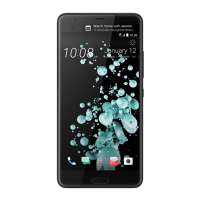
HTC U Play features a quick way of adjusting the exposure level or brightness in real time. Turn
Touch autoexposure on if you want the camera to automatically adjust the exposure when you tap
a darker or overexposed area on the Viewfinder screen.
1. On the Home screen, tap the camera icon to open the Camera app.
2. Switch to Photo or Panorama mode. See Choosing a capture mode on page 60 for details.
3. Tap to open the slideout menu.
4. Tap Settings.
5. Select the Touch autoexposure option.
6. Tap on the dark area to brighten it, or tap on the overexposed area to make it darker.
To fine tune further, you can manually adjust the exposure by dragging your finger up and
down.
7. When you're ready to take the photo, tap .
Taking continuous camera shots
Do you want to take photos of moving subjects? Whether it’s your kid's football game or a car race,
you can capture the action.
1. On the Home screen, tap the camera icon to open the Camera app.
2. Switch to Photo mode. See Choosing a capture mode on page 60 for details.
3. Press and hold .
The camera takes consecutive shots of your subject.
64 Taking photos and videos


 To Next Page