Notifications
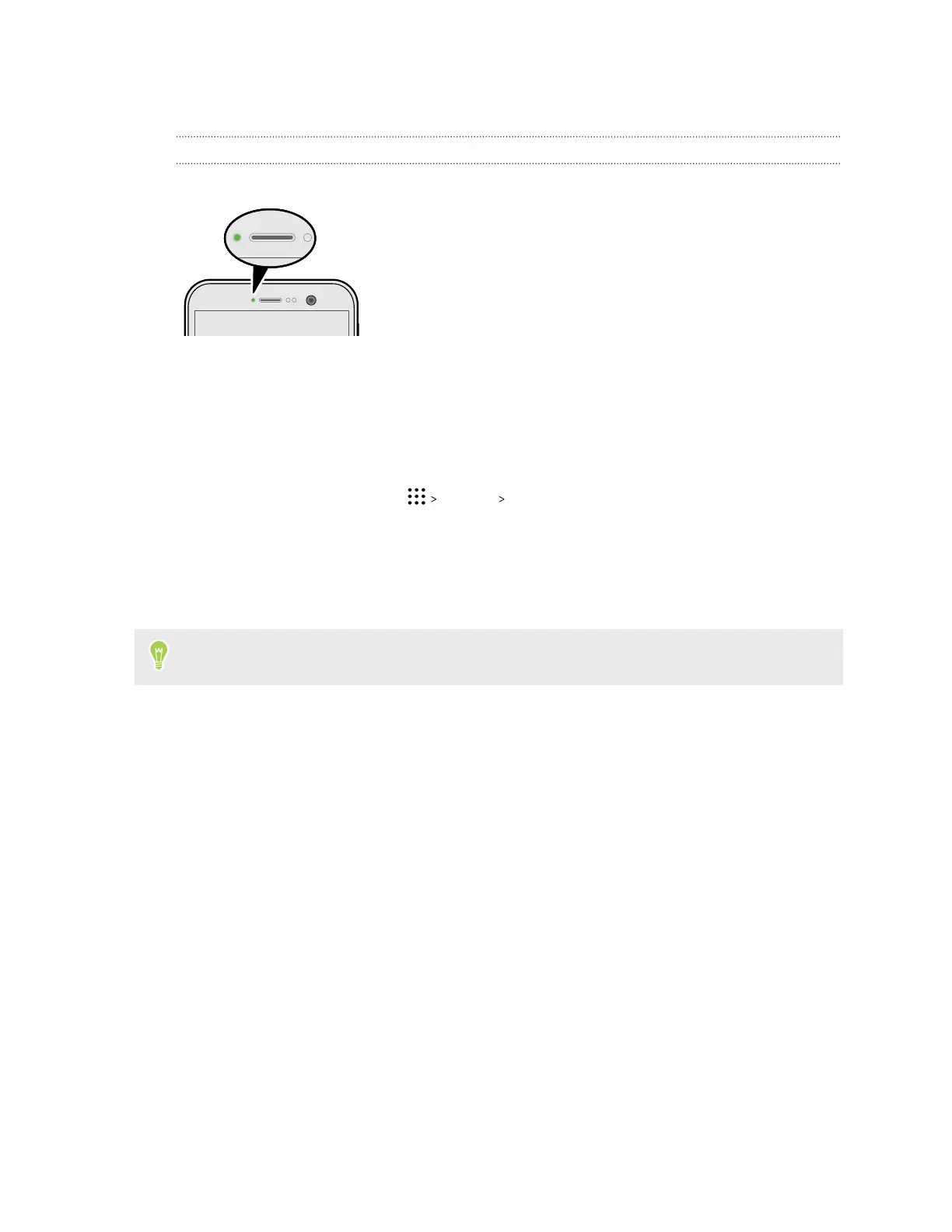
Notification LED
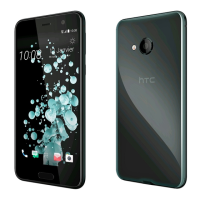
The notification LED shows a:
§ Solid green light when HTC U Play is connected to the
power adapter or a computer and the battery is fully
charged.
§ Flashing green light when you have a pending
notification.
§ Solid orange light when the battery is being charged.
§ Flashing orange light when the battery level reaches very
low.
Choosing when to flash the notification LED
You can change when to flash and which apps will flash the LED when there are new notifications.
1. From the Home screen, tap Settings Sound & notification.
2. Under Notifications, tap Flash LED for notifications. Choose whether to always flash the
LED or flash it only when the screen is off.
3. Tap Manage LED notifications. Choose which app notifications you want the LED to flash
for.
In other apps, check their settings to find out if they have an option for flashing the LED.
38 Your first week with your new phone


 To Next Page