1
1. Introduction
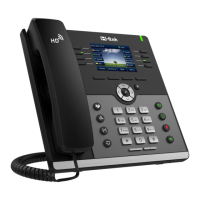
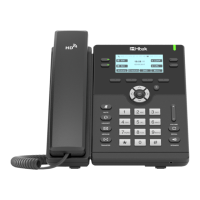
Please note: 9xx including all models:
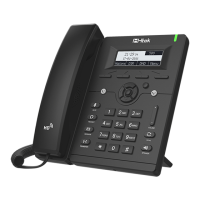
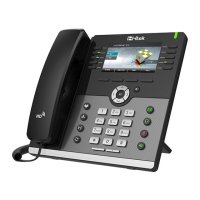
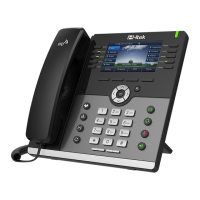
UC601/ UC901/ UC902/ UC903/ UC912/ UC912G/ UC912GM/ UC923/ UC924/ UC924E/
UC926/ UC926E
Htek IP Phone could be plugged directly into an IP network and be used without any
manual configuration.
This guide provides instructions on how to provision Htek IP Phone with the minimum
settings. Htek IP Phone supports FTP, TFTP, HTTP, and HTTPS for auto provisioning and
are configured by default to use the HTTP.
This guide is a basic guidance for provisioning on Htek IP phones, including the models:
Htek UC601/ UC901/ UC902/ UC903/ UC912/ UC912G/ UC912GM/ UC923/ UC924/
UC924E/ UC926/ UC926E
Note:The auto provision just applies to FW 1.0.3.70 or FW after 1.0.3.70. For the latest
FW, please download from our website www.htek.com.
2. Manage Configuration
Htek IP Phone could be configured via Web Interface and via Configuration File that
download through TFTP/FTP/HTTP/HTTPS. All devices support a configuration file in
proprietary binary format. Products like UC9xx, Unicorn3xxx and Unicorn6xxx accept
configuration files in XML format in legacy proprietary binary format. The XML provisioning
implementation also allows generic XML configuration file on top of the MAC based
configuration file.
When Htek IP Phone boots up or reboots, it will issue a request for these configuration
files named “factory000x.bin” --> “cfg000x.xml” --> “cfgMAC” --> “cfgMAC.xml ”, in which
“000x” is the Device Code. Take UC924 for example, the configuration file name should be
factory0012.xml. You can refer to the <<Device Type and file list>>. This “MAC” is
the device Mac address, for example “cfg001fc10608ab”. The configuration file name
should be in lower case. The file “cfgMAC” is a proprietary binary format configuration file
that must be generated by Htek configuration tools.
Device type, Device code and file list:


 To Next Page
 Loading...