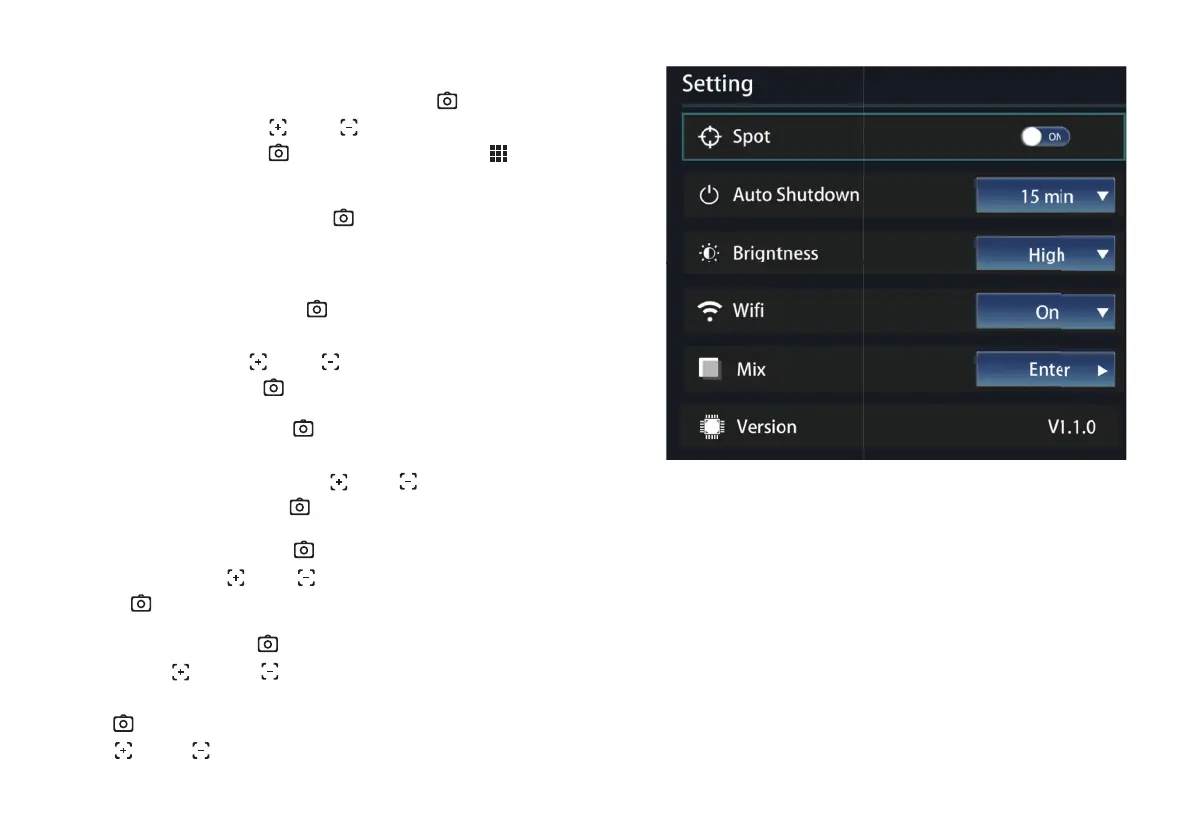
Go to the menu, select the setting icon, press the “ ” button
to go to setting, press the “ ” or “ ” button to select the
setting option, and press “ ” to go to settingm, press “ ” to
return.
Hot spot tracking switch: Press the “ ” button to switch off the
hot spot tracking, and press press this button once again to
activate the hot spot tracking.
Automatic power off: Press the “ ” button to pop up the
drop-down, and they are 5 minutes, 10 minutes, 15 minutes
respectively, press the “ ” or “ ” button to select the
power off time and press “ ” for confirmation.
Brightness setting: Press the “ ” button to pop up drop-down,
and they are low brightness, medium brightness, and high
brightness respectively. Press the “ ” or “ ” button to
select brightness, and press “ ” for confirmation.
Wifi switch setting: Press the “ ” button to pop up drop-down,
on or off. Press the “ ” or “ ” button to select wifi on/off.
Press “ ” for confirmation.
Mixing mode: Press the “ ” key to enter the blending mode,
and use the “ ” and “ ” keys to move the image up and
down. If you need to adjust the left and right direction, please press
the “ ” key to switch to the left and right mode, and then press
the “ ” and “ ” keys to move the image to the left and right.
4. Setting
16 17


 To Next Page